You took the perfect vacation photo, but the mountain got cut off at the edge. Your real estate listing photo is too narrow for the website template, and cropping it tighter would cut out half the yard.
Clipdrop Uncrop grows a photo outward instead of cropping it in — it fills the new space with matching background so the extra scenery looks like it was always there. It’s for anyone who needs a photo in a different shape without a reshoot or an editing course.
What it is
Clipdrop Uncrop is a browser-based tool that expands a photo past its original edges. You upload an image, pick a new size or shape, and it generates new background around it using AI.
There’s no software to install and no layers or masks to learn. You just tell it how big you want the final photo, and it fills in the rest.
Try it in 5 minutes
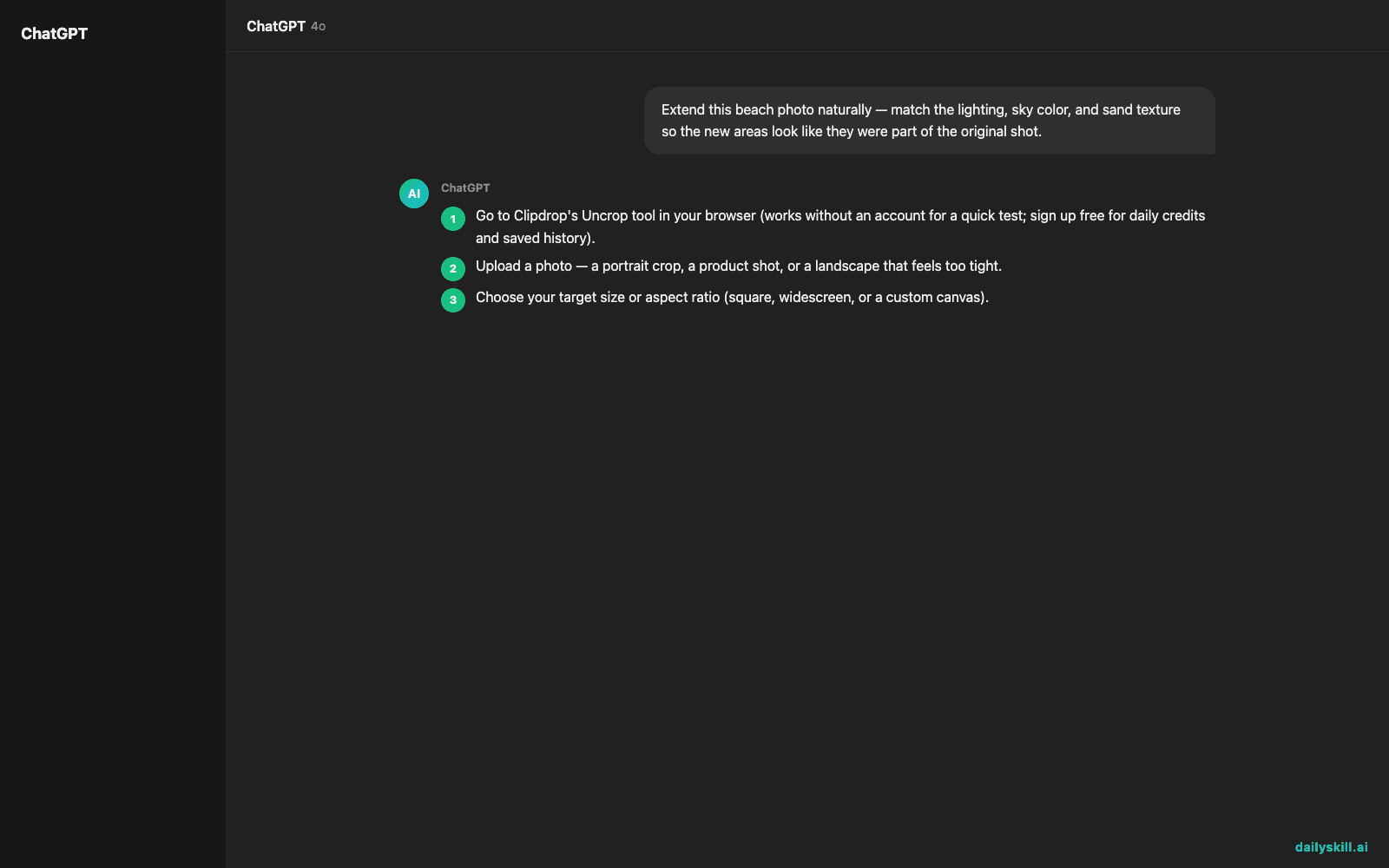
- Go to Clipdrop’s Uncrop tool in your browser (works without an account for a quick test; sign up free for daily credits and saved history).
- Upload a photo — a portrait crop, a product shot, or a landscape that feels too tight.
- Choose your target size or aspect ratio (square, widescreen, or a custom canvas).
- Drag the photo to where you want it positioned inside the new frame.
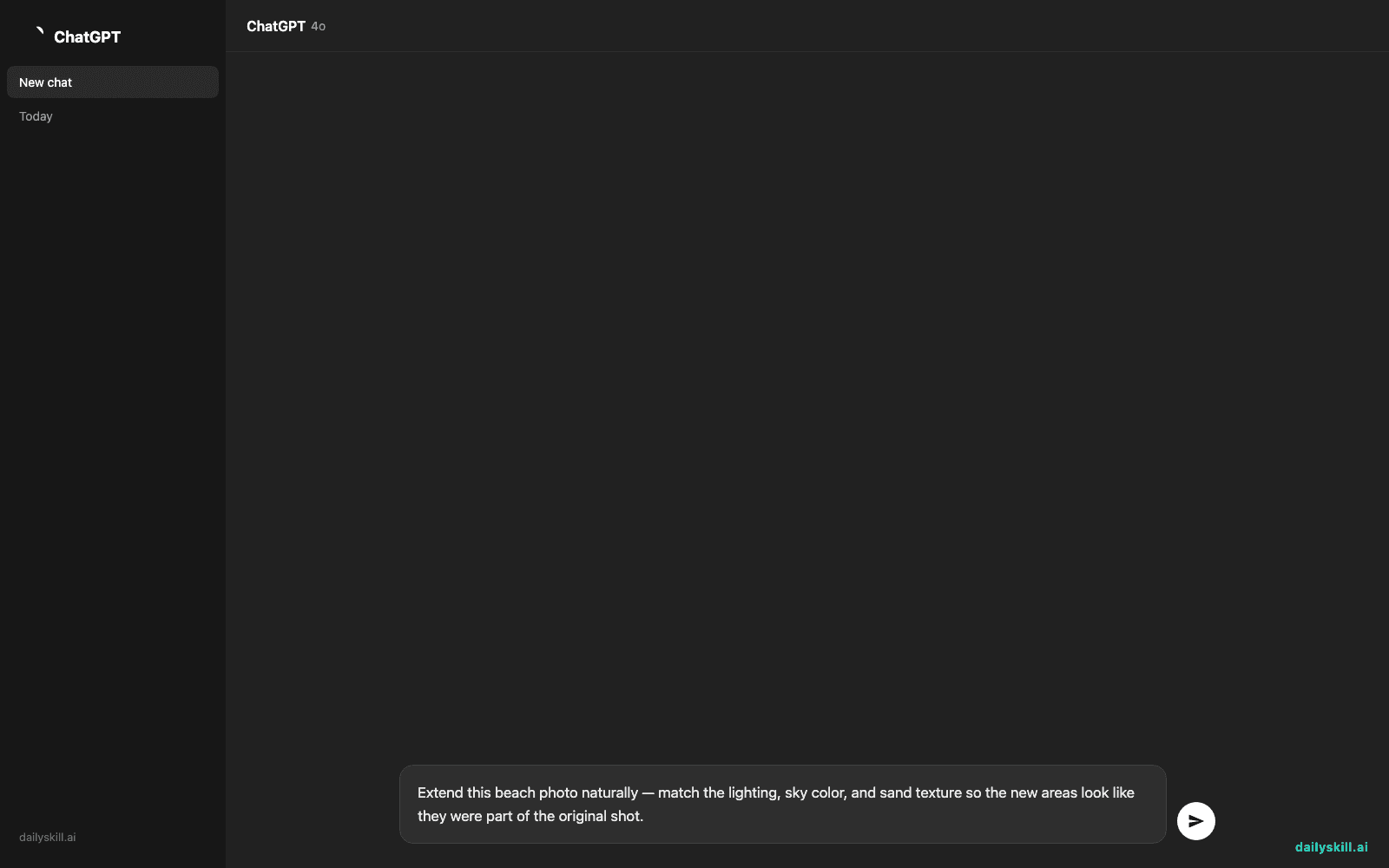
- If the tool asks for style guidance, try this prompt:
Extend this beach photo naturally — match the lighting, sky color, and sand texture so the new areas look like they were part of the original shot.
- Click generate, then download the result. If an edge looks off, nudge the photo’s position and regenerate — it only takes seconds.
A real example
Input: A photo of a house for sale, shot too close, with the left side of the yard cut off. You upload it and expand it into a wider 16:9 frame for a listing website.
Output: The same house, now centered, with a matching stretch of lawn, driveway, and sky added on the left. Lighting and shadows match the original closely enough that most people won’t spot the seam. Ready to drop into the listing template without a reshoot.
Honest take
Best for:
– Real estate or travel photos that need a different aspect ratio for a website or print
– Fixing photos where the subject sits too close to the edge
– Quick, one-off jobs where opening a full editing app feels like overkill
Not for:
– Busy or detailed backgrounds — crowds, patterned wallpaper, straight architectural lines like window grids can come out warped or repeated at the edges
– Heavy daily use on the free tier — you get a limited number of credits per day, so bulk jobs will push you toward a paid plan
FAQ
Is it free? Yes, for a limited number of photos per day. Paid plans unlock higher volume and priority processing.
Is it safe? Yes — you’re uploading a photo to generate an edited version, not sharing personal data beyond the image itself. Avoid uploading photos with sensitive documents or identifiable private info if you’re unsure of the platform’s storage policy.
Do I need an account? Not always. Some quick uses work without signing in, but creating a free account lets you track your daily credits and save past results.
Today’s pick wrap-up
Clipdrop Uncrop turns “this photo doesn’t fit” into a two-minute fix — genuinely useful the first time you need more background instead of a tighter crop. Try it on one photo today and tell us how the edges turned out. Tomorrow: Gamma, for anyone who needs a presentation done in the time it takes to make coffee.
You might also find these helpful:
- Perplexity AI — Get Answers With Sources, Not a Pile of Links
- How do I know if an AI answer is actually true?
- You.com — A Free AI Search Engine That Skips the 10 Blue Links
Master Everyday AI in 1 Minute a Day
Get our free 2026 Double-Blind AI Benchmark Scorecard & 20 Ready-to-Use Prompts, plus one honest, 60-second AI skill in your inbox every morning. Zero hype, plain English, cancel anytime.