You finally find the exact forum thread that explains your weird appliance error — except it’s in Japanese. Paste it into a normal translator and the layout collapses into a wall of text, buttons vanish, and you lose track of what replied to what.
Immersive Translate fixes that specific problem: it’s a free tool for anyone who needs to read pages, PDFs, or manuals in a language they don’t speak, without losing the original formatting.
What it is
Immersive Translate is a browser extension (Chrome, Edge, Firefox, Safari) that translates web pages and PDFs automatically as you browse. Instead of replacing the original text, it shows both languages together — called bilingual reading — so you understand the page while still seeing the source words. It also translates PDFs in place, keeping charts, tables, and layout close to the original.
Try it in 5 minutes
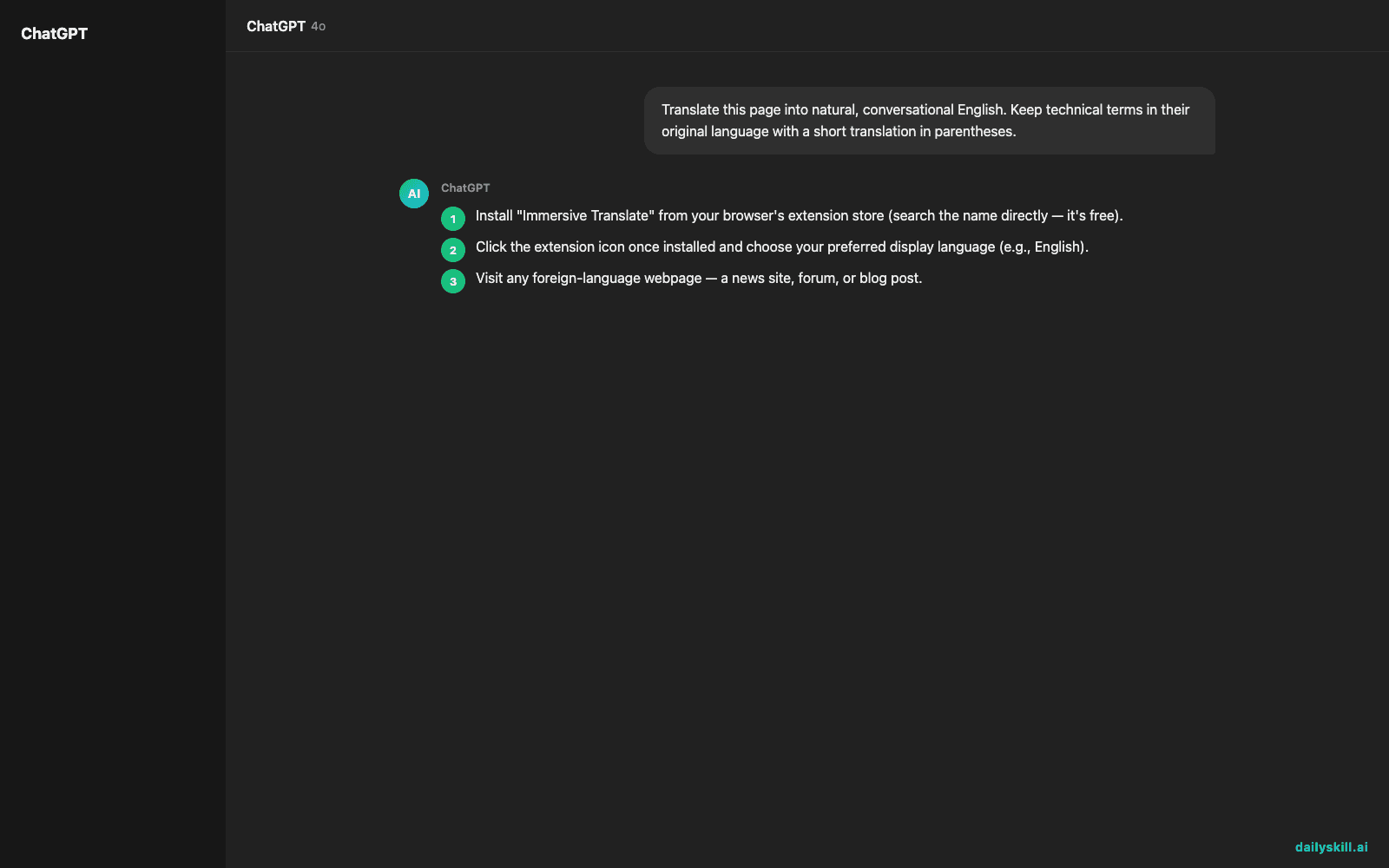
- Install “Immersive Translate” from your browser’s extension store (search the name directly — it’s free).
- Click the extension icon once installed and choose your preferred display language (e.g., English).
- Visit any foreign-language webpage — a news site, forum, or blog post.
- Click the extension icon and select “Translate this page.” A translation appears right under each paragraph.
- To test PDFs, open a foreign-language PDF in your browser and click the extension icon — it’ll offer to translate it in place.
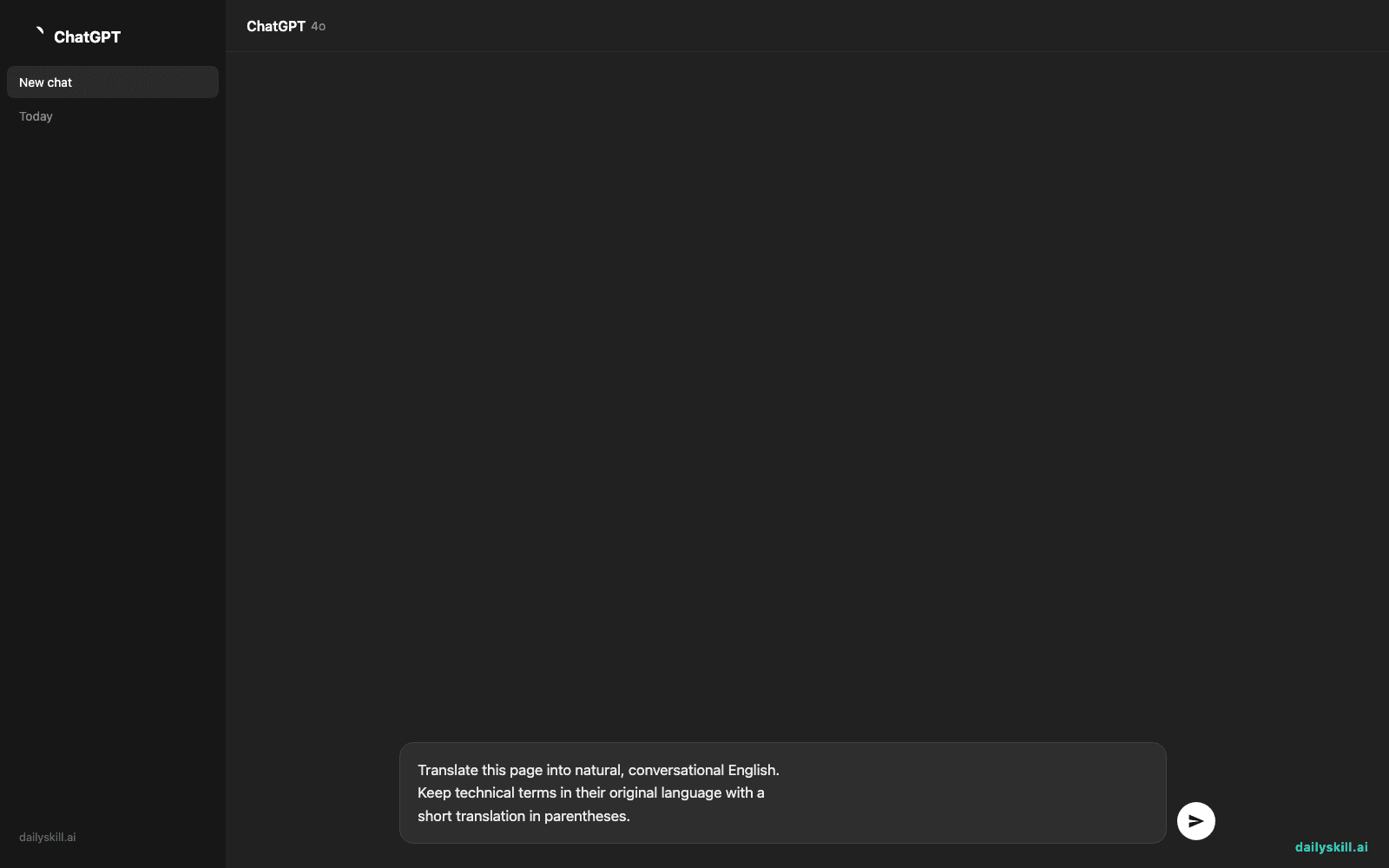
If you want a specific tone, paste this into the extension’s custom instruction box:
Translate this page into natural, conversational English.
Keep technical terms in their original language with a
short translation in parentheses.
A real example
Say you open a German cooking forum thread titled “Bester Sauerteig Rezept Diskussion” (Best sourdough recipe discussion). You click translate.
Original: “Ich benutze immer 20% Anstellgut und lasse den Teig 12 Stunden gehen.”
Translation (shown right below it): “I always use 20% starter and let the dough rise for 12 hours.”
The two lines sit stacked, so you can compare the German word for “starter” (Anstellgut) with the English translation — handy if you’re also trying to pick up vocabulary along the way.
Honest take
Best for:
– Reading foreign news sites, forums, and blogs without losing formatting
– Translating PDFs (manuals, papers, contracts) while keeping the original layout
– Casual language learners who like a bilingual reading helper for passive vocabulary pickup
Not for:
– Certified or legal document translation — always use a professional for anything official
– Long, dense PDFs with heavy formatting (multi-column academic papers, scanned images) — translation quality drops and layout can shift
The free tier covers unlimited page translations using its built-in engines, which is generous for everyday browsing. Some premium AI translation engines inside the tool are usage-limited, but the core translating feature stays free either way.
FAQ
Is it free? Yes — core page and PDF translation is free with no cap on how many pages you translate.
Is it safe? It’s a legitimate, widely-used extension, but like any extension, only install it from the official store listing and review the permissions it asks for.
Do I need an account? No account is required to start translating; you can create one later if you want to sync settings across devices.
Today’s pick wrap-up
If you read anything in another language — news, recipes, manuals — Immersive Translate turns it into a comfortable bilingual reading experience in one click. Try it on one foreign page today and tell us what you translated in the comments. Tomorrow: we open up Copy.ai and see how fast it can write your next marketing email.
You might also like: