“Error 0x80070005 — Access Denied.” Your screen just froze on that, and you have zero idea what it means or what to click next.
Here’s exactly how to get a plain-language explanation and 2-3 fixes to try — in about 60 seconds, no tech background needed.
Sound familiar?
An error pops up, you copy the weird code into Google, and you land on a forum thread from 2014 full of arguments that never got resolved.
Twenty minutes later, you still don’t know what’s wrong. You just know you’re not alone in being confused.
The 60-second fix
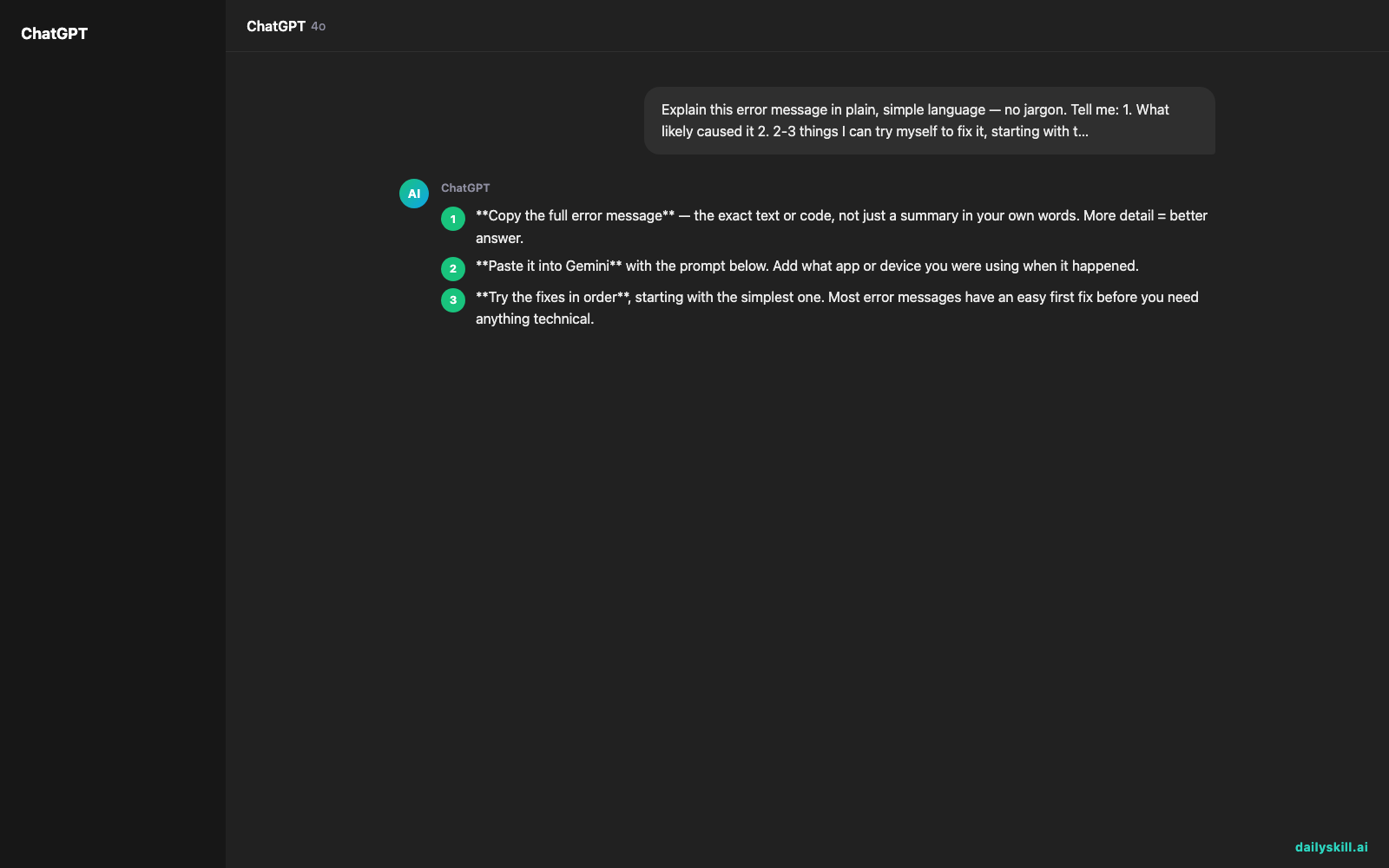
- Copy the full error message — the exact text or code, not just a summary in your own words. More detail = better answer.
- Paste it into Gemini with the prompt below. Add what app or device you were using when it happened.
- Try the fixes in order, starting with the simplest one. Most error messages have an easy first fix before you need anything technical.
Copy-paste this prompt:
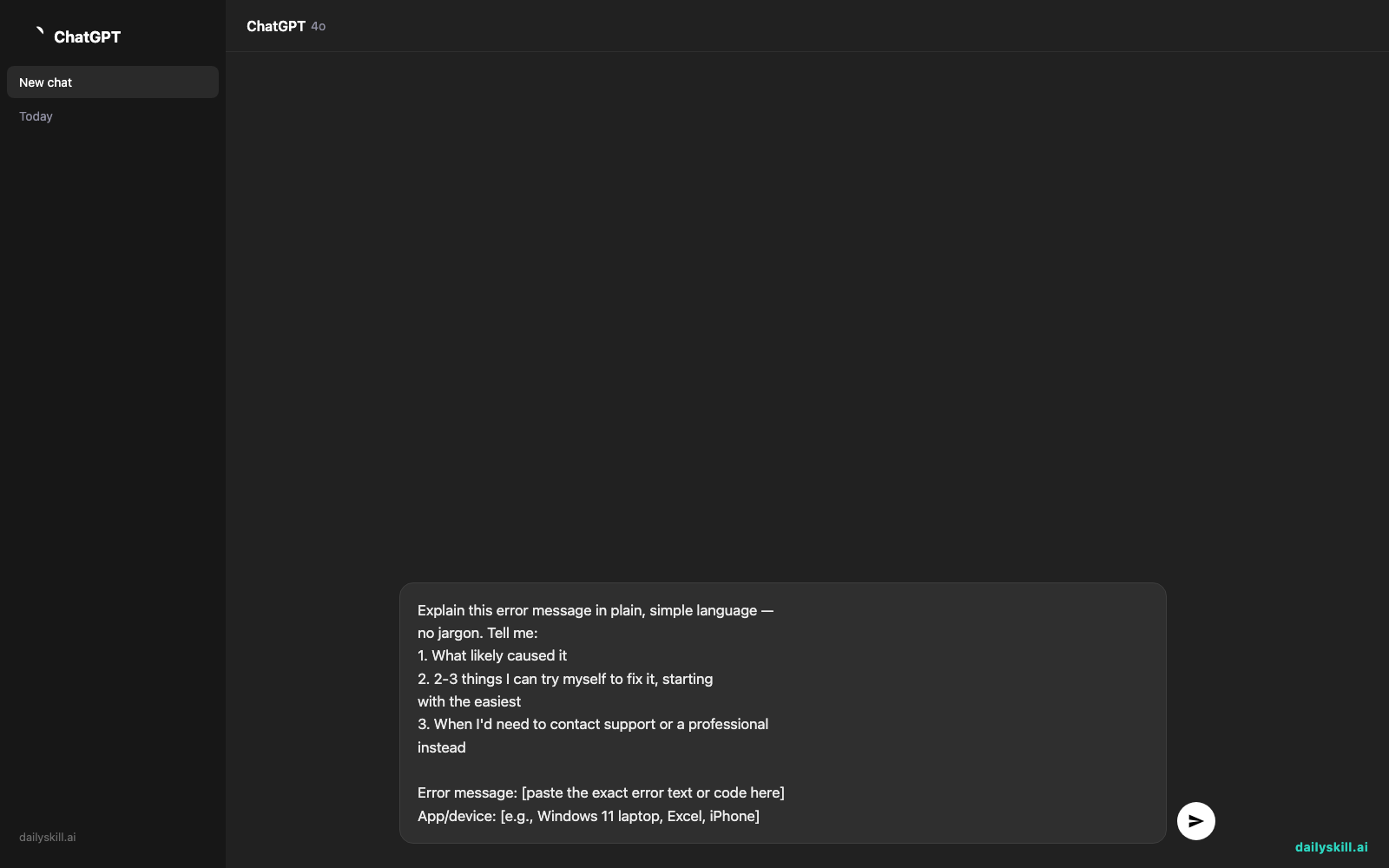
Explain this error message in plain, simple language —
no jargon. Tell me:
1. What likely caused it
2. 2-3 things I can try myself to fix it, starting
   with the easiest
3. When I'd need to contact support or a professional
   instead

Error message: [paste the exact error text or code here]
App/device: [e.g., Windows 11 laptop, Excel, iPhone]
Real example
Input:
Error message: “0x80070005 — Access Denied”
App/device: Windows 11 laptop, trying to install an update
Gemini’s response:
This error usually means Windows doesn’t have permission to write the files it needs during the update.
Try these first:
1. Restart your computer, then try the update again — this clears temporary permission glitches.
2. Right-click the update or installer and choose “Run as administrator.”
3. Temporarily pause your antivirus software, since it can sometimes block the update process.If none of these work, the issue may be a corrupted system file, and it’s worth contacting Microsoft support or a tech-savvy friend for a deeper fix.
That’s a real fix, in one pass, with zero forum digging.
Level up
- Screenshot instead of typing: if the error has extra details in a small popup, snap a screenshot and describe what it says — Gemini can still work from your description.
- Ask “is this safe to ignore?” — some errors are harmless and can be dismissed; ask directly so you’re not wasting time on a non-issue.
- Get the “for a 10-year-old” version if the first explanation still feels technical — add “explain like I’m new to computers” to the prompt.
FAQ
What does this error mean, and why can’t I just Google it?
You can — but AI reads the full message and your context (app, device) together, giving you one clear answer instead of ten conflicting forum posts.
Does this work for phone app errors too, not just computers?
Yes. Paste any error message — from an iPhone, Android app, or software program — and ask the same way.
What if the fixes don’t work?
That’s a good sign it’s time for real support (the app’s help team or a professional) — the AI explanation helps you describe the problem clearly when you reach out.
Today’s check-in
Try it on the next weird error you see and reply with what it turned out to mean — we’re building a shared “decoded errors” list from real reader stories. Tomorrow: turn what’s already in your fridge into a full 5-day meal plan, no grocery run required.
You might also like:
- Can I use AI to practice skills like speaking, writing, or problem-solving?
- Ideogram — Finally, an AI Image Generator That Gets Text Right
Master Everyday AI in 1 Minute a Day
Get our free 2026 Double-Blind AI Benchmark Scorecard & 20 Ready-to-Use Prompts, plus one honest, 60-second AI skill in your inbox every morning. Zero hype, plain English, cancel anytime.