Ever notice you type the exact same intro line into ChatGPT every single day? “I’m in marketing, keep it casual, use bullet points”… again?
Here’s the fix: you can save that info ONE time, and every new chat will already know it. No more re-typing your job, your tone, or your format preferences.
Sound familiar?
You open a new chat to draft an email. AI writes it too formal, so you explain your job and your preferred tone. Next day, new chat, same explanation, same wasted 2 minutes.
It’s not that AI is bad at remembering — it’s that you haven’t told it to remember yet.
The 60-second fix
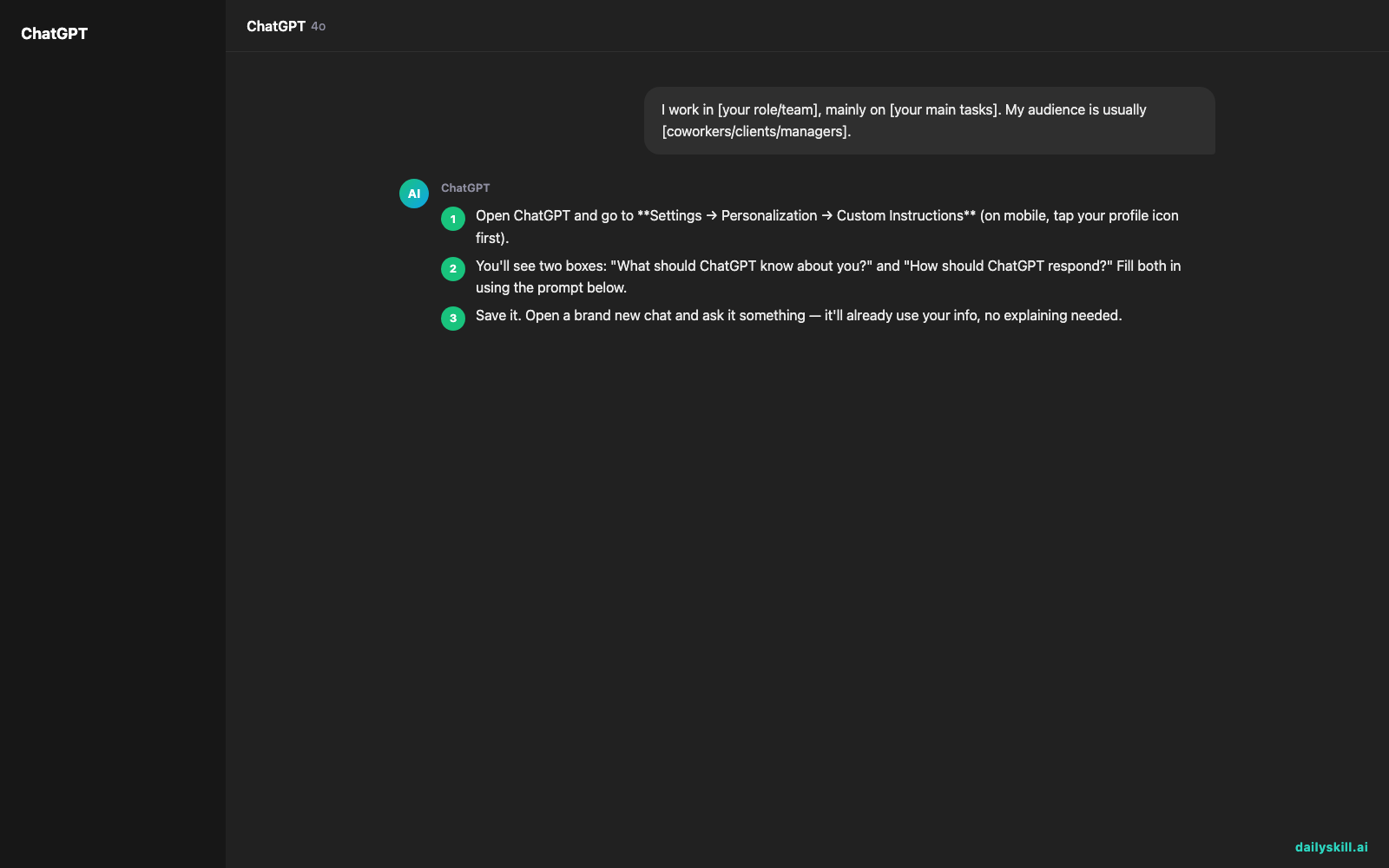
Open ChatGPT and go to Settings → Personalization → Custom Instructions (on mobile, tap your profile icon first).
You’ll see two boxes: “What should ChatGPT know about you?” and “How should ChatGPT respond?” Fill both in using the prompt below.
Save it. Open a brand new chat and ask it something — it’ll already use your info, no explaining needed.
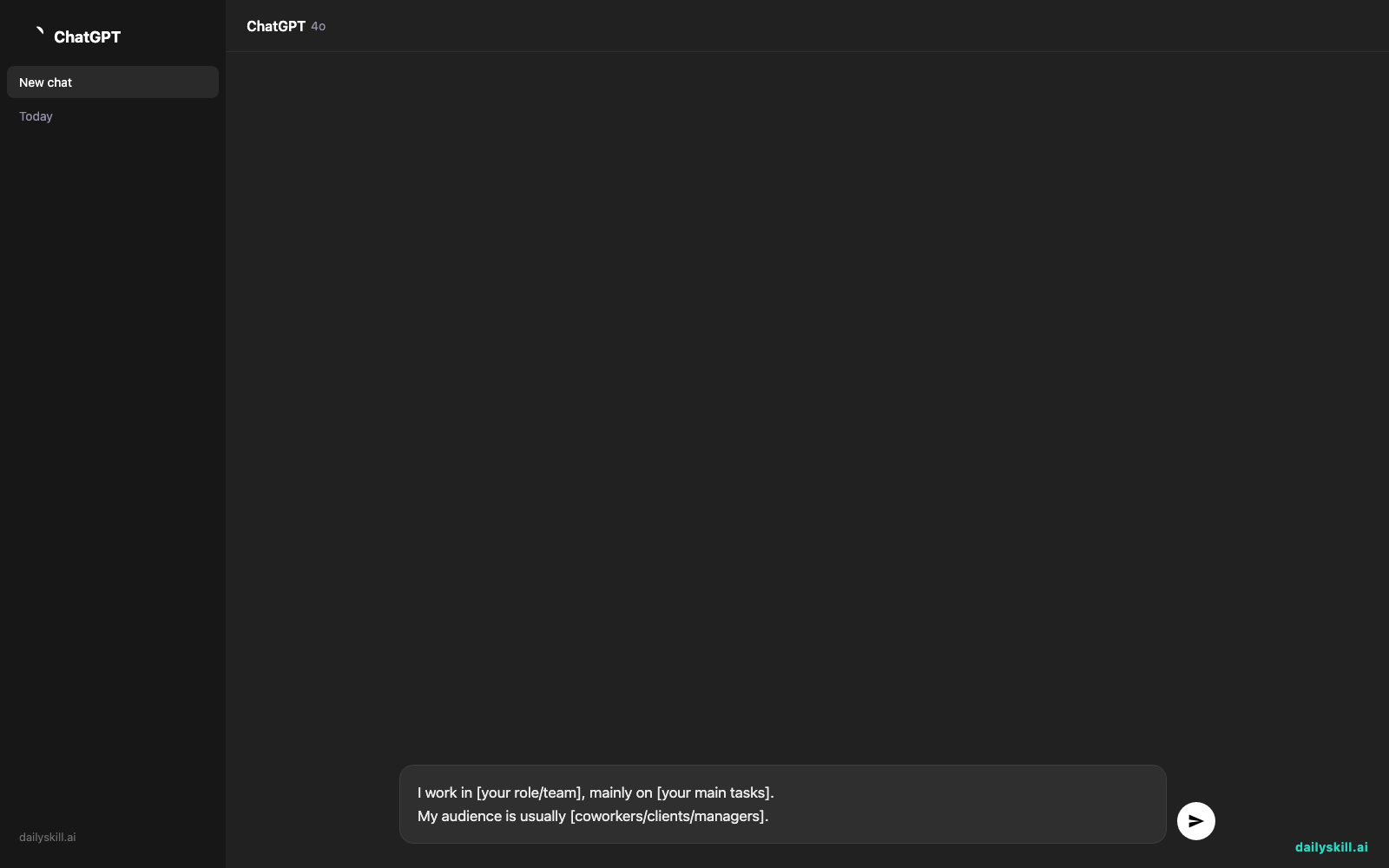
Copy-paste this into the first box:
I work in [your role/team], mainly on [your main tasks].
My audience is usually [coworkers/clients/managers].
And this into the second box:
Reply in a friendly but professional tone.
Use short paragraphs and bullet points when listing more than 3 items.
If I ask for a table, use a simple markdown table.
Keep responses under 200 words unless I ask for more detail.
Real example
Before setup, asking “write a status update for my team” gave a generic, overly stiff paragraph with no structure.
After setup, same exact request gave:
Weekly Status — Marketing Team
– Launched the spring campaign landing page (live Tuesday)
– A/B test on subject lines starts Thursday, results by Monday
– Blocked: waiting on final logo files from designLet me know if you need the full campaign brief.
Same one-line request. The difference is the AI already knew your team, your preferred bullet format, and your tone — because you told it once.
Level up
- Claude users: create a “Project,” and add this same info under “Project knowledge.” Every chat inside that project uses it automatically.
- Gemini users: turn a repeat task (like meeting notes) into a “Gem” with these instructions baked in — one click, same rules every time.
- Add a line about formatting you hate (e.g., “never use em dashes” or “no corporate buzzwords”) — small preferences save the most editing time.
FAQ
Does this work in every conversation, or just one?
Once saved in Custom Instructions (or a Claude Project / Gemini Gem), it applies to every new chat inside that tool automatically — you don’t repeat it.
Will it make every response identical?
No — it just sets your defaults. You can still ask for something totally different in any single message, and AI will follow that instead.
Is my info private?
It’s stored in your account settings like any other personal preference — treat it the same way you’d treat a saved profile on any app you use daily.
Today’s check-in
Set up your Custom Instructions (or Project/Gem) right now, then reply in the community with one line you added — someone else’s preference might spark an idea for yours.
Tomorrow: the one prompt trick that turns any AI into your personal proofreader in seconds.
You might also like:
More on Writing Better AI Prompts:
- How Do I Get AI to Write in My Voice?
- How Do I Stop AI Writing From Sounding Robotic and Obviously AI?
- How Do I Write Prompts That Actually Get Good Results?
Master Everyday AI in 1 Minute a Day
Get our free 2026 Double-Blind AI Benchmark Scorecard & 20 Ready-to-Use Prompts, plus one honest, 60-second AI skill in your inbox every morning. Zero hype, plain English, cancel anytime.