Your Downloads folder has 400 screenshots, 12 PDFs, and 3 videos all mixed together, and you’ve thought “someone should write a script for this” every week for a year.
Cursor is the tool that writes it for you. It’s an AI code editor — you describe what you want in plain English, and it writes, explains, and fixes the actual code. It’s built for anyone who wants to make something work without spending months learning to code first.
What it is
Cursor is a code editor (a program for writing code, like a text document with superpowers) with an AI assistant built in.
You type what you want in normal sentences. It writes the real code, then explains what each part does. When something breaks, you paste the error message back in and it fixes it — no coding vocabulary required.
Try it in 5 minutes
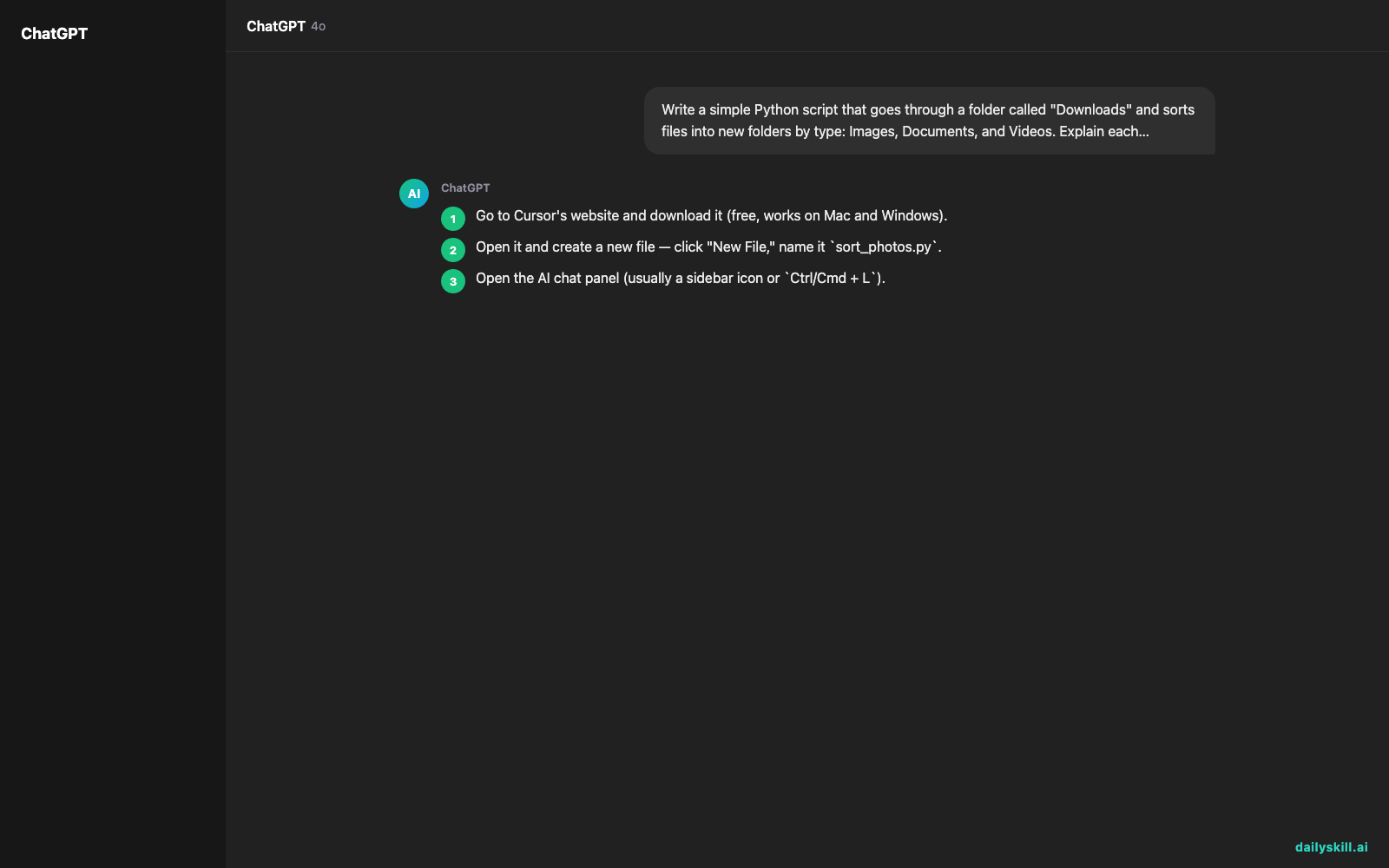
- Go to Cursor’s website and download it (free, works on Mac and Windows).
- Open it and create a new file — click “New File,” name it
sort_photos.py. - Open the AI chat panel (usually a sidebar icon or
Ctrl/Cmd + L). - Paste this prompt:
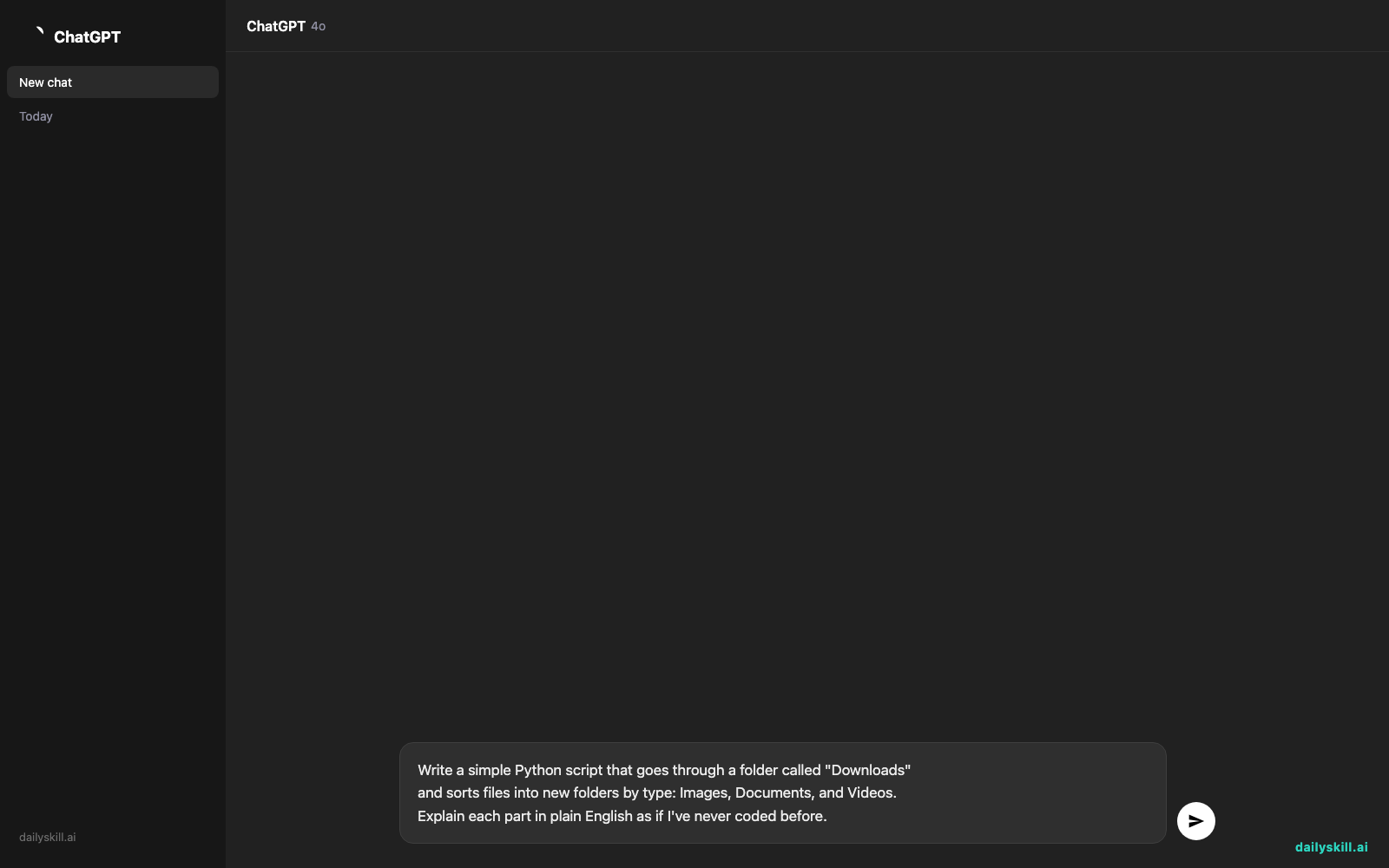
Write a simple Python script that goes through a folder called "Downloads"
and sorts files into new folders by type: Images, Documents, and Videos.
Explain each part in plain English as if I've never coded before.
- Click “Run” (or copy the code into the file and run it yourself). If you get an error, paste the exact error message back into the chat and ask “how do I fix this?”
A real example
Prompt: “Write a script that renames all files in a folder to add today’s date in front of the filename.”
Cursor returns a ~10-line Python script, something like:
for filename in os.listdir(folder): os.rename(...)
Underneath, it explains in plain English: “This line opens your folder. This line loops through each file one by one. This line adds today’s date to the front of the name before saving it.” It also checks if Python is installed and gives you the exact install command if it isn’t.
Honest take
Best for:
– Learning to code by seeing real, working examples instead of dry tutorials
– Building small automation scripts (renaming files, pulling data, simple calculators)
– Fixing broken code when you’re stuck and don’t know the right words to search for help
Not for:
– Trusting blindly — Cursor can write code that runs but does the wrong thing, and as a beginner you often can’t spot the difference until it renames or moves files incorrectly
– Building a full production app — it starts losing track of details in large, complex projects
The free tier gives you a limited number of AI requests per month, which is enough for occasional scripts like the ones above. Paid plans remove that cap if you start using it daily.
FAQ
Is it free? Yes, there’s a free tier with a monthly cap on AI requests. Casual, occasional use fits comfortably within it.
Is it safe? Yes, it runs on your own computer and code only executes when you click run. Always test file-changing scripts on a copy of a folder first, the same way you’d proofread an email before sending it.
Do I need an account? Yes, a free account to sign in and download the desktop app.
Today’s pick wrap-up
Cursor turns “I wish I could code” into “I just built something” in one afternoon — as long as you double-check what it does before you trust it with real files. Try the prompt above and reply in the comments with what you built. Tomorrow: Piktochart, for turning boring data into charts and infographics anyone will actually look at.
You might also like:
- Turn confusing error messages into plain English (and a fix)
- If AI writes something I don’t understand, can I ask it to explain its own answer?
Master Everyday AI in 1 Minute a Day
Get our free 2026 Double-Blind AI Benchmark Scorecard & 20 Ready-to-Use Prompts, plus one honest, 60-second AI skill in your inbox every morning. Zero hype, plain English, cancel anytime.