Ever leave a meeting with a notebook full of scribbles, three different pens, and zero idea what you actually agreed to do?
Here’s the fix: take a photo of your notes, paste one prompt into AI, and get a clean table with dates, owners, and action items — in about 60 seconds.
No typing. No decoding your own handwriting three days later.
Sound familiar?
You scribble notes during a meeting because typing feels rude or slow. Later, you open your notebook and it’s a mess — arrows everywhere, half-finished sentences, someone’s name you can’t quite read.
So you either retype everything by hand (10+ minutes) or just… don’t, and hope you remember. AI can now read that messy photo directly and turn it into something usable.
The 60-second fix
Step 1: Snap a photo of your notes
Use your phone. Doesn’t need to be perfect — just readable enough that you could squint and figure it out.
Step 2: Upload it to your AI chat
Any current AI chat assistant (Claude, ChatGPT, Gemini, etc.) can read images now — just attach the photo like you would a file.
Step 3: Paste this prompt
Read this photo of my meeting notes. Turn it into a table with 3 columns:
Date, Owner (who's responsible), Action Item (what needs to happen).
If a date isn't mentioned, write "Not specified" instead of guessing.
Keep it short — one line per action item.
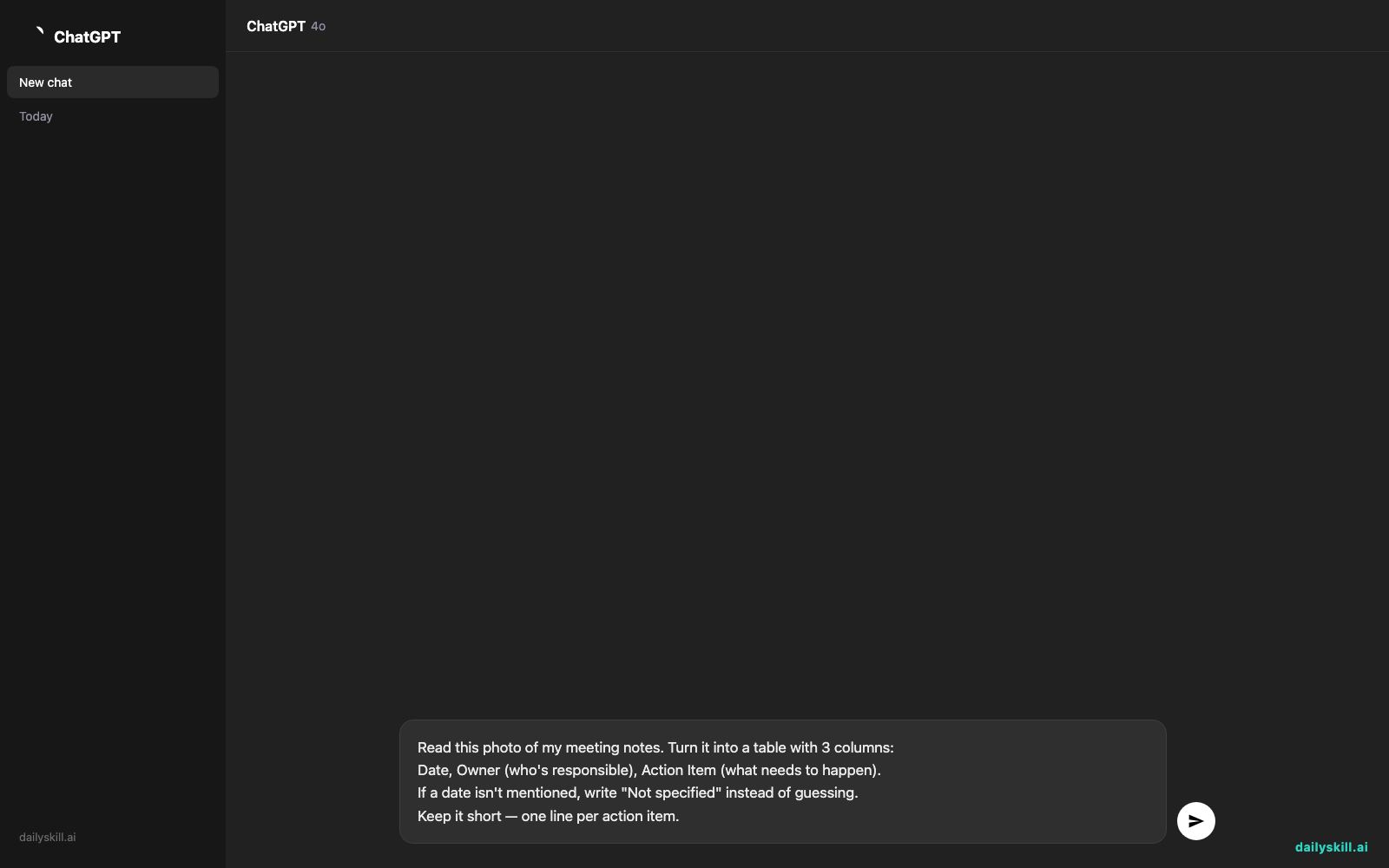
That’s it. Wait a few seconds and you’ll have a clean table.
Real example
Input: A photo of a notebook page with scribbled notes like:
“3/14 meeting – sarah needs to send the vendor contract by fri – mike said budget approval stuck w/ finance, follow up tues – reschedule client call to next week, jenny handling”
Output:
| Date | Owner | Action Item |
|---|---|---|
| By Fri | Sarah | Send vendor contract |
| Tues | Mike | Follow up on budget approval with finance |
| Next week | Jenny | Reschedule client call |
One photo, one prompt, one clean table. No retyping, no guessing what “w/ finance” meant three days later.
Level up
- Multiple pages? Upload all the photos at once and ask: “Combine these into one table, sorted by date.”
- Prefer a simple list instead of a table? Just say “give me this as a bullet list instead” — the AI adjusts on the spot.
- Want it emailed to your team? Add: “Now write a short email summarizing these action items, one sentence per person.”
FAQ
Does the photo need to be perfectly clear?
No. As long as a person could squint and read most of it, the AI usually can too. Blurry corners or a crossed-out word won’t ruin the whole thing.
What if the AI misreads a name or date?
It happens occasionally with messy handwriting. Just reply with the correction — “Actually that’s Sara, not Sarah” — and it’ll fix the table instantly.
Do I need a paid AI plan for this?
No. Free tiers of major AI chat tools can read images and follow this kind of prompt today.
Today’s check-in
Try this on your next meeting notes and reply in the comments with one column header you added or changed for your own workflow.
Tomorrow: the one-line prompt that catches embarrassing typos before you hit send.
You might also like:
More on AI for Work & Productivity:
- AI for Small Business Owners: 8 Practical Ways to Save Time in 2026
- Can AI Actually Help You Make Money? (Realistic Ways That Work in 2026)
- Can AI Help Me With Excel Formulas and Spreadsheets? (Yes, Here’s How)
Master Everyday AI in 1 Minute a Day
Get our free 2026 Double-Blind AI Benchmark Scorecard & 20 Ready-to-Use Prompts, plus one honest, 60-second AI skill in your inbox every morning. Zero hype, plain English, cancel anytime.