You’ve got a great photo but it’s cropped too tight — a building sliced off at the edge, a beach shot missing the sky you need for a banner, a room photo too narrow for a listing. Clipdrop Uncrop fixes that by generating new background around your existing photo, so the added edges look like they were always there. It’s for anyone who edits travel photos, real estate listings, or social banners and doesn’t want to learn Photoshop.
What it is
Clipdrop Uncrop is an ai image expansion tool that adds realistic background around the edges of a photo you already have. This process is called “outpainting” — instead of erasing part of a photo, the AI paints new pixels beyond the original frame that match the lighting, colors, and style. You upload a photo, pick a new size or shape, and it fills in the rest.
Try it in 5 minutes
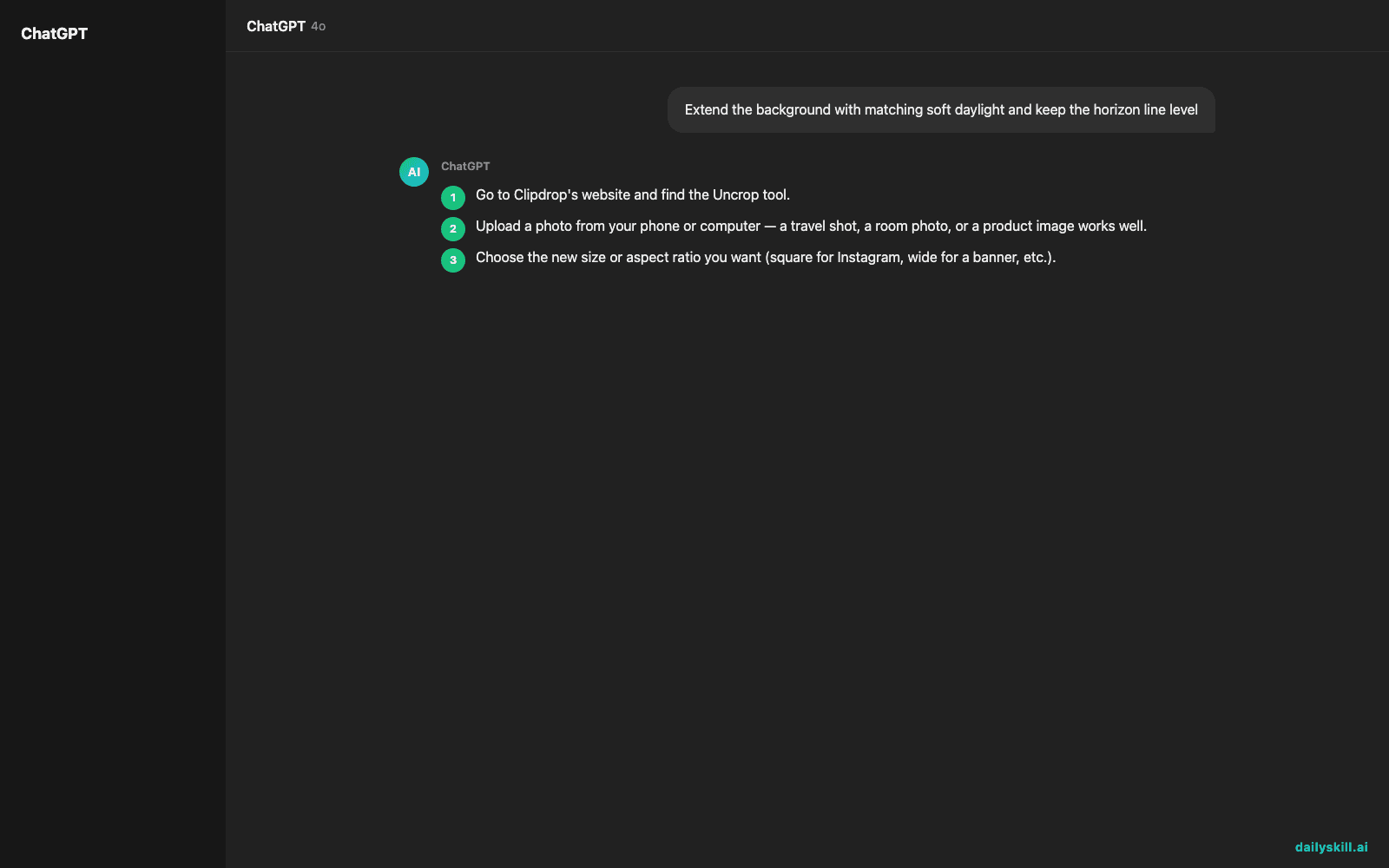
- Go to Clipdrop’s website and find the Uncrop tool.
- Upload a photo from your phone or computer — a travel shot, a room photo, or a product image works well.
- Choose the new size or aspect ratio you want (square for Instagram, wide for a banner, etc.).
- Drag the frame or use the preset ratio buttons to decide how much new space to add on each side.
- Click generate and preview the result. If it looks off, try again — each attempt can look different.
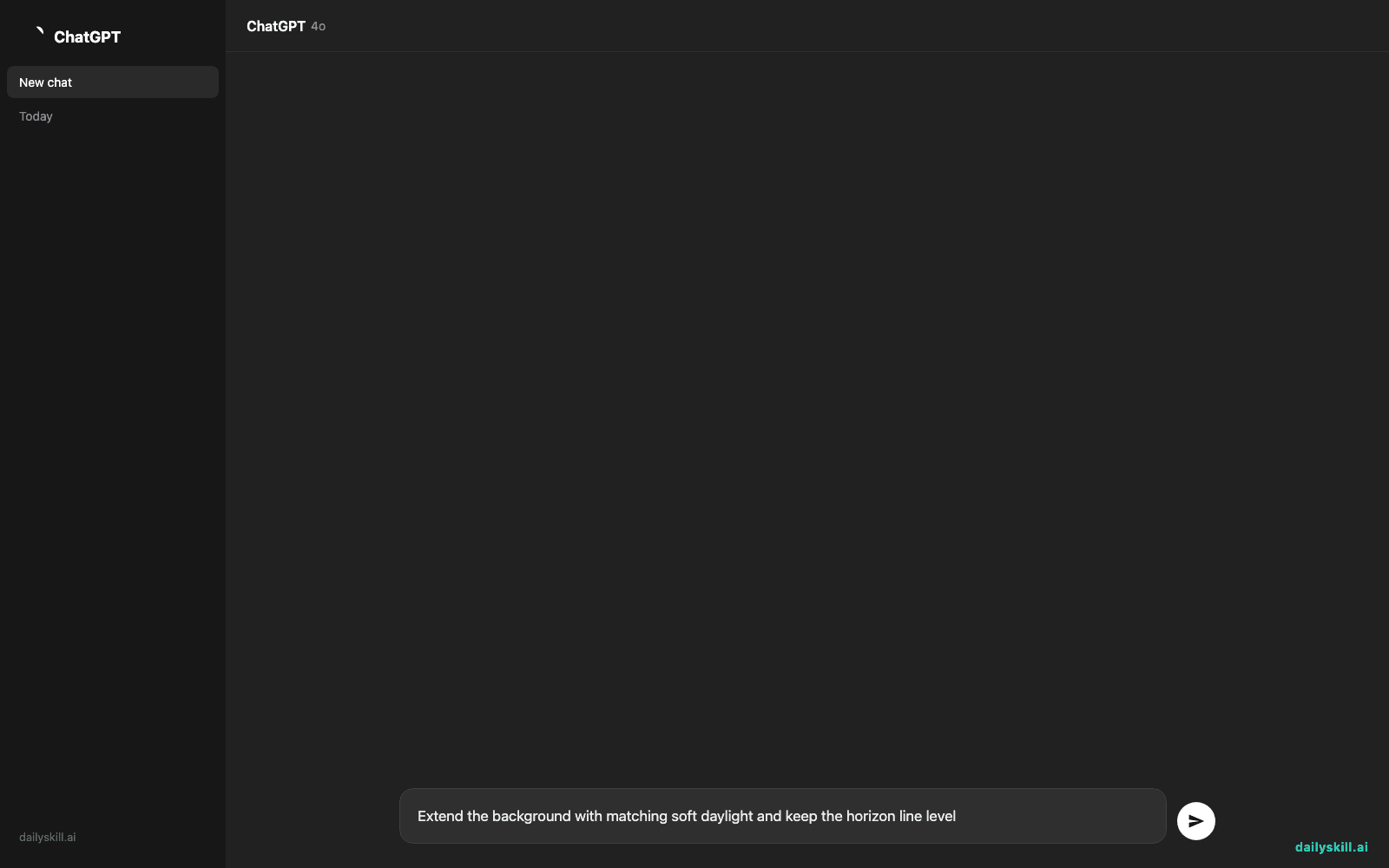
Since this is a visual tool, there’s no prompt box for most uses. But if you want to guide the style of the added background, some versions let you add a short text hint. Try:
Extend the background with matching soft daylight and keep the horizon line level
A real example
Input: a vertical phone photo of a hotel balcony view — ocean on the left, cut off tight on both sides.
Output: a wide, landscape-format version of the same photo. The ocean now stretches further on both sides, with matching water texture, sky color, and lighting. The original balcony railing stays sharp in the center, and the new edges blend in so well you’d need to look closely to spot where your photo ends and the generated part begins.
Honest take
Best for:
– Extending travel or vacation photos when you need more background or a different aspect ratio for social media
– Widening real estate photos so a room or exterior shot fits a listing template
– Quickly reformatting a photo you already love instead of reshooting it
Not for:
– Photos with complex detail near the edges, like faces, text, or logos — the AI can distort these when it tries to extend the background
– High-stakes final images without a manual check — always zoom in on the new edges before publishing, since blending isn’t always perfect
The free tier gives you daily credits, which is plenty to test a handful of photos. Paid plans open up higher volume if you’re doing this for client work.
FAQ
Is it free? Yes, there’s a free tier with daily credits. Heavy use requires a paid plan.
Is it safe? Yes — you’re uploading a photo to generate a new version, not sharing sensitive data. Avoid uploading photos with private documents or faces of people who haven’t agreed to it.
Do I need an account? You may need a free account to save credits and access your history, but the basic tool often works without a long setup.
Today’s pick wrap-up
Clipdrop Uncrop is the easiest way to make a tight photo fit a wider frame without retaking the shot. Try it on one photo today and tell us in the comments how the edges turned out. Tomorrow: Gamma — for turning your ideas into a full presentation without touching a slide template.
Master Everyday AI in 1 Minute a Day
Get our free 2026 Double-Blind AI Benchmark Scorecard & 20 Ready-to-Use Prompts, plus one honest, 60-second AI skill in your inbox every morning. Zero hype, plain English, cancel anytime.