
It’s 9pm and the pitch is due tomorrow
You’ve got the words for your slides but not the patience to drag text boxes around until they line up. Beautiful.ai is an AI-powered presentation maker that auto-formats slides as you type — it’s for anyone who needs a clean, professional deck fast and has zero interest in becoming a designer tonight.
What it is
Beautiful.ai is a browser-based slide tool that builds your presentation around “smart” templates — layouts that automatically resize, align, and space your content as you add it. Instead of manually dragging boxes around (that’s auto format slides — the tool redoes your spacing and alignment live, so nothing overlaps or drifts off-center), you pick a layout and it handles the design math.
It’s a slide template generator at heart: you choose a template family, fill in your content, and the formatting rules travel with you from slide to slide.
Try it in 5 minutes
- Go to Beautiful.ai and sign up with your email or Google account (no credit card needed for the free tier).
- Click “New Presentation” and pick a template category that matches your topic (e.g., “Pitch Deck” or “Team Update”).
- On the first slide, replace the placeholder title and subtitle with your own text — watch the layout auto-adjust as you type.
- Click “Add Slide” and choose a smart layout (like “3 columns” or “Timeline”) for your next point.
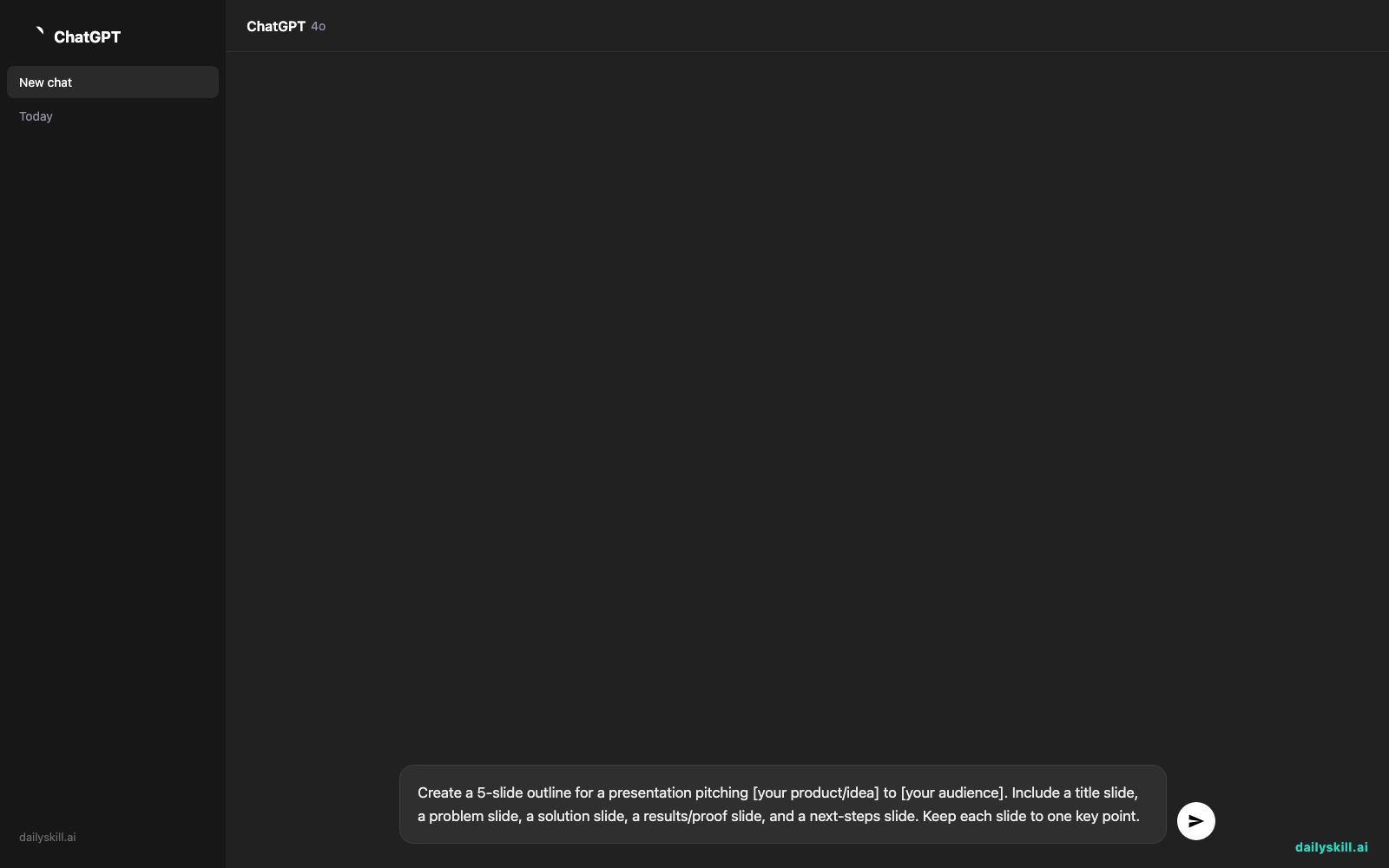
- Paste in this prompt to the built-in AI assistant (look for the “DesignerBot” or AI icon in the toolbar) to get a fast outline before you fill in details:
Create a 5-slide outline for a presentation pitching [your product/idea] to [your audience]. Include a title slide, a problem slide, a solution slide, a results/proof slide, and a next-steps slide. Keep each slide to one key point.
- Review the AI’s slide suggestions, swap in your real numbers and examples, then hit “Present” or export to PDF/PowerPoint.
A real example
Say you type: “Q3 results — revenue up 18%, churn down 4%, three new enterprise clients” into a “Stats” layout slide.
Beautiful.ai auto-generates three evenly spaced stat callouts with large numbers, matching icon placeholders, and consistent spacing — no manual alignment needed. Switch the color theme once and all three slides built so far update together.
Honest take
Best for:
– Busy professionals who need a client-ready or internal deck in under an hour
– Anyone who’s tired of fighting PowerPoint’s alignment guides and font mismatches
– Recurring decks (weekly updates, pitch decks) where a consistent template saves rework every time
Not for:
– Highly custom, brand-specific layouts — the “smart” templates push back if you try to break their grid
– Anyone who needs to keep editing after exporting — once you leave the browser for PowerPoint or PDF, the auto-formatting freezes, so further tweaks won’t realign themselves the way they did inside Beautiful.ai (and the free plan adds a watermark and caps how many presentations you can keep)
FAQ
Is it free? There’s a limited free tier to try templates and build a presentation, but exporting without limits and unlocking all templates needs a paid plan.
Is it safe to put real business content in? Treat it like any cloud tool — avoid pasting passwords or highly sensitive data, and check your workspace’s sharing settings before inviting others to edit.
Do I need an account? Yes, a free sign-up (email or Google) is required before you can start building a deck.
Today’s pick wrap-up
If “make it look professional” is your only design skill, Beautiful.ai does that one thing well. Tried today’s pick? Tell us your deck win in the comments — we read every one. Tomorrow: Wordtune, the AI that rewrites your clunky sentences into ones that actually sound like you, just better.
Master Everyday AI in 1 Minute a Day
Get our free 2026 Double-Blind AI Benchmark Scorecard & 20 Ready-to-Use Prompts, plus one honest, 60-second AI skill in your inbox every morning. Zero hype, plain English, cancel anytime.