Ever dug through five browser tabs while writing a report, just to double-check a translation?
And in the middle of it, got logged out and had to sign back in from scratch?
Spend one minute today, and you’ll be able to summon an AI window with a single shortcut — no matter what program you’re working in, without ever taking your hands off the keyboard.
Sound familiar?
You’re writing a document and need a quick translation, so you open the browser. You’ve already got ten tabs open, and it takes 20 seconds just to find the right AI tab.
Once you find it, you’re logged out — so you log back in. By the time you finally ask your question, you’ve completely lost your train of thought.
Do that ten times a day, and you’ll spend more time “hunting for the AI window” than actually working.
Done in 60 seconds — 3 steps
Step 1 — Install the desktop app
Download the desktop app from the official download page of the AI service you already use.
ChatGPT, for example, officially ships desktop apps for macOS and Windows. For the exact supported versions, the service’s own official site is the most reliable source.
Step 2 — Set a global shortcut
In the app’s settings, look for an “Open anywhere” (Global Shortcut) option.
Set it to a combo you’ll actually remember — like Option + Space or Ctrl + Alt + A — and you’ll never need to hunt for the window with your mouse again, even mid-document.
Step 3 — Test it with your first question
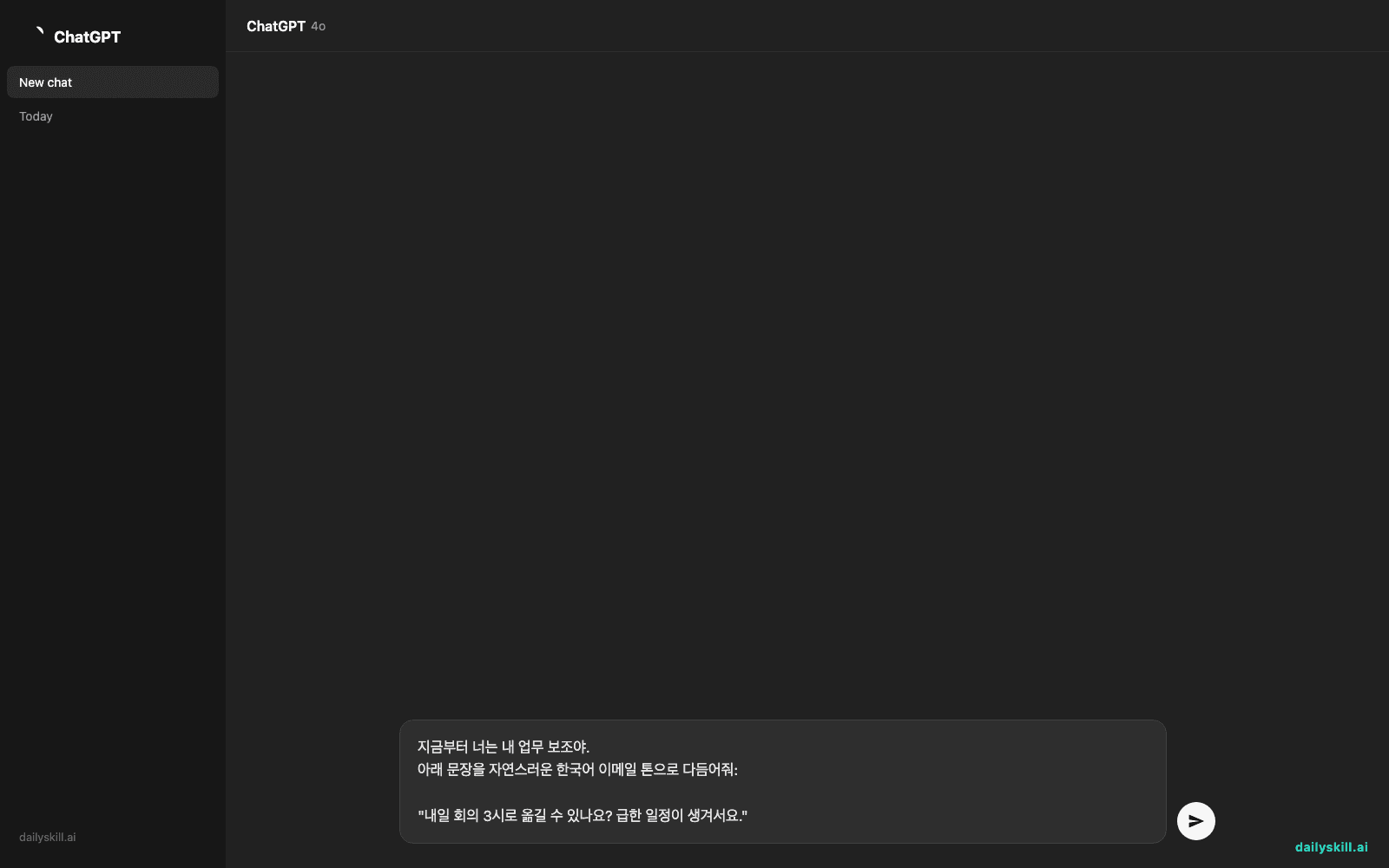
Press the shortcut and paste the prompt below. If you get an answer right away, you’re all set.
From now on, you're my work assistant.
Polish the sentence below into a natural, professional email tone:

"Can we move tomorrow's meeting to 3pm? Something urgent came up."
A real example
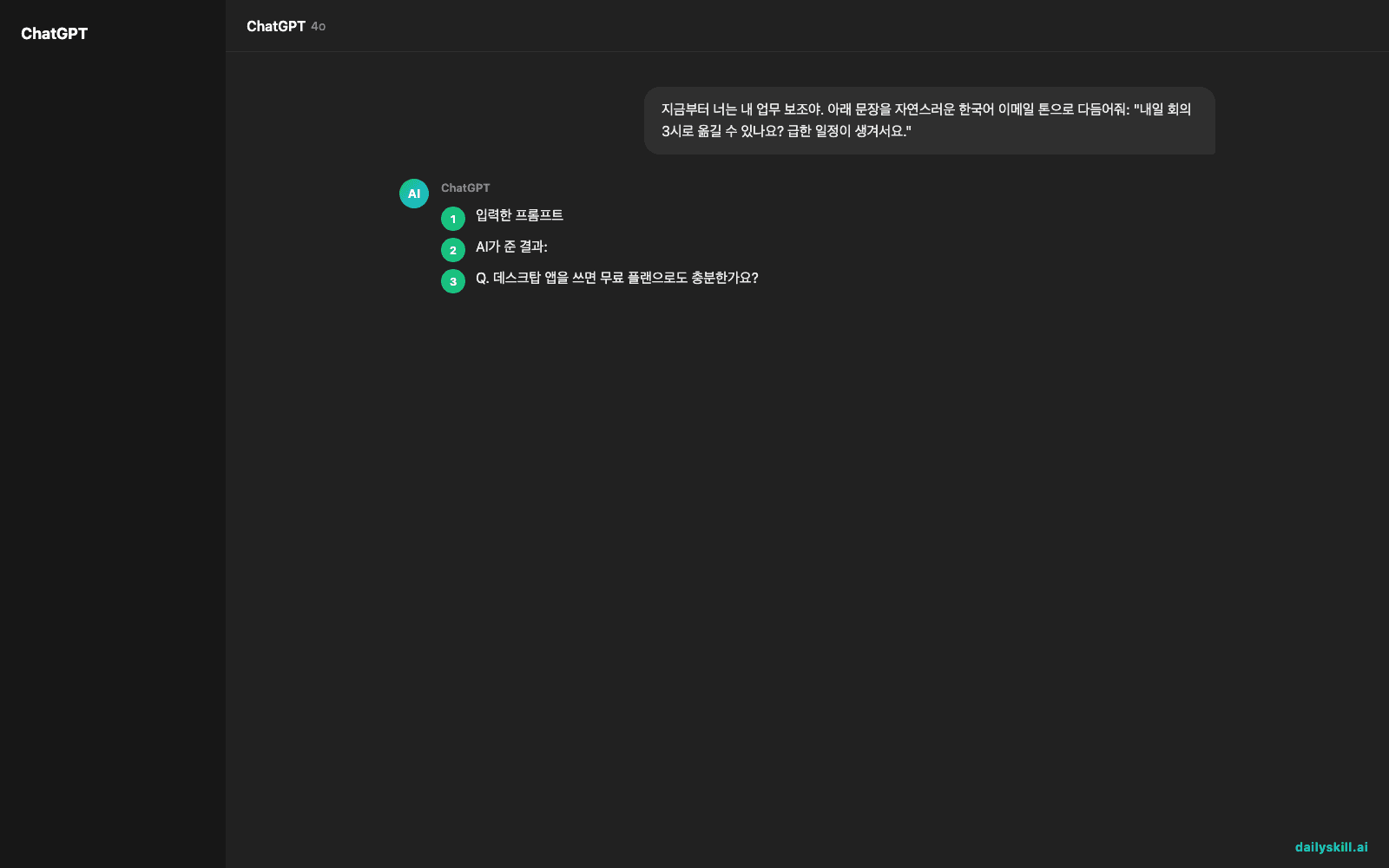
The prompt you paste in (same as above)
What the AI gives you:
Hi, would it be possible to move tomorrow’s meeting to 3 PM? Something urgent has come up on my end, so I wanted to check if this time works for you. Sorry for the short notice — happy to adjust to whatever time suits you best.
Press the shortcut → paste → 5 seconds later, this came out. No browser tabs involved.
Take it further
- For tasks that need file attachments (checking a screenshot, summarizing a PDF), the desktop app is far more reliable than the browser.
- Keep a separate app for translation and one for drafting so the conversations don’t get mixed together.
- Save your go-to prompts in a notes app — open the app with your shortcut, then paste right away. It gets even faster once it’s a habit.
FAQ
Q. Is the free plan enough if I use the desktop app?
A. Yes — for light tasks like translation or drafting, the free plan is plenty. You can always upgrade later if your usage grows.
Q. Can I install desktop apps for several AI services at once?
A. You can, but we recommend starting with just one to build the habit. Once it feels natural, add one more per role.
Q. What if the shortcut conflicts with another program?
A. You can change it anytime in the app’s settings. Switching to an unused combo (like Ctrl + Shift + Space) avoids the conflict.
Today’s check-in
If you installed the desktop app and set up your shortcut today, drop a “Done!” in the comments.
Tomorrow, we’ll show you how to use this same shortcut to make a summary note in the middle of a meeting.
You might also like:
Master Everyday AI in 1 Minute a Day
Get our free 2026 Double-Blind AI Benchmark Scorecard & 20 Ready-to-Use Prompts, plus one honest, 60-second AI skill in your inbox every morning. Zero hype, plain English, cancel anytime.