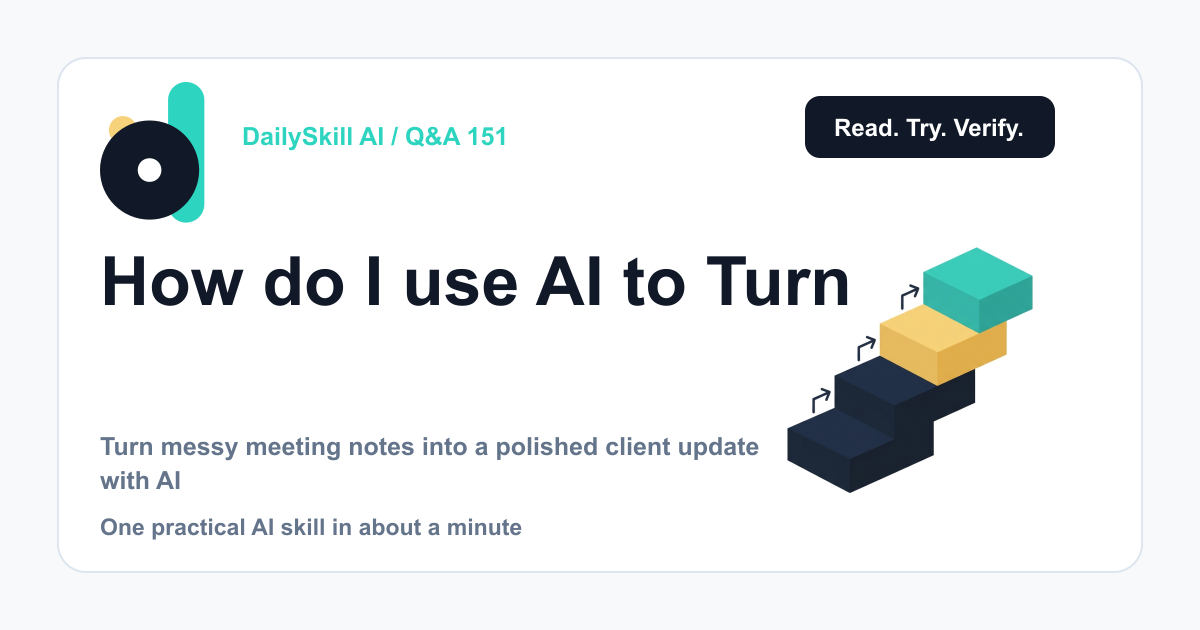
Paste your raw notes into an AI assistant. Tell it who the recap is for, and ask it to sort everything into decisions, action items (with an owner and a deadline for each), and next steps. Then check the draft against your notes, fix any gaps, and send it. A messy page of fragments can become a clear client update in a few minutes. You still do the final check, because the AI can only work with what you gave it.
Why this comes up
Most meetings end with a page of half-sentences, arrows, and initials. The client expects a clear recap soon, and writing it from scratch takes longer than it should.
Underneath, there’s a real worry: you might miss a commitment, or send something that sounds sloppy.
The honest answer
AI is very good at this kind of job. It sorts, rewrites, and tidies text you already have. It is not a mind reader, though.
What it does well:
– Groups scattered fragments into themes (scope, timeline, budget, risks).
– Pulls out action items, even when they are buried in rambling notes.
– Shifts your tone from “internal shorthand” to “professional project recap.”
– Shrinks a long discussion into a short summary of a few lines.
What it can’t do:
– Know who owns a task if your notes never said so. A good assistant will flag the gap. A careless one may guess.
– Know what the client already knows, or what is politically sensitive.
– Decide for you what to include and what to leave out.
The AI organizes your notes. You are responsible for whether they are true.
If your tool can take a meeting transcript or recording, that helps. Typed notes are enough to start, though.
What to do
A simple 5-step flow
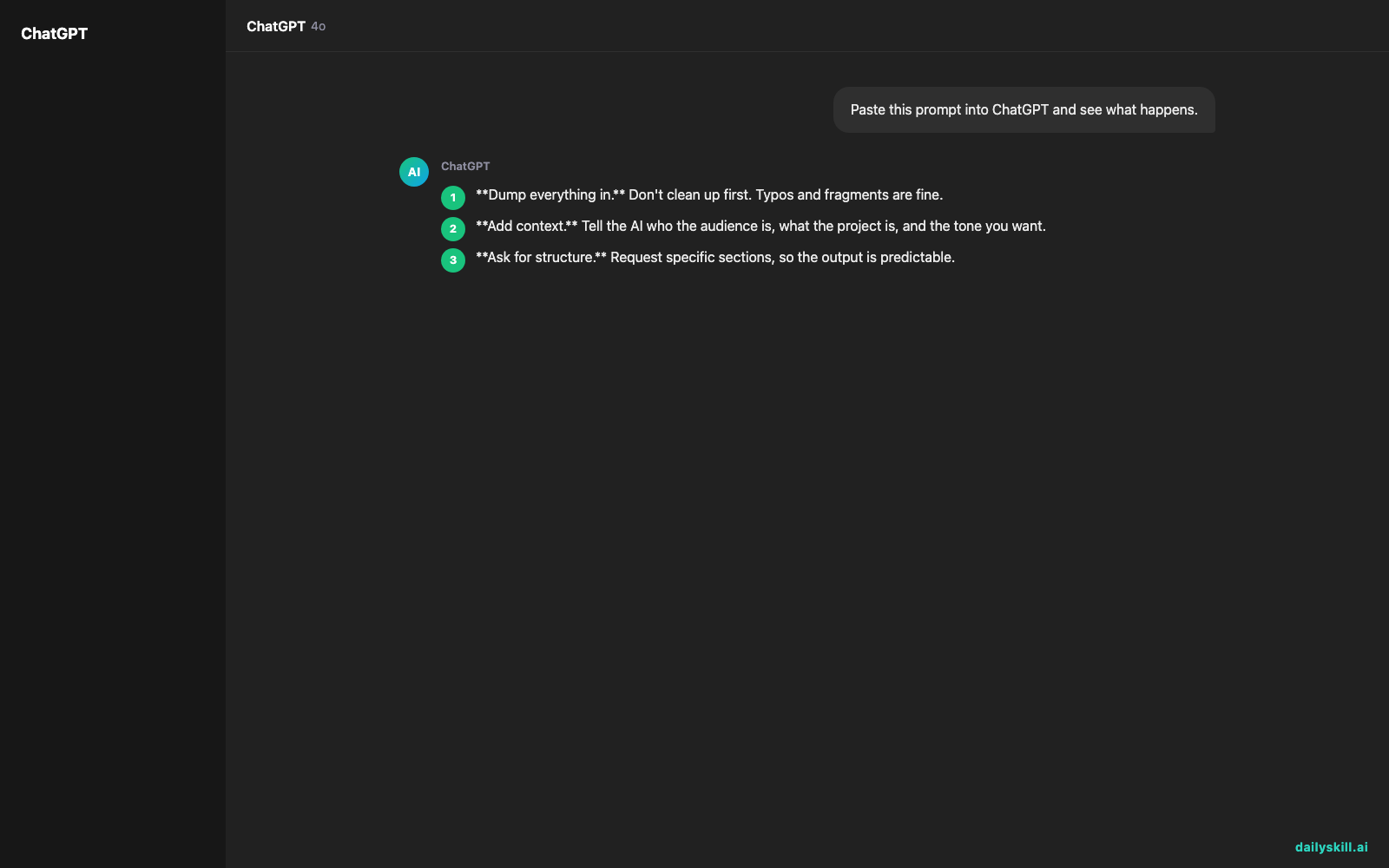
- Dump everything in. Don’t clean up first. Typos and fragments are fine.
- Add context. Tell the AI who the audience is, what the project is, and the tone you want.
- Ask for structure. Request specific sections, so the output is predictable.
- Mark the unknowns. Ask the AI to list anything unclear instead of filling it in.
- Verify and send. Read it against your notes before it goes out.
A prompt you can copy:
“Turn the notes below into a post-meeting follow-up email to a client. Audience: a busy project sponsor. Tone: warm, clear, professional. Use these sections: 1) Summary in 3 sentences, 2) Decisions made, 3) Action items as a table with Owner and Due date, 4) Risks or open questions, 5) Next steps and next meeting. If an owner or deadline isn’t stated in my notes, write ‘TBC’ instead of guessing. Also list anything in my notes that is unclear. Notes: [paste here]”
Do:
– Add an owner and a deadline to every action item. Fill them in yourself if the notes are missing them.
– Ask for a short subject line that states the purpose, such as “Project recap and next steps.”
– Ask for a shorter second version for executives who only read the first three lines.
– Remove anything the client shouldn’t see: internal opinions, pricing debates, side comments.
– Check names, dates, and numbers against your notes line by line.
Don’t:
– Paste confidential client data into a tool your company hasn’t approved. Check your workplace policy first.
– Send without reading it. A recap with a wrong date is worse than a late one.
– Let the AI invent commitments. “TBC” is better than a wrong deadline.
What the output should look like
| Action item | Owner | Due |
|---|---|---|
| Send revised timeline | Priya | Friday |
| Confirm budget approval | Client sponsor | TBC |
| Share design draft | Sam | Next Tuesday |
Notice the “TBC.” That’s the AI telling you where to follow up, not a mistake.
FAQ
Can AI write the whole email, or just the list?
Both. Ask for the full email with the list built in. If the tone is off, say “make it warmer” or “shorter” and it will adjust.
What if my notes are really chaotic?
Say so. Add: “These are rough fragments, so group them by topic first and ask me about anything unclear.” Many assistants will reply with questions, which is exactly what you want.
Is it okay to tell the client I used AI?
There’s no universal rule, so follow your company’s policy. Either way, you sign off on the recap, so the content is yours to stand behind.
Bottom line
Give AI your messy notes and a clear structure, then check the owners and deadlines yourself before you hit send.
Your turn: Do you have a go-to prompt for meeting recaps? Share what works for you in the comments, and the next person will thank you.
Tomorrow’s question: Can AI help me compare credit card benefits and points rewards? We’ll look at what it can sort out for you, and where you should double-check the fine print.
You might also like:
- Explain Your Project in 30 Seconds Without Rambling
- Luma Dream Machine — Turn One Sentence Into a Cinematic Video Clip
Master Everyday AI in 1 Minute a Day
Get our free 2026 Double-Blind AI Benchmark Scorecard & 20 Ready-to-Use Prompts, plus one honest, 60-second AI skill in your inbox every morning. Zero hype, plain English, cancel anytime.