You’ve been there
You snap a decent product photo or headshot, then spend 20 minutes fighting the “magic eraser” in your phone’s editor — and the edges still look chewed up. There’s a faster way.
remove.bg and Photoroom both cut out a background in under ten seconds — you upload a photo, AI isolates the subject, you download a clean result. They’re for anyone who needs a polished image without touching a single slider.
What they are
remove.bg does one thing: it detects the subject in your photo and removes everything else, leaving a transparent or white background. No account needed for a quick try.
Photoroom goes a step further — it removes the background and lets you drop in a new one: solid color, soft blur, lifestyle scene, or your own image. Think of it as a mini AI photo studio in your browser or on your phone.
Neither tool requires design experience. You upload, you download, you’re done.
Try it in 5 minutes
Option A — remove.bg (fastest)
- Go to remove.bg
- Click Upload Image and choose any photo of a person, product, or pet
- Wait about three seconds — the background disappears automatically
- Click Download (free gives you a lower-resolution file; pay for full HD)
Option B — Photoroom (more control)
- Go to photoroom.com or download the app
- Tap Create a project → upload your photo
- The background is removed instantly — now pick a replacement: solid white, a blur, or a lifestyle background from their library
- Export your image
Starter instruction to try inside Photoroom’s AI background feature:
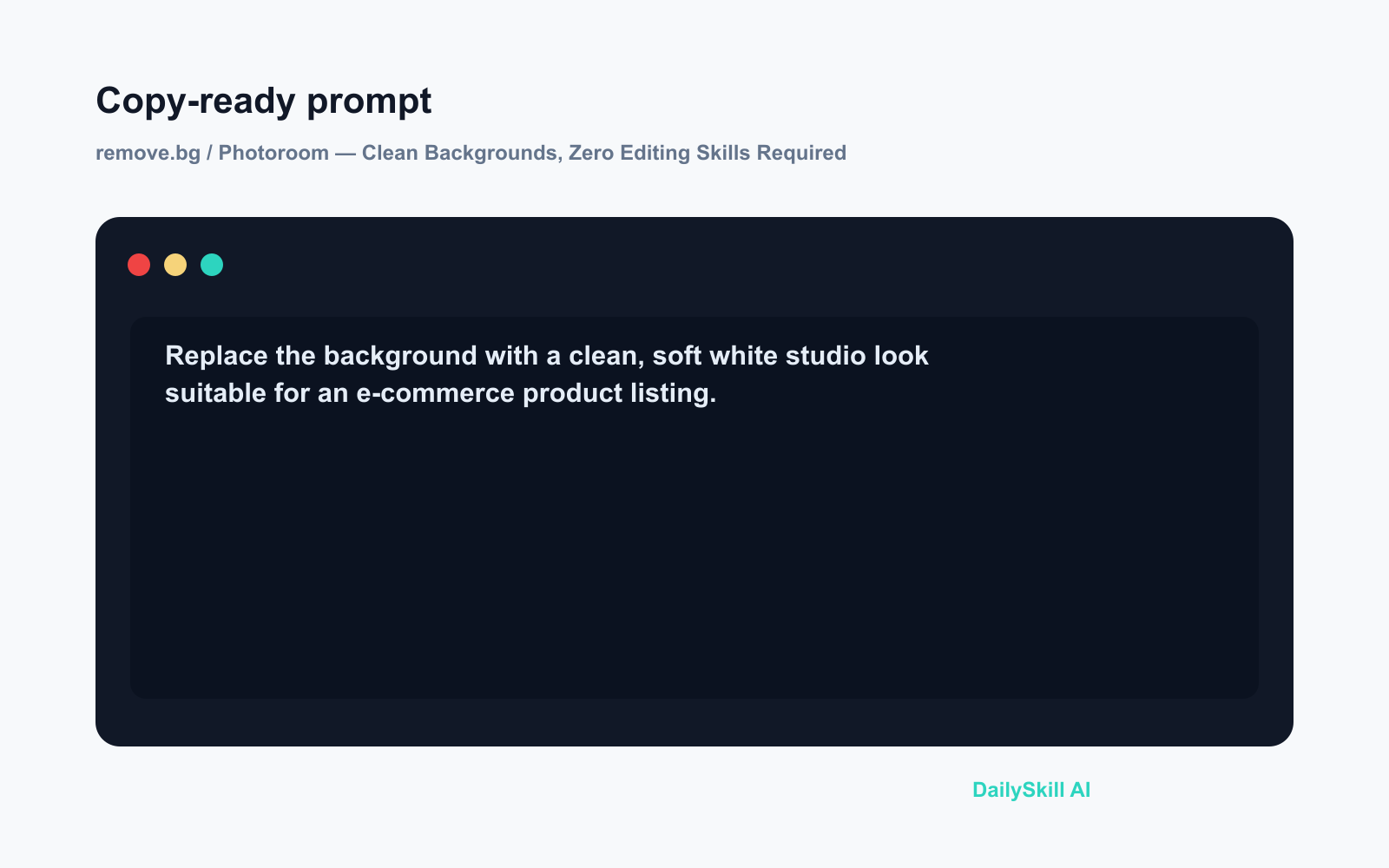
Replace the background with a clean, soft white studio look
suitable for an e-commerce product listing.
A real example
Input: A phone photo of a ceramic coffee mug on a cluttered kitchen counter. Natural light, slightly yellow tones, busy background.
What you get: The mug is cleanly isolated — the handle curve and the gap inside the handle are both cut out accurately. In Photoroom, you swap the background to flat white and add a faint drop shadow beneath the mug. The result looks like a proper product shot ready for an Etsy or Shopify listing. Total time: about 90 seconds.
Honest take
Best for:
– Sellers who need quick, clean product photos for online shops
– Anyone refreshing a LinkedIn or professional profile picture
– Small teams without a designer on call
Not for:
– Photos where the subject blends into the background — a white cat against a white sofa, or fine flyaway hair against a detailed scene will leave ragged edges the AI can’t recover cleanly
– High-volume professional retouching — if you’re processing hundreds of images a day with strict quality requirements, a dedicated editing workflow gives you more consistent control
Free tier: remove.bg gives you unlimited low-resolution downloads for free, plus a small number of HD credits. Photoroom’s free tier removes backgrounds and allows basic replacements, but adds a watermark — the paid plan removes it and unlocks premium backgrounds.
FAQ
Is it actually free?
Yes, both tools have a genuinely usable free tier. You can remove a background and see the result at no cost. You only pay if you need full HD quality (remove.bg) or want to export without a watermark (Photoroom).
Is my photo safe to upload?
Both services state they delete uploaded images from their servers shortly after processing. As a general habit, avoid uploading photos that show sensitive personal details in the background — the same caution you’d apply to any online tool.
Do I need an account?
For remove.bg, no account is needed for a one-off edit. Photoroom asks you to sign up to save and export projects, but it’s free and takes under a minute.
Today’s pick wrap-up
If you need a clean background right now, remove.bg is the fastest single click available — and Photoroom is the better move when you also want to swap in something new.
Tried either one? Drop your before/after use case in the comments — we’d love to see what you made.
Tomorrow we’re looking at Speechify — an AI tool that reads any article, PDF, or document out loud so you can get through your reading list while commuting, exercising, or just resting your eyes. See you then.
You might also like:
- Day 17 — Compare 3 Apartment Listings into One Decision Table (AI 1-Minute Challenge)
- What’s the Difference Between ‘AI’ and the Chatbots I’ve Used Before?
⭐ Want every prompt in one place?
All 136 tested prompts from our daily skills are free on
GitHub — DailySkill Prompt Library.
Star it to get new prompts as we publish.
More on Choosing & Using AI Tools:
- Adobe Firefly: The AI Image Generator Built for Real Work
- Anthropic Introduces Claude Sonnet 5: Its Most Agentic Sonnet
- Best Free AI Tools in 2026: The Honest Guide for Normal People
Master Everyday AI in 1 Minute a Day
Get our free 2026 Double-Blind AI Benchmark Scorecard & 20 Ready-to-Use Prompts, plus one honest, 60-second AI skill in your inbox every morning. Zero hype, plain English, cancel anytime.