You finally find the one photo of your grandparents on their wedding day. It’s tiny, and the moment you zoom in, it turns into a blocky mess you can’t print or share.
Upscayl is a free app that turns a small or blurry picture into a larger, cleaner one. It’s for anyone with old family scans, small downloads, or low-quality screenshots who wants a better version without learning photo editing.
What it is
Upscayl is a free app you install on your computer. It works on Windows, Mac, and Linux. You give it an image, pick a style, and it saves a bigger version.
“Upscaling” means adding more pixels (the tiny dots that make up a picture). A normal resize just stretches the existing dots, so the result looks soft. Upscayl uses AI to guess what the missing detail should look like and draws it in.
It’s open source, which means the code is public and anyone can inspect it. Your images are processed on your own computer, so they don’t need to be uploaded anywhere.
Try it in 5 minutes
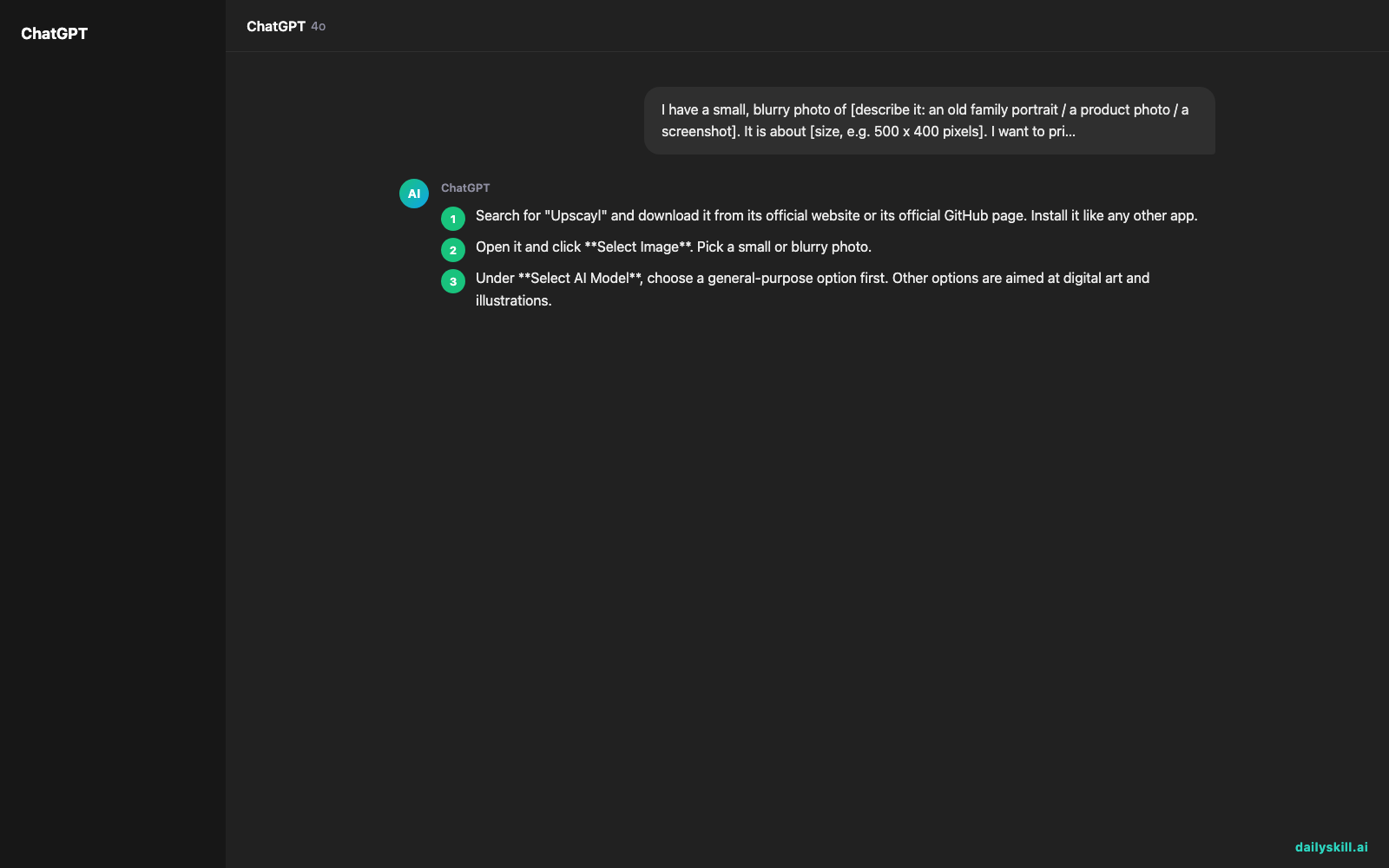
- Search for “Upscayl” and download it from its official website or its official GitHub page. Install it like any other app.
- Open it and click Select Image. Pick a small or blurry photo.
- Under Select AI Model, choose a general-purpose option first. Other options are aimed at digital art and illustrations.
- Choose a scale. 2x doubles the width and height. 4x makes them four times bigger. Start with 2x for a first test, then try 4x if you want more size.
- Pick an output folder, then click Upscayl. Expect a minute or two for a small photo. A computer with a good graphics chip is faster, and an older one can take much longer.
- Open the result and compare it with your original, zoomed in, side by side.
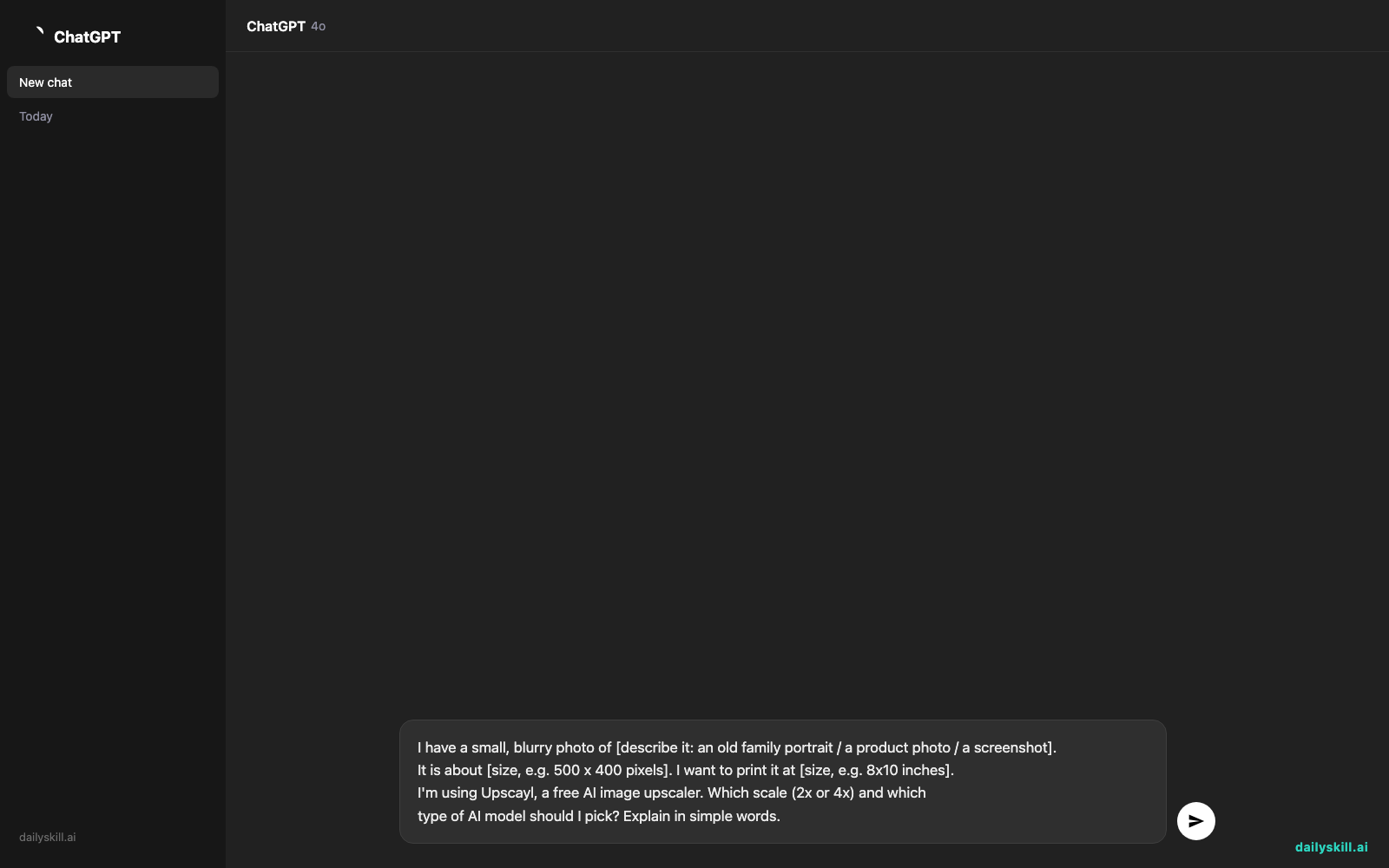
Not sure which settings to use? Ask a chat assistant such as ChatGPT, Gemini, or Claude to help you choose. Copy and paste this:
I have a small, blurry photo of [describe it: an old family portrait / a product photo / a screenshot].
It is about [size, e.g. 500 x 400 pixels]. I want to print it at [size, e.g. 8x10 inches].
I'm using Upscayl, a free AI image upscaler. Which scale (2x or 4x) and which
type of AI model should I pick? Explain in simple words.
A real example
Say you have a scan of your grandmother’s portrait from decades ago. It’s 600 x 400 pixels. On a phone it looks fine. On a big screen it’s fuzzy, and a print would look soft.
You run it through Upscayl at 4x. Here’s the kind of result you can expect:
Input: 600 x 400 pixel scan. Soft edges, visible blur around the face, and a grainy gray background.
Output: 2400 x 1600 pixel image. The outline of her face and the collar of her coat are cleaner. Strands of hair and the knit pattern of her sweater look more defined. The grainy background looks smoother and less blocky.
The result usually looks noticeably better than a plain resize. It won’t look like a brand-new photo, though. Fine details are the AI’s best guess, not the real thing.
Honest take
Best for:
– Rescuing old family photos and scans
– Enlarging small images for printing or a bigger screen
– Cleaning up low-quality downloads, logos, and artwork
Not for:
– Photos that are badly out of focus. The AI invents detail, so faces can come out looking slightly “off” or plasticky, and small text can turn into wrong letters. Always check faces and text before you print or share.
– Very old or slow computers. Large images can take a long time, and some may fail to finish.
Free tier: Upscayl is free and open source for the basic app. You don’t need a trial or a payment to use the core features.
FAQ
Is it really free?
Yes. The app is free to download and use, and the core upscaling features aren’t locked behind a payment.
Is it safe for my private photos?
The app processes images on your own computer, so your photos aren’t sent to a website to be enlarged. As with any software, only download it from the official site or the official GitHub page.
Do I need an account?
No. Install it, open it, and start enlarging photos.
Today’s pick wrap-up
Verdict: If you have a small or blurry image you care about, Upscayl is an easy, free way to try to rescue it. Just check the faces before you print.
Join in: Try it on one old photo and tell us how it turned out. We’d love to hear what you rescued.
Tomorrow: We look at Loom, a simple way to record your screen and voice so you can explain something once instead of typing it out. See you then.
Master Everyday AI in 1 Minute a Day
Get our free 2026 Double-Blind AI Benchmark Scorecard & 20 Ready-to-Use Prompts, plus one honest, 60-second AI skill in your inbox every morning. Zero hype, plain English, cancel anytime.