
Last night I had six crumpled receipts from a work trip and an expense report due by 9am. It took about 50 seconds to turn them into a clean table — date, vendor, amount, category — ready to paste straight into Google Sheets.
Here’s exactly how: you upload photos of your receipts to Claude, paste one prompt, and you get a spreadsheet-ready table back. No typing, no math, no squinting at faded ink.
Sound familiar?
You’ve got a shoebox (or a phone folder) full of receipt photos from a work trip or a month of errands. The expense report is due tomorrow. So you open a blank spreadsheet and start typing each line by hand — squinting at faded ink, doing math in your head. Twenty minutes later, you’ve finished five receipts.
The 60-second fix
1. Gather your receipts
Take clear photos of 3–5 receipts (or copy/paste text if you already have digital ones — email receipts work great too).
2. Upload them to Claude
Drop the images right into the chat window, then paste this prompt underneath:
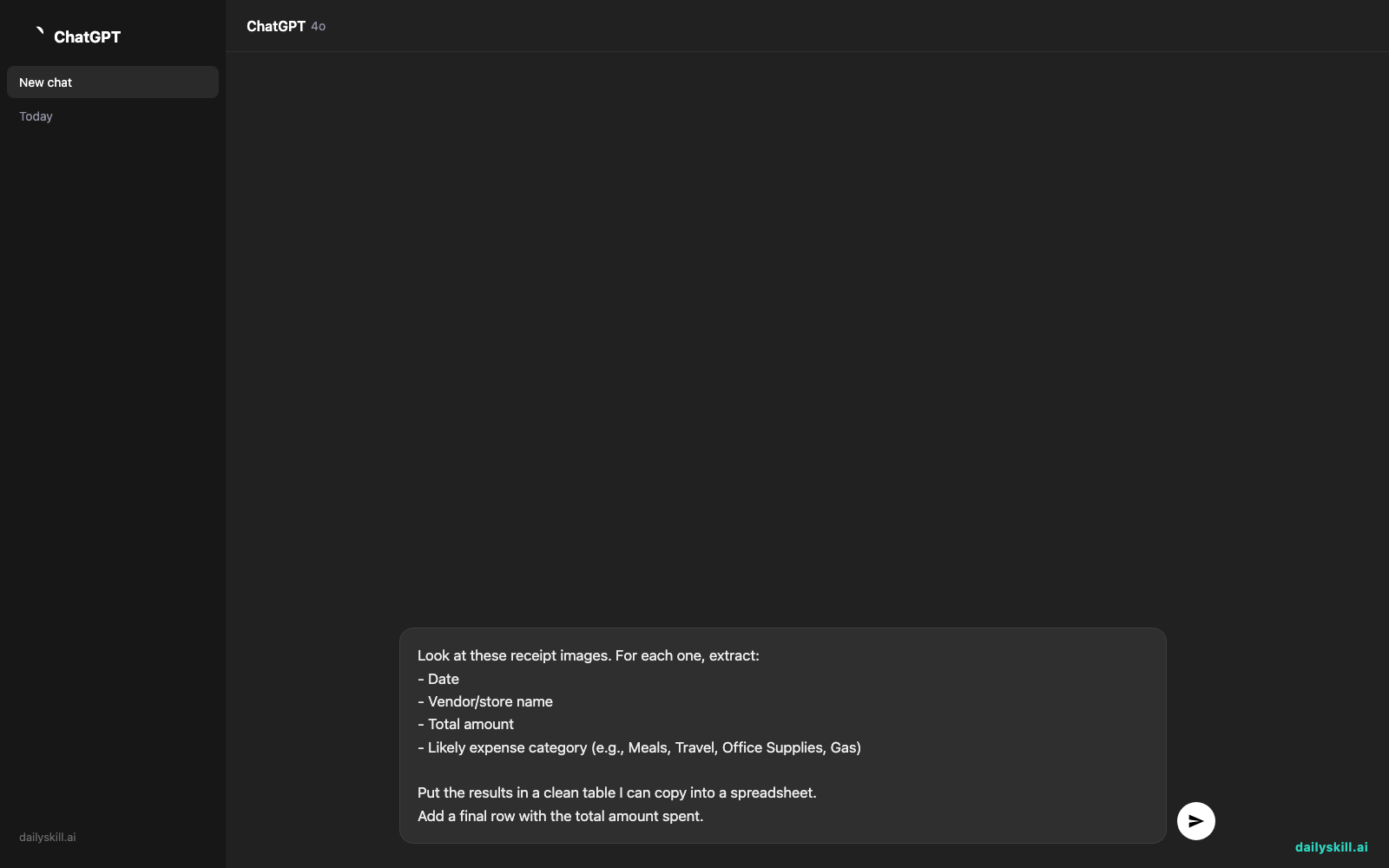
Look at these receipt images. For each one, extract:
- Date
- Vendor/store name
- Total amount
- Likely expense category (e.g., Meals, Travel, Office Supplies, Gas)

Put the results in a clean table I can copy into a spreadsheet.
Add a final row with the total amount spent.
3. Copy the table into your spreadsheet
Highlight the table Claude gives you, copy it, and paste it directly into Google Sheets or Excel. It snaps into columns automatically.
Real example
You upload: three photos from that work trip — a Starbucks receipt, a Shell gas station receipt, and an Office Depot receipt.
Claude returns:
| Date | Vendor | Amount | Category |
|---|---|---|---|
| 03/14/2026 | Starbucks | $6.75 | Meals |
| 03/14/2026 | Shell | $42.10 | Travel/Gas |
| 03/15/2026 | Office Depot | $28.99 | Office Supplies |
| Total | $77.84 |
One paste, four columns, done. No calculator, no squinting at faded receipt ink.
Level up
- Ask Claude to flag anything over a certain amount (“mark any expense over $50 as needs review”) if your company requires manager approval on big purchases.
- Have it group and subtotal by category — handy if your expense report needs Meals, Travel, and Supplies broken out separately.
- Doing this monthly? Ask Claude to keep the same column format every time so your expense-tracking spreadsheet stays consistent.
FAQ
Can I really extract data from receipts that are blurry or crumpled?
Yes, Claude does a solid job with slightly bent or faded receipts — just make sure the total and store name are still readable in the photo.
Is this a free expense report generator?
Claude’s free tier can handle a handful of receipts at a time, which covers most everyday needs like a trip or a week of errands.
What if my receipt is a PDF email instead of a photo?
Even better — paste the text or upload the PDF directly. There’s less chance of misreading numbers than from a photo.
Today’s check-in
Try it with your last few receipts and reply in the community with how many minutes you saved. Tomorrow: we’ll get AI to build you a personalized learning path for any skill you want to pick up.
You might also like:
Master Everyday AI in 1 Minute a Day
Get our free 2026 Double-Blind AI Benchmark Scorecard & 20 Ready-to-Use Prompts, plus one honest, 60-second AI skill in your inbox every morning. Zero hype, plain English, cancel anytime.