
You’ve dragged your mouse to the same button about 50 times today. What if one key combo could replace every one of those trips?
Here’s exactly how to get a personal list of the 10 shortcuts that fit the clicks you repeat most. Tell Claude your top 3 work apps and your repeated tasks. In about a minute, you’ll have a ranked cheat sheet for your Mac or PC.
Sound familiar?
You’ve seen those giant “100 shortcuts for Excel” lists online. You skim one, close the tab, and go right back to clicking.
That’s because most lists are generic. They’re packed with shortcuts you’ll never use. They skip the few that would actually save you time.
You don’t need 100 shortcuts. You need the 10 that match your own habits.
The 60-second fix
1. Name your top 3 apps
Pick the three programs you spend the most time in. Think email, a spreadsheet, a web browser, a chat app, or a design tool.
Also say whether you’re on a Mac or a Windows PC. The key combos are different on each.
2. List the clicks you repeat
Jot down what you do over and over with your mouse. Be plain and specific. “Copy a cell, then paste it without the formatting” works much better than “edit spreadsheets.”
Don’t worry if you don’t know the shortcut’s name. Finding it is Claude’s job.
3. Paste this prompt into Claude
Fill in the brackets and send it:
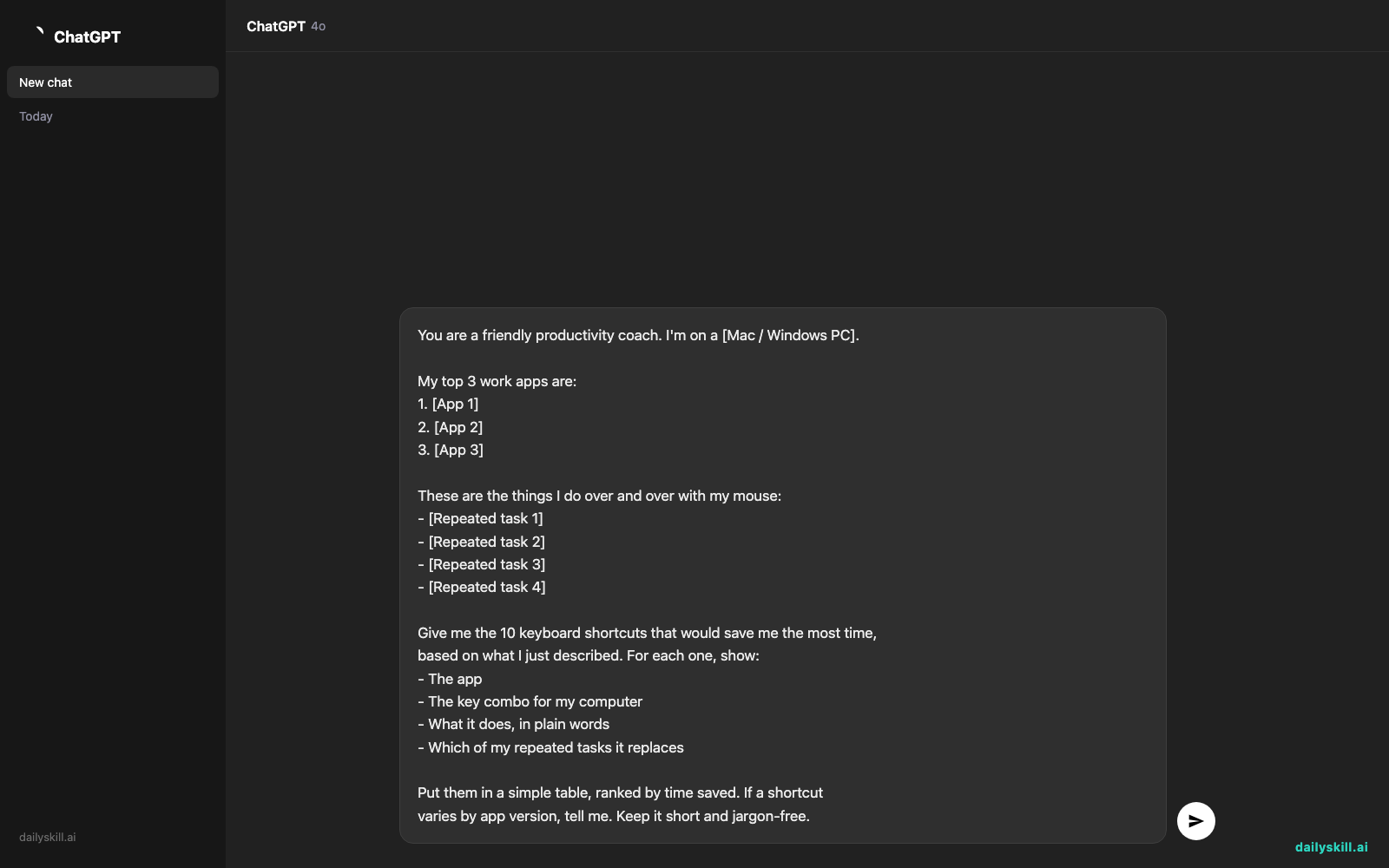
You are a friendly productivity coach. I'm on a [Mac / Windows PC].

My top 3 work apps are:
1. [App 1]
2. [App 2]
3. [App 3]

These are the things I do over and over with my mouse:
- [Repeated task 1]
- [Repeated task 2]
- [Repeated task 3]
- [Repeated task 4]

Give me the 10 keyboard shortcuts that would save me the most time,
based on what I just described. For each one, show:
- The app
- The key combo for my computer
- What it does, in plain words
- Which of my repeated tasks it replaces

Put them in a simple table, ranked by time saved. If a shortcut
varies by app version, tell me. Keep it short and jargon-free.
Real example
Here’s what Priya, an office manager on a Windows PC, might send:
I’m on a Windows PC. My top 3 apps are Outlook, Excel, and Chrome. I’m always right-clicking to paste just the values in Excel, reopening a browser tab I closed by accident, clicking the taskbar to switch windows, and hitting Reply on emails one by one.
And here’s a trimmed version of what Claude might send back:
# App Shortcut What it does Replaces 1 Excel Ctrl + Alt + V Opens Paste Special, so you can paste values only Right-click → Paste Special 2 Chrome Ctrl + Shift + T Reopens the last tab you closed Digging through history 3 Windows Alt + Tab Switches between open windows Clicking the taskbar 4 Outlook Ctrl + R Replies to the selected email Clicking Reply
You’d get six more rows like these.
Keep the list open for a week. Try one new shortcut a day, and you’ll have all 10 in your fingers before you know it.
Level up
- Ask for a printable version. Add: “Format this as a one-page cheat sheet I can print and tape to my monitor.”
- Convert it for your other computer. If you use a Mac at home and a PC at work, ask: “Show me each shortcut for both Mac and Windows side by side.”
- Describe a click, get a shortcut. Next time you catch yourself clicking through menus, tell Claude the steps. Then ask: “Is there a keyboard shortcut for this?”
FAQ
What are the best keyboard shortcuts for work?
It depends on your apps and your habits. A few work almost everywhere: copy, paste, undo, and find. The biggest savings come from shortcuts tied to your own repeated clicks. That’s why this prompt starts with your tasks.
Are Mac and PC shortcuts the same?
Mostly, with one big swap. Many Windows shortcuts use the Ctrl key, and the Mac version uses the Command (⌘) key. Some combos are completely different. Tell Claude which computer you use so the sheet matches it.
How do I know a shortcut really works in my app?
Try it right away. Apps get updated and shortcuts can change, so a quick test is the best check. If one doesn’t work, tell Claude which app and version you have and ask for an alternative. You can also look in the app’s Help menu or settings.
Today’s check-in
Tell us in the comments: which app is on your list, and which shortcut are you trying first?
Tomorrow (Day 160): you’ll learn how to pull the key terms out of your lecture notes and turn them into a flashcard study quiz with AI.
You might also like:
- Can AI help me plan a family road trip with realistic driving breaks and stops?
- Replit Agent: Build a Working App From a Plain-English Idea
Master Everyday AI in 1 Minute a Day
Get our free 2026 Double-Blind AI Benchmark Scorecard & 20 Ready-to-Use Prompts, plus one honest, 60-second AI skill in your inbox every morning. Zero hype, plain English, cancel anytime.