
Yes. For simple problems, AI is one of the fastest helpers you can have. Paste the broken code, formula, or error message, and say what you expected to happen. You’ll usually get a fix plus a plain-English explanation of what went wrong.
You don’t need to know how to code. You just need to describe the problem clearly and check the result before you rely on it.
Why this comes up
You changed one thing, and now your web page looks wrong. Or your spreadsheet shows #REF! and you have no idea why.
Forum answers are often written for experts. So you wonder two things: can AI just look at your mess and tell you what’s broken, and can you trust what it says?
The honest answer
AI is good at this kind of work because small bugs follow patterns. A missing bracket, a misspelled function name, or a bad cell reference looks the same across thousands of examples.
What AI does well:
- Spots typos and syntax slips. An unclosed
<div>, a missing semicolon in CSS, or a missing comma between a formula’s parts. - Explains error codes.
#N/A,#VALUE!,#REF!, and#DIV/0!each mean something specific. AI can tell you which one you’re seeing and why. - Fixes layout trouble. Text that won’t center, an image that overflows, or a button that sits in the wrong place.
- Teaches as it fixes. Ask “why was this broken?” and you get the reason, not just a replacement.
What’s overblown or worth watching:
- “AI will wreck my file.” It only suggests changes. Nothing happens to your work until you paste the fix in yourself.
- “AI always gets it right.” It can sound confident and still be wrong. A fix that looks right might not do what you wanted.
- “It sees everything.” It only knows what you show it. If you leave out the surrounding code or the other cells, it may guess.
- “It can handle my whole project.” Large, tangled projects are harder. Small, focused snippets work best.
- Privacy matters. Never paste passwords, private customer data, or sensitive files. Swap real details for made-up ones first.
Think of AI as a patient helper reading your work over your shoulder. It’s quick and useful, but you’re still the one who checks the result.
What to do
Do:
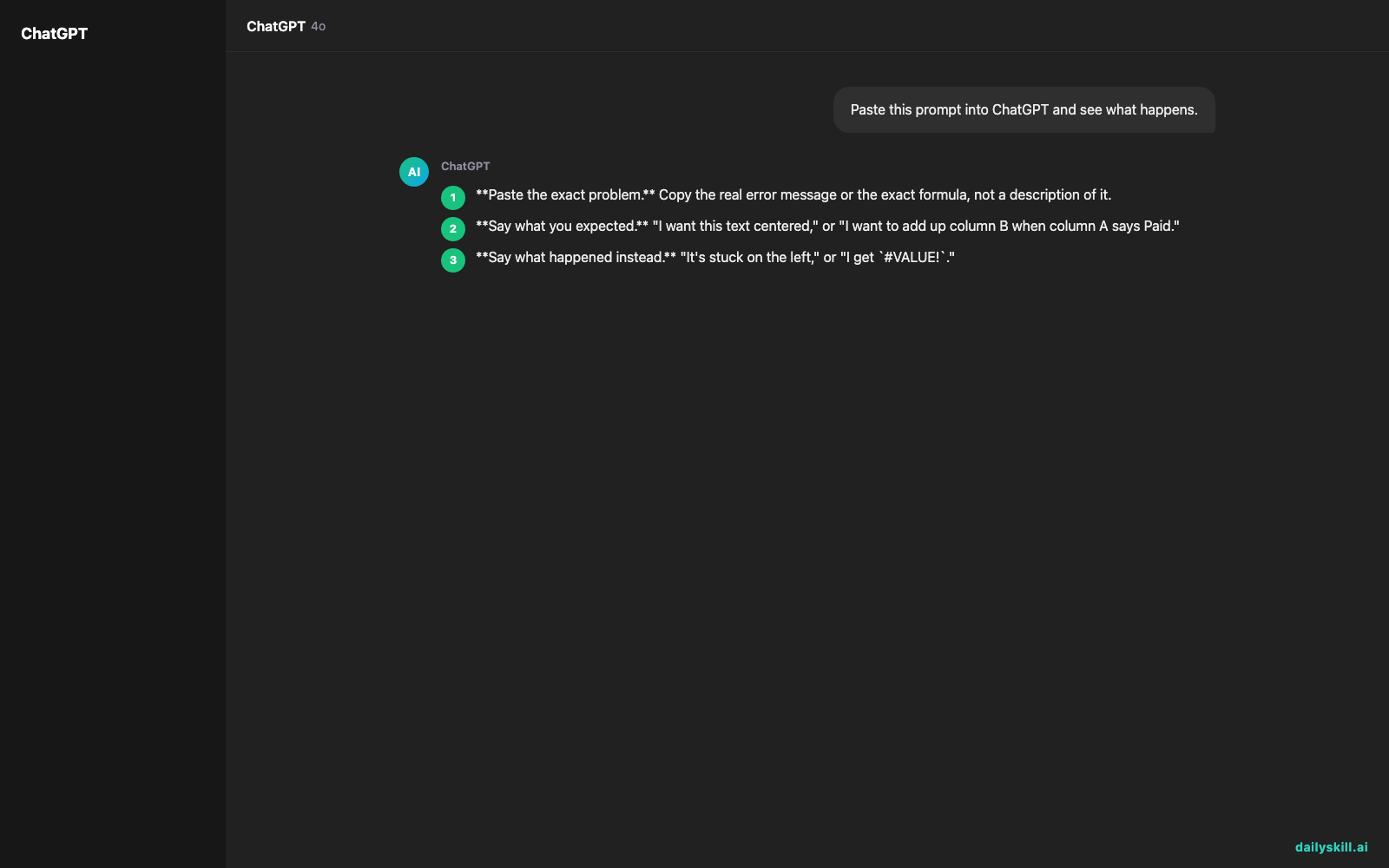
- Paste the exact problem. Copy the real error message or the exact formula, not a description of it.
- Say what you expected. “I want this text centered,” or “I want to add up column B when column A says Paid.”
- Say what happened instead. “It’s stuck on the left,” or “I get
#VALUE!.” - Name your tool. Excel, Google Sheets, WordPress, or a plain HTML file can all change the answer.
- Ask for the explanation too. Try: “Fix this and explain in simple terms what was wrong.”
- Test the fix on a copy. Save a backup first (in a spreadsheet, duplicate the sheet). Then try the change and compare the result to what you expected.
Don’t:
- Don’t paste private or confidential data.
- Don’t accept a fix you don’t understand. Ask follow-up questions until it makes sense.
- Don’t paste an entire giant file when only one section is broken.
- Don’t change five things at once. Apply one fix, check it, then move on.
A prompt you can copy:
“I’m a beginner. Here is my formula:
=SUMIF(A:A, "Paid" B:B). I’m using Google Sheets and I get a parse error. Please fix it and explain what was wrong.”
A good answer will point out the missing comma after "Paid" and show the corrected version: =SUMIF(A:A, "Paid", B:B). You’ll learn what to look for next time.
FAQ
What if the fix doesn’t work?
Tell the AI exactly what happened after you tried it, and paste the new error message. Debugging is a back-and-forth, and the second try often solves it.
Can AI look at a screenshot of my problem?
Many AI assistants can read images, so a screenshot of an error or a broken page can help. Pasting the text is still clearer when you can, because the AI can read every character exactly.
Will I learn anything, or just copy and paste?
That’s up to you. If you ask “why did this happen?” each time, you’ll start recognizing common mistakes on your own.
Bottom line
Paste the problem, say what you wanted, and ask for the fix and the reason. Then test it on a copy.
Have you used AI to rescue a broken formula or web page? Share your story, or your favorite troubleshooting prompt, in the comments. Other beginners will thank you.
Tomorrow’s question: How do I prompt AI to explain math or financial formulas step by step?
Master Everyday AI in 1 Minute a Day
Get our free 2026 Double-Blind AI Benchmark Scorecard & 20 Ready-to-Use Prompts, plus one honest, 60-second AI skill in your inbox every morning. Zero hype, plain English, cancel anytime.