You’ve got a receipt in your bag, and you’ve told yourself you’ll type it into a spreadsheet “later.” Later never comes.
Here’s exactly how to skip the typing. Take one photo, and ChatGPT gives you a tidy table of items, prices, and totals. Paste it straight into Excel or Google Sheets, and it takes about a minute.
Sound familiar?
You come home with a pile of receipts. Maybe you’re tracking expenses, splitting a dinner, or keeping records for a small business.
Or you snapped a photo of a restaurant menu and want to compare prices. Or a neighbor handed you a handwritten price list.
Typing it all by hand is slow and boring. It’s also easy to mistype a number. Let AI do the boring part.
The 60-second fix
ChatGPT can read photos, not just text. It looks at your picture and pulls out the words and numbers, even many kinds of handwriting. Here’s how to use that.
1. Take a clear photo
Lay the receipt or menu flat in good light. Get the whole thing in the frame and hold your phone steady.
Skip the flash if the paper is shiny, because glare hides numbers. For handwritten pages, shoot straight on, not at an angle.
2. Upload it to ChatGPT
Open ChatGPT on your phone or computer. Tap the + or the paperclip icon, choose your photo, and attach it.
3. Paste this prompt
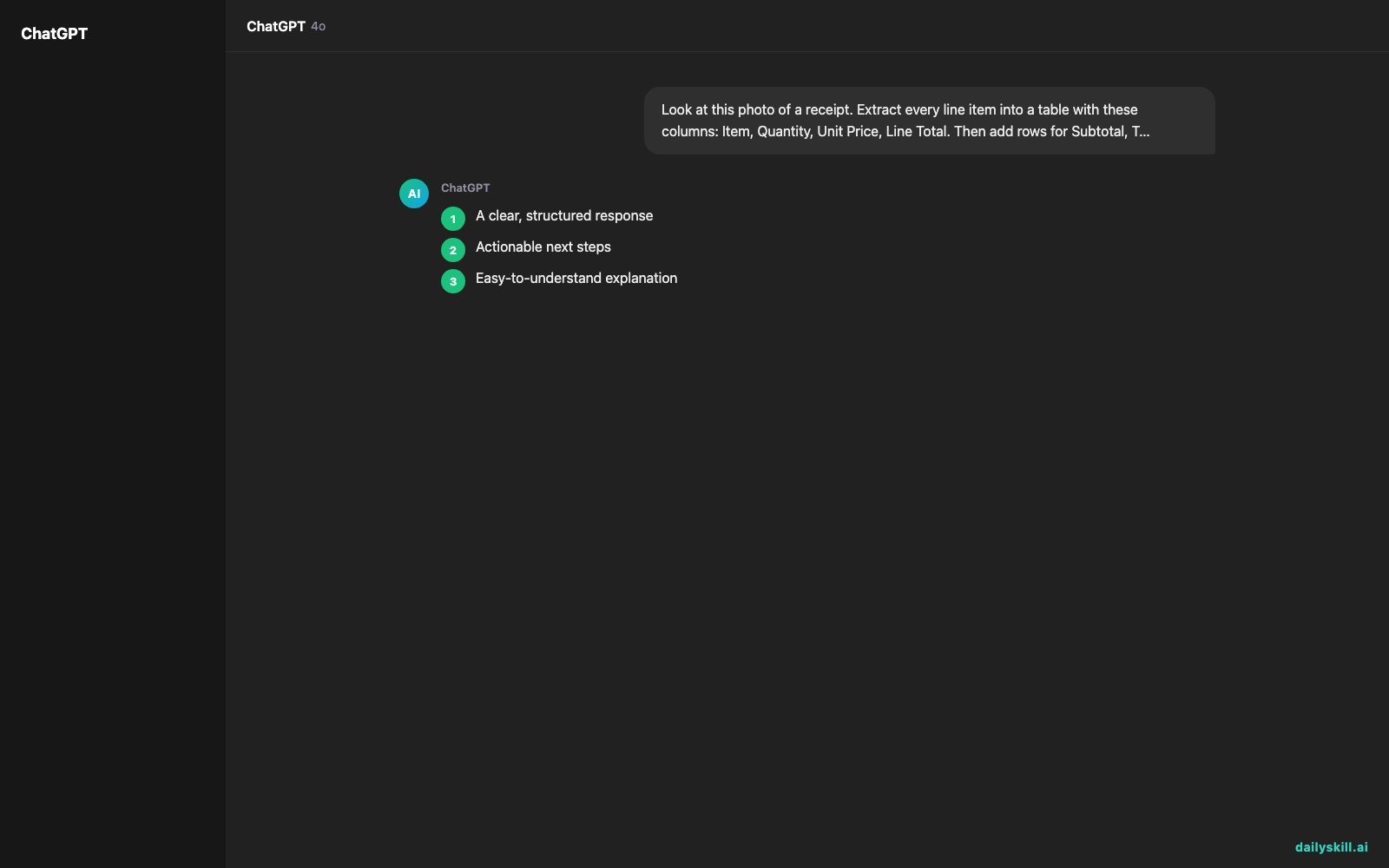
Look at this photo of a receipt. Extract every line item into a table with these columns: Item, Quantity, Unit Price, Line Total.

Then add rows for Subtotal, Tax, Tip (if any), and Total.

If any handwriting or number is hard to read, put "?" next to it instead of guessing. After the table, check whether the line totals add up to the subtotal and tell me if they don't.
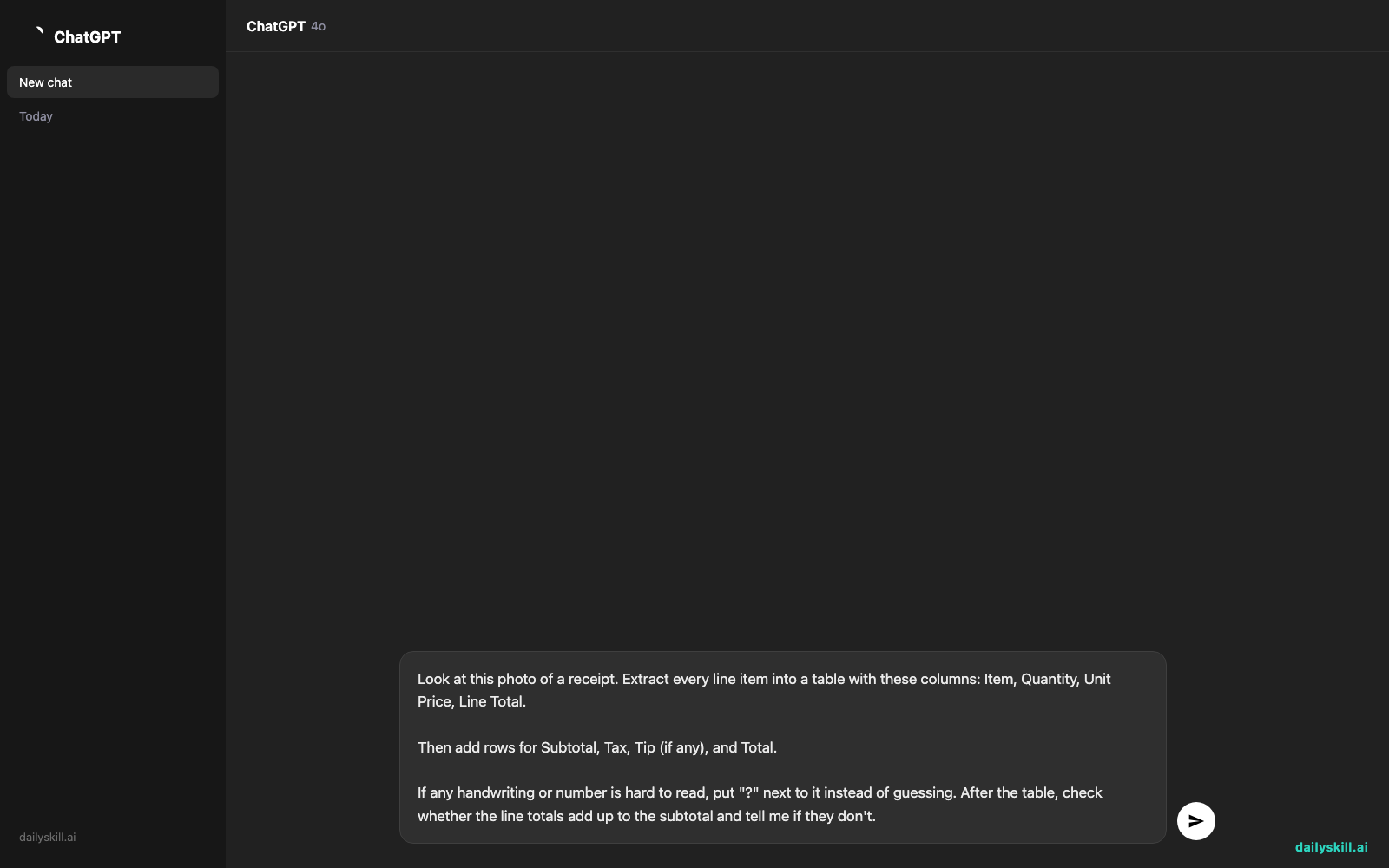
Send it. In a few seconds, you’ll have a table.
4. Copy it into your spreadsheet
Select the table in ChatGPT, copy it, and paste it into a blank cell in Excel or Google Sheets. The columns usually land in the right places.
If they don’t, ask ChatGPT: “Give me this as CSV.” Save that as a file and open it in your spreadsheet.
Real example
Say you photographed a handwritten receipt from a farmers market stall. It reads:
Tomatoes 2 lb @ 3.00 = 6.00
Eggs 1 doz = 5.50
Honey jar 1 = 8.00
Basil bunch 2 @ 1.50 = 3.00
Total 22.50
ChatGPT might reply with this:
| Item | Quantity | Unit Price | Line Total |
|---|---|---|---|
| Tomatoes (lb) | 2 | $3.00 | $6.00 |
| Eggs (dozen) | 1 | $5.50 | $5.50 |
| Honey jar | 1 | $8.00 | $8.00 |
| Basil bunch | 2 | $1.50 | $3.00 |
| Total | $22.50 |
Check: the line items add up to $22.50, which matches the total written on the receipt.
Notice the built-in double-check at the end. You didn’t just get a table. You got proof the numbers agree.
Menus work the same way. Swap “receipt” for “menu” in the prompt and ask for columns like Dish, Description, and Price. Now you can sort a whole menu by price in a couple of clicks.
Level up
- Tag your spending. Add: “Also add a Category column (Food, Household, Transport, Other).” Now your table is ready for budgeting.
- Split the bill. Say: “Four of us ate. Divide the total evenly, and tell me what each person owes including tip.”
- Do a whole stack. Upload several receipts in one chat and ask for one combined table with Date and Store columns.
FAQ
Can ChatGPT read handwritten receipts?
Often, yes. It can read many handwriting styles, especially neat ones. Messy writing can still trip it up, so the prompt asks it to mark unclear spots with “?” instead of guessing.
How do I get the table into Excel or Google Sheets?
Copy the table from ChatGPT and paste it into your spreadsheet. If the columns look jumbled, ask for the result as CSV (a plain text format that spreadsheets understand) and open that file.
Should I trust the numbers?
Treat it as a fast first draft, and spend ten seconds checking. Compare the total in the table to the total on your paper receipt. If it’s for taxes or business records, keep the original receipt too.
Today’s check-in
Grab one receipt or menu you have lying around and try the prompt above. Then tell us in the comments: what did you turn into a table, and did ChatGPT get the numbers right?
Tomorrow (Day 142): you’ll turn messy meeting minutes into a 3-bullet executive summary with AI.
You might also like:
- Can AI help me audit my monthly subscriptions and find hidden charges?
- Magic Eraser (Google Photos) — Erase Unwanted Objects From Any Photo in One Tap
Master Everyday AI in 1 Minute a Day
Get our free 2026 Double-Blind AI Benchmark Scorecard & 20 Ready-to-Use Prompts, plus one honest, 60-second AI skill in your inbox every morning. Zero hype, plain English, cancel anytime.