Short answer: Paste your messy text into an AI assistant, name the exact columns you want, and ask for the result as CSV. Then paste the output into Google Sheets or save it as a .csv file. It works well for receipts, notes, contact lists, and copied web tables. Two habits make it reliable: be specific about the columns, and spot-check the numbers before you rely on them.
Why this comes up
You have a pile of text that should be a spreadsheet. Maybe it’s a month of receipts, a list of names and phone numbers from an email, or notes you typed in a hurry. Retyping it by hand takes forever.
The real worry is twofold: can AI do the boring part, and can you trust what comes back?
The honest answer
Yes, AI is very good at this. Turning loose text into rows and columns is one of the most dependable everyday jobs for a modern assistant. You don’t need any coding.
It isn’t magic, though. It’s fast and usually right, but not always right. Here’s what’s true and what’s worth a second look.
What it does well:
– Splitting a jumbled line into separate fields (date, vendor, amount)
– Making formats consistent (every date written the same way)
– Finding the pattern in a list that has no obvious structure
– Reading text from a photo or screenshot of a receipt, if your assistant accepts images
What to watch for:
– Numbers can slip. A total might be misread or a digit dropped, especially in blurry photos or long lists. This is rare on clean text, but it happens.
– Guessing on gaps. If a field is missing, an assistant may fill in a plausible guess instead of leaving it blank.
– Commas inside values. An address like “12 Main St, Springfield” can break a CSV unless the value is wrapped in quotes.
– Sensitive info. Receipts and contact lists can include personal or financial details. Check your tool’s privacy settings before you paste them.
What’s overblown: You don’t need special software, a paid plan, or perfect input. Messy, copy-pasted text is fine. The risk is small errors you don’t catch, not a total failure.
AI does the typing. You still do the checking.
What to do
Here’s a simple process you can use today.
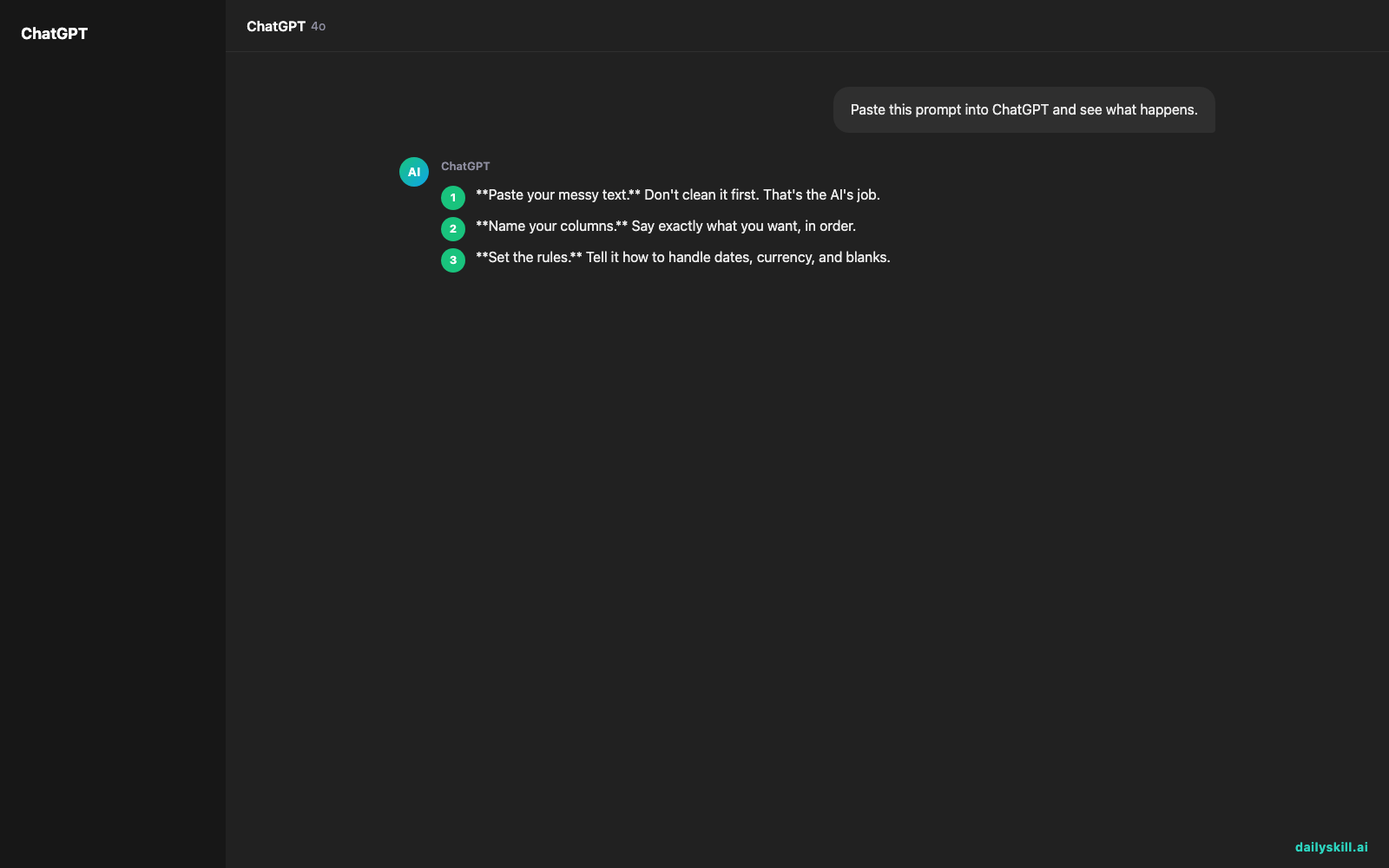
- Paste your messy text. Don’t clean it first. That’s the AI’s job.
- Name your columns. Say exactly what you want, in order.
- Set the rules. Tell it how to handle dates, currency, and blanks.
- Ask for CSV only. Say “output a code block, no extra commentary.”
- Copy it into Google Sheets. Paste into cell A1. If everything lands in one column, use Data → Split text to columns. Or save it as a .csv file and use File → Import.
A prompt you can copy:
Turn the text below into a CSV with these columns: Date, Vendor, Category, Amount. Use YYYY-MM-DD for dates. Use numbers only for Amount, with no currency symbol. If something is missing, leave it blank. Don’t guess. Wrap any value containing a comma in double quotes. Output only the CSV in a code block.
[paste your text here]
Do:
– Ask for a header row so your columns are labeled.
– Test with 5-10 lines first, then run the rest.
– Add up the Amount column and compare it to your original total.
– Count the rows and compare them to the number of items you pasted.
– Say “leave blank if unsure” every time.
Don’t:
– Paste passwords, full card numbers, or anything you wouldn’t want stored.
– Assume a long list came through perfectly. Check the row count.
– Skip the header instruction, or your columns may shift between runs.
– Delete your original text until you’ve checked the result.
FAQ
Can it clean up data that’s already in a table?
Yes. Paste the table and say what to fix: remove duplicates, fix capitalization, standardize phone numbers, or split a “Full Name” column into first and last. Spot-check a few rows afterward.
What if my list is really long?
Split it into chunks and ask for the same columns each time. Reuse the exact same prompt so every chunk lines up. Then stack the results in one sheet and check the total.
Should I use CSV or a table?
For Google Sheets or Excel, CSV is the safest. If you just want to read it in the chat, ask for a markdown table. You can also paste a table straight into a sheet, and it usually separates into cells on its own.
Bottom line
Name the columns, ask for CSV, and check the totals. That turns a messy paste into a spreadsheet in about a minute.
Your turn: What’s the messiest thing you’ve tried to get into a spreadsheet? Share your prompt or your biggest data headache in the comments. We’d love to see what works for you.
Tomorrow’s question: Can AI detect AI-generated writing accurately, or are AI detectors useless? We’ll tell you what they can and can’t do, and how much weight to give them.

You might also like:
- Get 5 Meeting Icebreakers Tailored to Your Group in 60 Seconds
- Magic Eraser (Google Photos) — Erase Unwanted Objects From Any Photo in One Tap
Master Everyday AI in 1 Minute a Day
Get our free 2026 Double-Blind AI Benchmark Scorecard & 20 Ready-to-Use Prompts, plus one honest, 60-second AI skill in your inbox every morning. Zero hype, plain English, cancel anytime.