You’ve got a meeting in an hour and a deck full of text-heavy slides that look like a Word doc exploded. You know it needs to look “professional,” but you’re not a designer and you don’t have time to become one.
Beautiful.ai is an AI presentation maker that auto-fixes your slide layout as you add content — no dragging boxes around for an hour. It’s built for anyone who needs business slides to look good fast: founders, marketers, teachers, freelancers pitching clients.
What it is
Beautiful.ai is a presentation tool where you pick a template and it handles the design rules for you. As you type or drag in images, it automatically resizes text, aligns objects, and balances the slide so nothing overlaps or looks crammed.
Think of it as a design assistant sitting inside your slide editor, quietly fixing spacing while you focus on the message.
Try it in 5 minutes
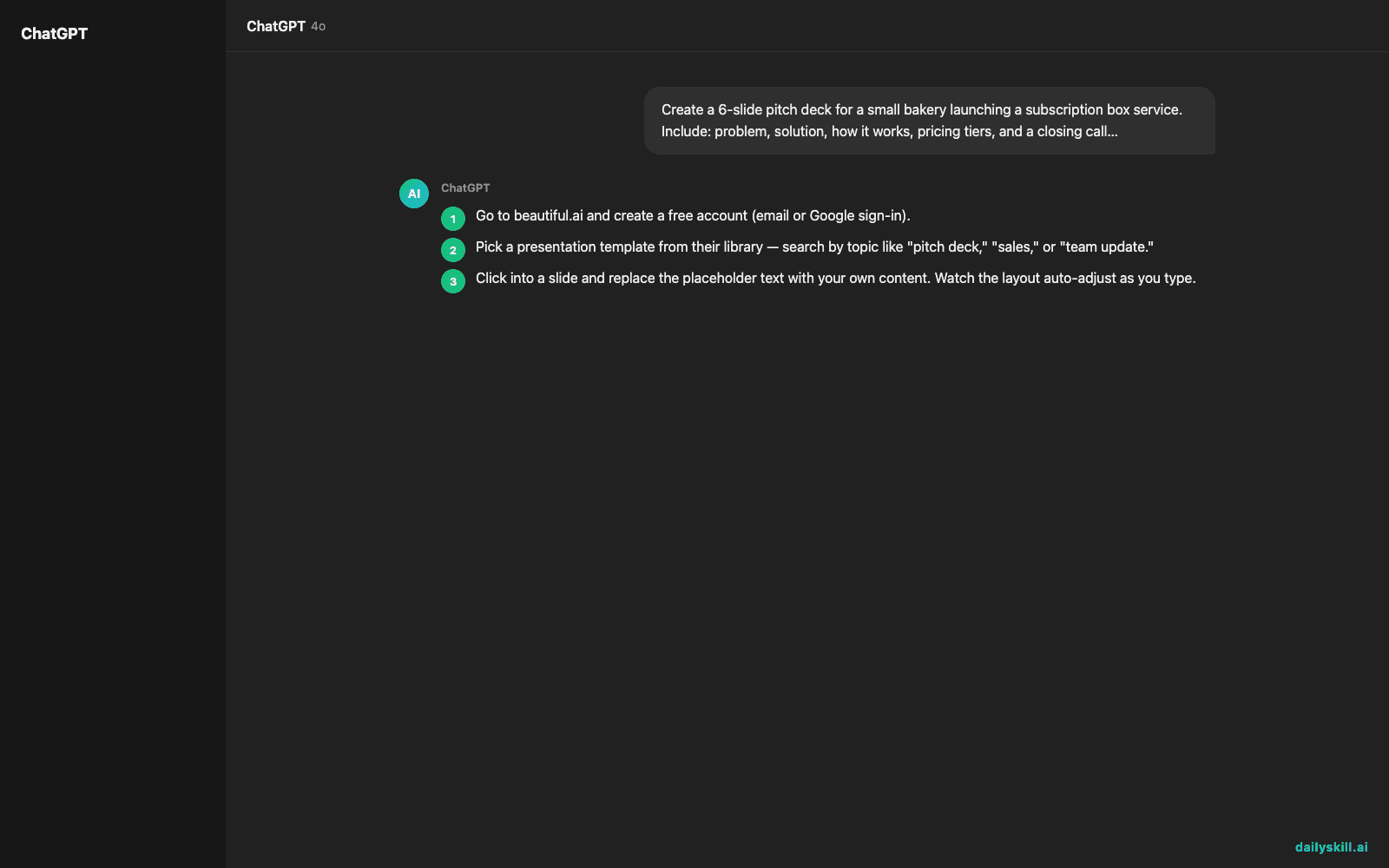
- Go to beautiful.ai and create a free account (email or Google sign-in).
- Pick a presentation template from their library — search by topic like “pitch deck,” “sales,” or “team update.”
- Click into a slide and replace the placeholder text with your own content. Watch the layout auto-adjust as you type.
- Add an image, chart, or icon from the built-in library — the tool auto-positions it instead of leaving you to eyeball alignment.
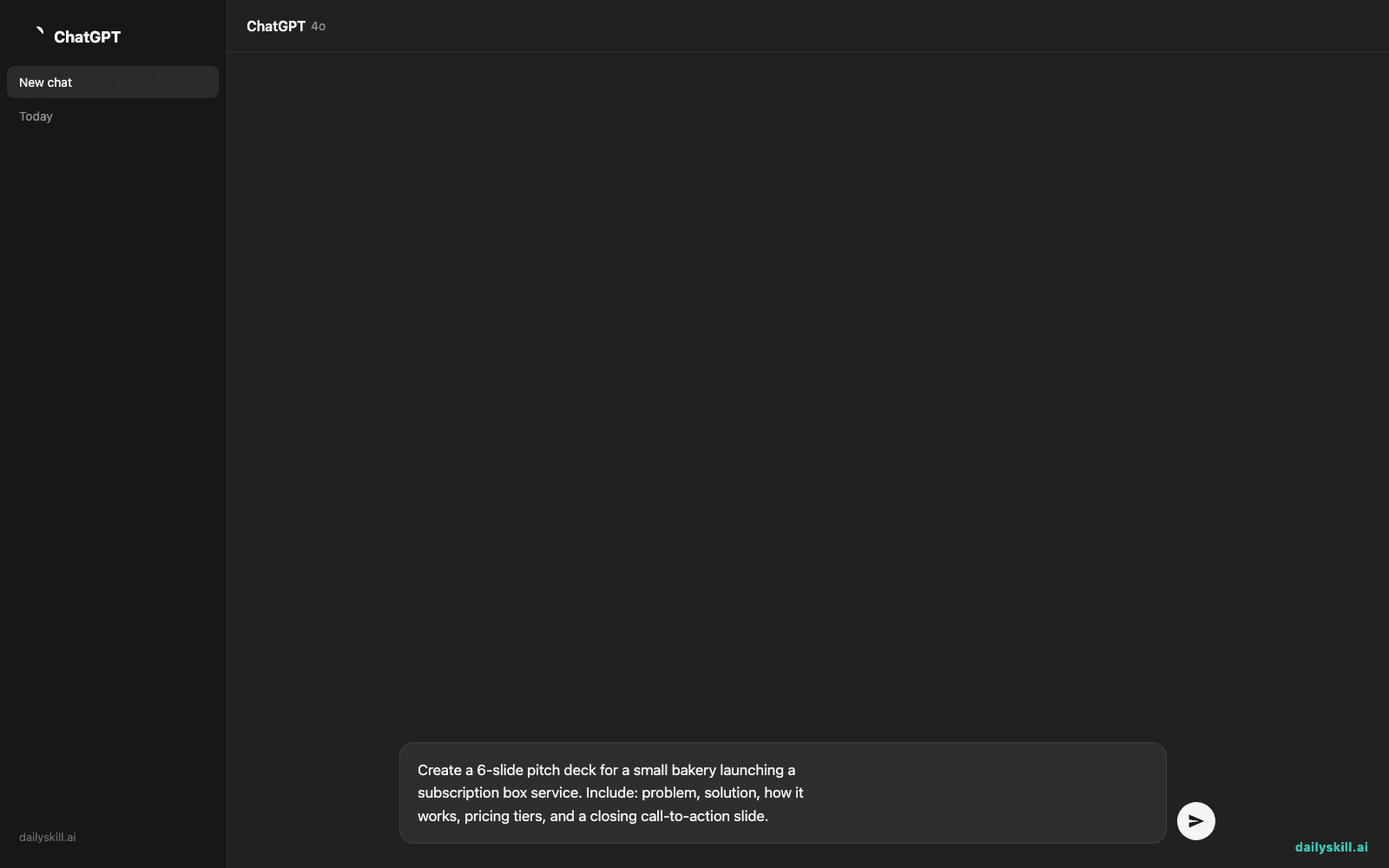
- If your plan includes the AI slide generator, use this prompt to get a first draft fast:
Create a 6-slide pitch deck for a small bakery launching a
subscription box service. Include: problem, solution, how it
works, pricing tiers, and a closing call-to-action slide.
A real example
Input: the bakery prompt above.
Output you can expect:
Slide 1: “Fresh Bread, Delivered Weekly” (title + tagline)
Slide 2: “The Problem” — bullet points on why people skip baking fresh bread at home
Slide 3: “Our Solution” — subscription box concept with a simple icon graphic
Slide 4: “How It Works” — 3-step numbered layout, auto-aligned
Slide 5: “Pricing” — a clean 3-column comparison table
Slide 6: “Get Started Today” — CTA slide with contact info
Every slide arrives with matching fonts, spacing, and colors already applied. You just swap in your real numbers and copy.
Honest take
Best for:
– Business presentations, pitch decks, and sales slides where “polished” matters more than “creative”
– People who don’t want to manually align text boxes or pick color palettes
– Quick internal updates that still need to look client-ready
Not for:
– Highly custom, artistic designs — the auto-formatting can feel restrictive if you want full creative control over layout
– Free unlimited use — the free tier gives you basic templates, but advanced designs, exporting, and team features sit behind a paid plan
FAQ
Is it free? There’s a free tier with basic templates, but most professional templates and export options require a paid plan.
Is it safe? Yes — it’s a standard web-based tool. Avoid pasting confidential client data if you’re on a shared or team account you don’t control.
Do I need design experience? No. That’s the whole point — the AI handles alignment, spacing, and sizing so your slides look consistent even if you’ve never used a design tool before.
Today’s pick wrap-up
Beautiful.ai won’t make you a designer, but it’ll stop your slides from looking like a designer never touched them. Try it on your next real deck and tell us how it went in the comments.
Tomorrow: we look at Paste — an AI tool that helps you reflect on your day and actually learn from it.
You might also like:
Master Everyday AI in 1 Minute a Day
Get our free 2026 Double-Blind AI Benchmark Scorecard & 20 Ready-to-Use Prompts, plus one honest, 60-second AI skill in your inbox every morning. Zero hype, plain English, cancel anytime.