It’s 4:45pm, the meeting is at 5, and you have bullet points but no slides. Or it’s Sunday night, the class project is due tomorrow, and you’d rather do anything than fight with PowerPoint layouts.
Tome is an AI presentation generator: you type what the deck is about, and it writes the slide text, picks a layout, and adds matching images automatically. It’s for anyone who needs a decent-looking deck fast and doesn’t want to think about design.
What it is
Tome is a web app that turns plain text prompts into full slide decks — title slides, bullet layouts, image placement, even a consistent color theme, all generated at once.
Think of it as a PowerPoint alternative that does the layout work for you first. You can still edit every slide afterward, drag things around, or swap images — you just start from something already finished instead of a blank page.
Try it in 5 minutes
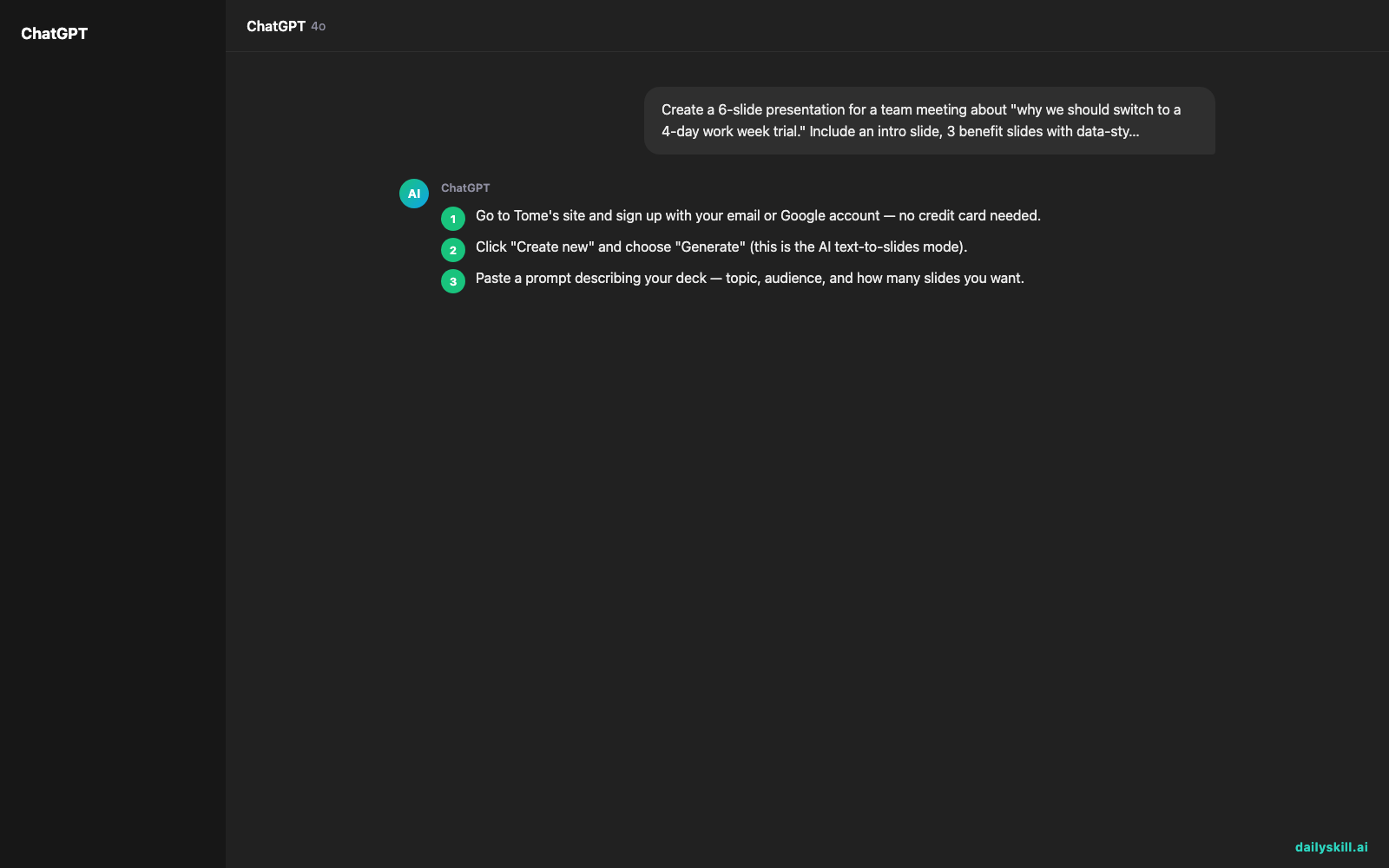
- Go to Tome’s site and sign up with your email or Google account — no credit card needed.
- Click “Create new” and choose “Generate” (this is the AI text-to-slides mode).
- Paste a prompt describing your deck — topic, audience, and how many slides you want.
- Wait about 30-60 seconds while it drafts the full deck with text, layout, and images.
- Click through the slides, swap out any image or line that feels off, then export or share a link.
Copy-paste starter prompt:
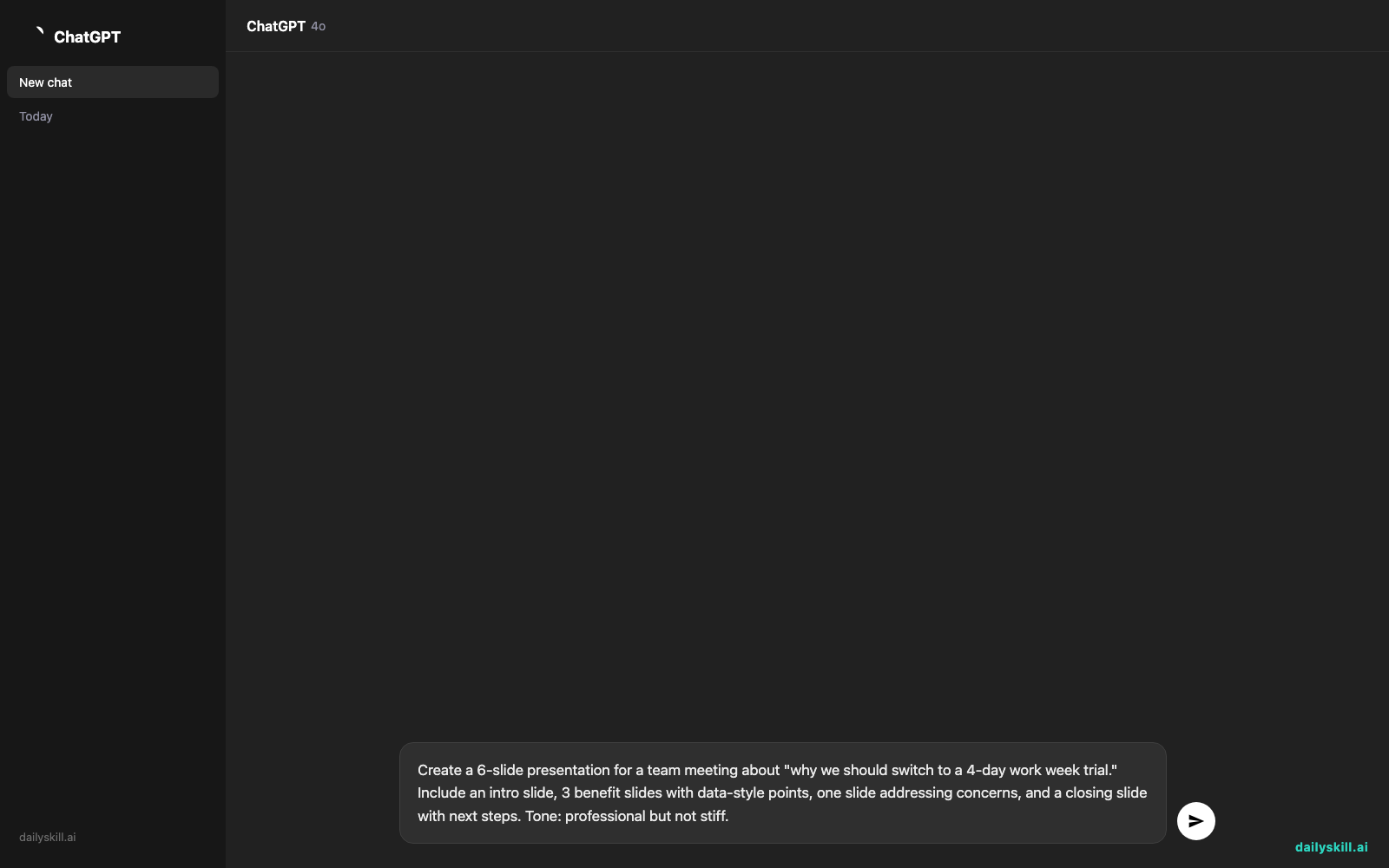
Create a 6-slide presentation for a team meeting about "why we should switch to a 4-day work week trial." Include an intro slide, 3 benefit slides with data-style points, one slide addressing concerns, and a closing slide with next steps. Tone: professional but not stiff.
A real example
I ran that exact prompt to build slides for a fake team pitch. Here’s what came back:
Slide 1: Title — “Rethinking the Work Week” with a subtle office-themed image.
Slide 2: “The Case for Change” — three bullets on focus, burnout, and retention.
Slide 3: “The Retention Angle” — one stat-style claim plus a short supporting line.
Slide 5: “What About Deadlines?” — a concern/response layout with two columns.
Slide 6: “Next Steps” — a 3-item timeline graphic, not just a bullet list.
I didn’t ask for the timeline graphic on slide 6 — Tome added it because the content fit that layout better than plain text. That’s the part that actually saves time: it’s making small design calls you’d normally have to make yourself.
Honest take
Best for:
– Quick deck needs — work updates, pitches, class projects, portfolio walkthroughs
– People who freeze up designing slides and just want a clean starting point
– Decks where images and layout matter as much as the words
Not for:
– Decks needing exact brand fonts/colors or pixel-perfect corporate templates
– Heavy data decks with real charts — build those in Sheets or Excel first, then drop screenshots in
Free tier gives you 25 pages a month, which covers most single presentations. Paid plans unlock more if you’re making decks weekly.
FAQ
Is it free? Yes, up to 25 pages a month at no cost — plenty for occasional decks.
Is it safe to use for work content? Don’t paste confidential company data into the prompt. Treat it like any cloud tool: keep sensitive details generic, or add them after you export.
Do I need an account? Yes, a free sign-up (email or Google) is required before you can generate anything.
Today’s pick wrap-up
If you need slides that look done, not just started, Tome earns its spot in your bookmarks bar.
What’s your go-to for last-minute decks? Reply and tell us — we read every one.
Tomorrow: Synthesia — for when you need a talking-head video and zero desire to be on camera yourself.
You might also like:
More on Choosing & Using AI Tools:
- Adobe Firefly: The AI Image Generator Built for Real Work
- Anthropic Introduces Claude Sonnet 5: Its Most Agentic Sonnet
- Best Free AI Tools in 2026: The Honest Guide for Normal People
Master Everyday AI in 1 Minute a Day
Get our free 2026 Double-Blind AI Benchmark Scorecard & 20 Ready-to-Use Prompts, plus one honest, 60-second AI skill in your inbox every morning. Zero hype, plain English, cancel anytime.