You find a great recipe blog, forum thread, or product review — but it’s in a language you don’t read. You paste chunks into a translator, the formatting falls apart, and you give up halfway through. Immersive Translate skips that step: it translates the page where it sits, so images, buttons, and layout stay exactly where they were.
What it is
Immersive Translate is a browser extension that adds a translation directly onto any web page or PDF you’re viewing. Instead of replacing the original text, it usually shows both languages together — the original line, then your language right below it.
That’s what makes it a solid bilingual reading tool: you still see the source language while understanding the meaning, instead of getting a stripped-down text dump.
Try it in 5 minutes
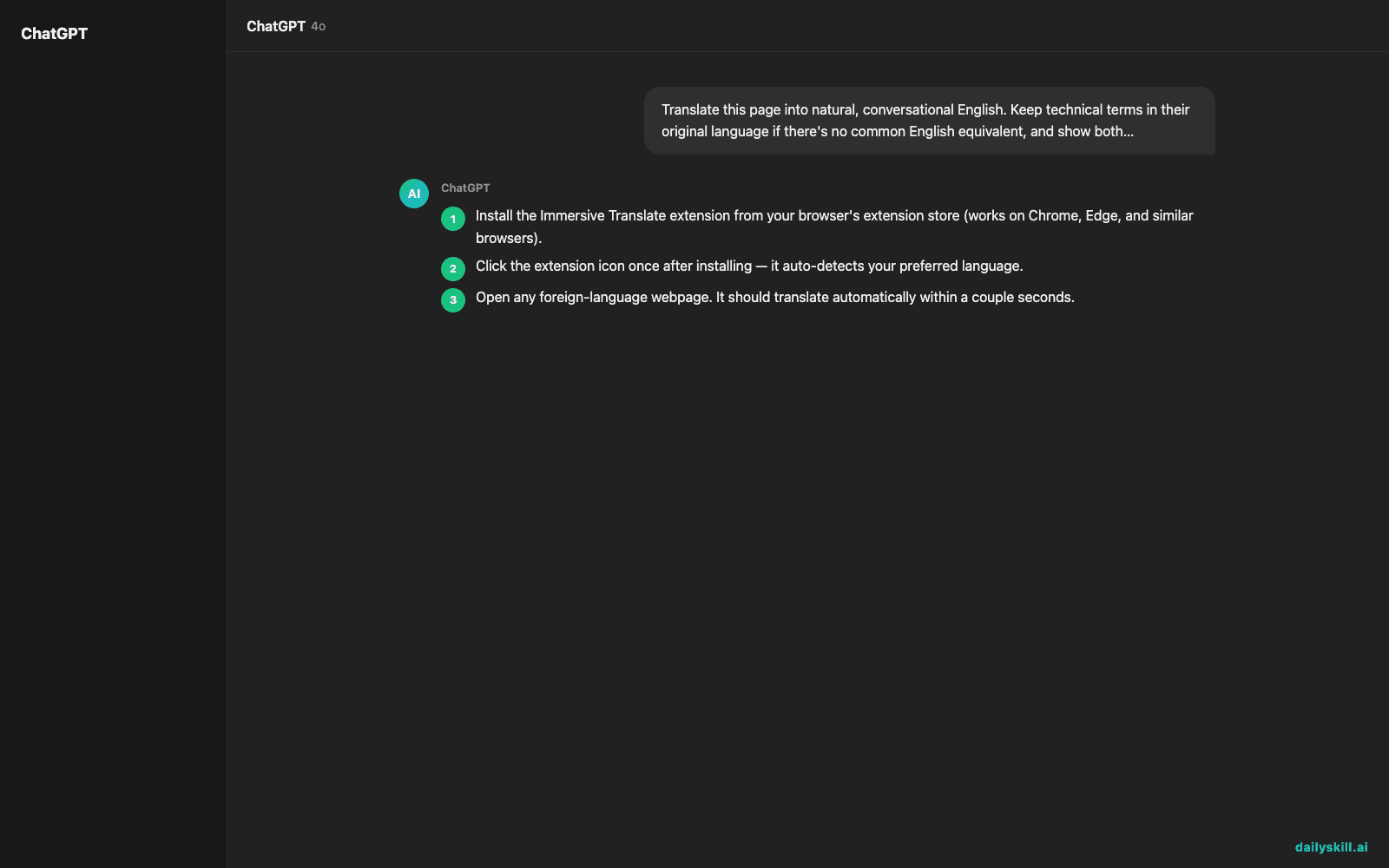
- Install the Immersive Translate extension from your browser’s extension store (works on Chrome, Edge, and similar browsers).
- Click the extension icon once after installing — it auto-detects your preferred language.
- Open any foreign-language webpage. It should translate automatically within a couple seconds.
- If it doesn’t trigger automatically, click the extension icon and choose “Translate this page.”
- For a PDF, open the extension’s PDF tool and upload the file directly — no need to convert or copy text out first.
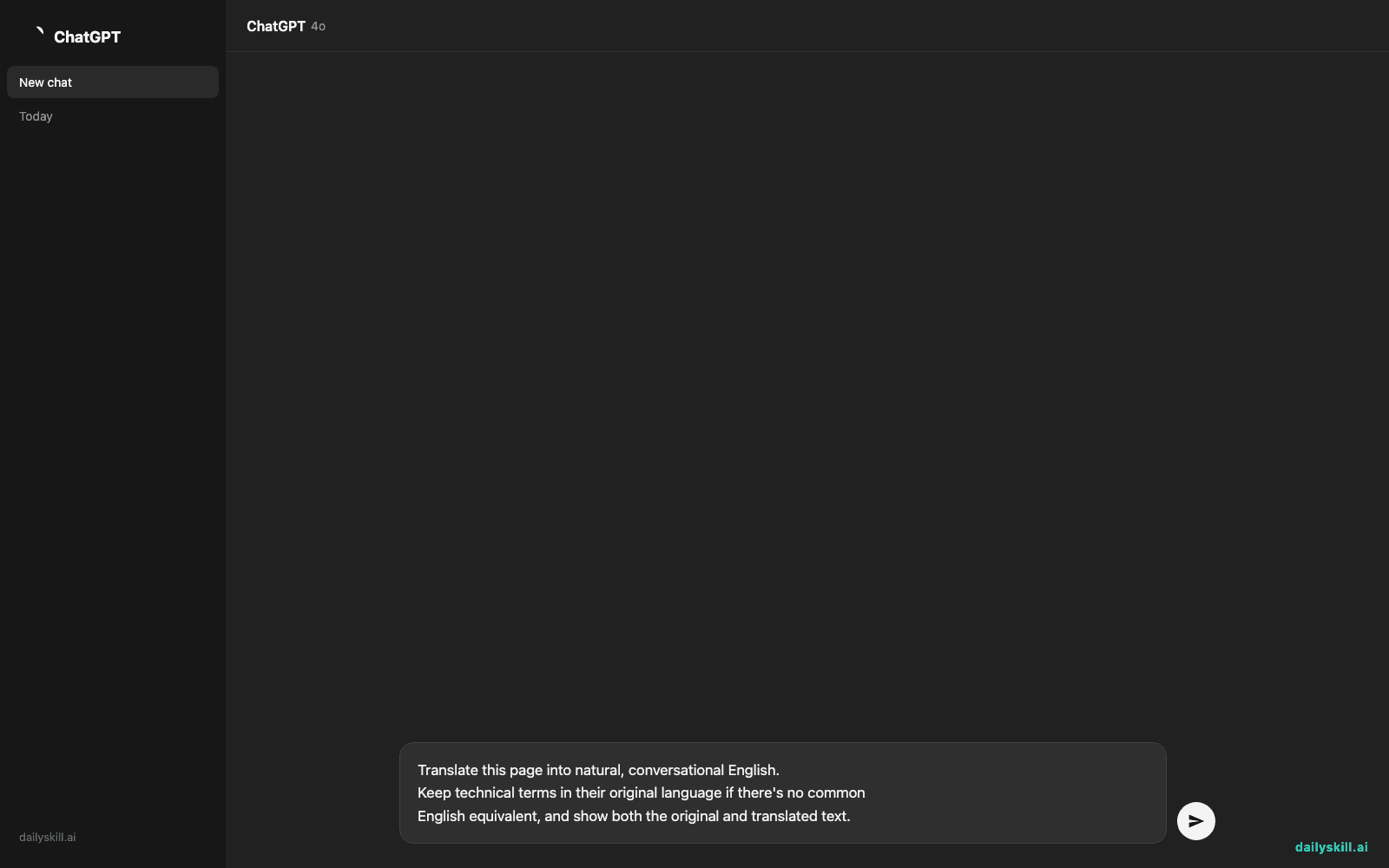
If you want more control over tone or accuracy, type a request into its built-in prompt-style settings:
Translate this page into natural, conversational English.
Keep technical terms in their original language if there's no common
English equivalent, and show both the original and translated text.
A real example
Say you open a German cooking blog post about sourdough starters. Before translating, it’s a wall of unreadable text with recipe photos scattered in between paragraphs.
After clicking translate: each paragraph shows the German sentence, followed directly underneath by the English translation. Photos, headers, and recipe steps stay exactly where they were. You scroll and read it like a normal blog post, just in two languages at once. One ingredient name — a regional flour type — stays untranslated because there’s no direct English equivalent, which is a small but real reminder this is machine translation, not a native speaker.
The same approach works on a Japanese product manual PDF — layout, diagrams, and page numbers stay intact, with English text overlaid near the original.
Honest take
Best for:
– Reading foreign news, forums, and blogs without breaking the page layout
– Translating while researching or shopping on non-English sites
– Translating PDFs (manuals, papers, contracts) without losing formatting
Not for:
– Long, nuanced literary text — it sometimes misses tone, humor, or wordplay, and idioms can come out oddly literal
– Official or legal documents where you need a certified human translator, not a machine’s best guess
The free tier gives unlimited translations using its built-in engines, which is plenty for daily browsing. Optional premium AI engines exist for extra accuracy, but most everyday reading doesn’t need them.
FAQ
Is it free? Yes — the core translation feature is free and unlimited. No trial limits or paywalls for basic use.
Is it safe? It’s a widely used extension, but like any browser extension, only install it from the official store and check what permissions it asks for.
Do I need an account? No account is required to start translating. You only need one to sync settings across devices or use premium AI engines.
Today’s pick wrap-up
If you’ve ever closed a tab because the page was “in the wrong language,” Immersive Translate quietly removes that excuse. Tried it on a page today? Reply and tell us what you translated. Tomorrow: Copy.ai — for writing marketing copy without staring at a blank page.
Master Everyday AI in 1 Minute a Day
Get our free 2026 Double-Blind AI Benchmark Scorecard & 20 Ready-to-Use Prompts, plus one honest, 60-second AI skill in your inbox every morning. Zero hype, plain English, cancel anytime.