
Set up one folder per project, then copy anything worth keeping into a single running doc (Google Docs or Notion both work fine) with a tag at the top. That’s it. It takes about 90 seconds per output and it beats scrolling through old chat history every time.
Why this comes up
You ask AI for help all day — an email draft here, a summary there, a list of ideas somewhere else. A week later you can’t find the good version, and you don’t want to regenerate it from scratch. The real worry isn’t “too much AI,” it’s “I’m losing my own work.”
The honest answer
What’s true: chat history alone is not a filing system. Even with newer search and memory features, tools organize conversations by their own logic, not yours. If you rely on scrolling back through chats, you will still lose things.
What’s overblown: you don’t need special software, a complex tagging taxonomy, or a paid tool to fix this. Managing multiple AI conversations is a habit problem, not a tech problem.
The simple system
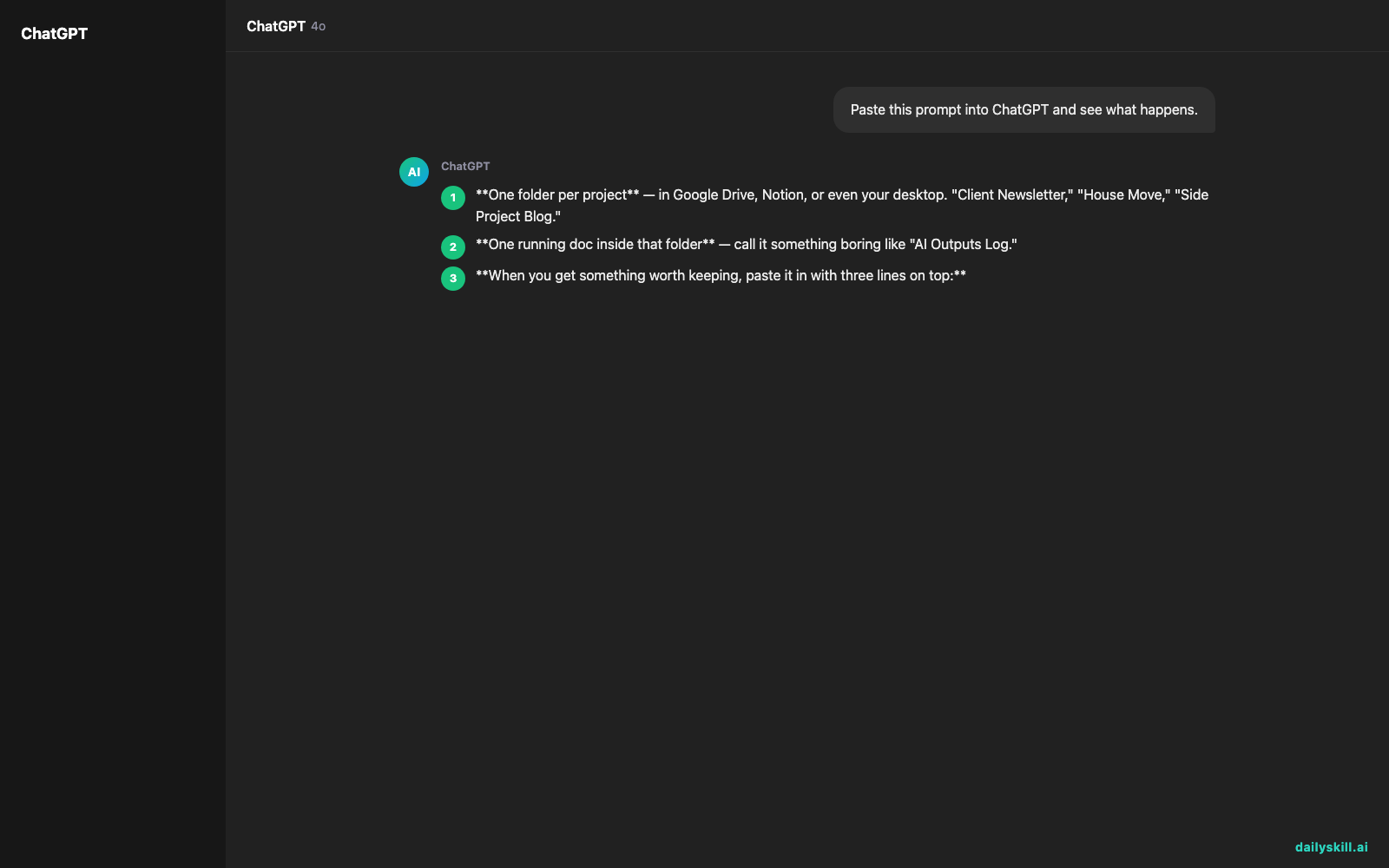
- One folder per project — in Google Drive, Notion, or even your desktop. “Client Newsletter,” “House Move,” “Side Project Blog.”
- One running doc inside that folder — call it something boring like “AI Outputs Log.”
- When you get something worth keeping, paste it in with three lines on top:
– Date
– What you asked for (the prompt, or a short version)
– A tag word (e.g., #email, #draft, #final, #idea)
That’s the whole system for AI output file organization. No app to learn, no subscription.
If you can’t find it by searching one document, the problem isn’t AI — it’s that you never saved it anywhere searchable.
Why this beats “just keep the chat”
- Chats get deleted, renamed, or buried under new ones.
- Search inside any single AI tool can be hit-or-miss across long histories.
- One doc you control is instantly searchable, no matter which AI tool you used.
- Tags let you filter later — search “#final” when you just need the finished version, not every draft.
What to do
- Do create the project folder before you start prompting, not after.
- Do paste keepers into your log doc immediately — don’t trust “I’ll do it later.”
- Do use consistent tags (#draft, #final, #idea, #reference) so search actually works.
- Don’t keep every single output — only paste in things you’d be annoyed to lose.
- Don’t rely on any one AI tool’s built-in history as your only backup.
- Don’t overbuild this — a spreadsheet or plain doc beats a complicated system you abandon in a week.
FAQ
What’s the best way to save AI results long-term?
A doc or spreadsheet you already use daily. The best system is the one you’ll actually keep using — not the fanciest one.
Should I organize by AI tool or by project?
By project. You’ll often use more than one AI tool for the same task, and you want everything for “Client Newsletter” in one place, not split by which tool made it.
Can I just export my chat history instead?
You can, but raw exports are messy and hard to scan later. A quick copy-paste with a tag takes seconds and saves you real time down the road.
Bottom line
One folder, one log doc, one tag — that’s the whole system, and it takes less time than searching for a lost draft. Try it on your next AI output and tell us in the comments what tagging words you end up using most. Tomorrow: does the time of day you use AI actually affect the quality of the answers?
You might also find these helpful:
- Perplexity AI — Get Answers With Sources, Not a Pile of Links
- Can I talk to AI out loud instead of typing?
- You.com — A Free AI Search Engine That Skips the 10 Blue Links
Master Everyday AI in 1 Minute a Day
Get our free 2026 Double-Blind AI Benchmark Scorecard & 20 Ready-to-Use Prompts, plus one honest, 60-second AI skill in your inbox every morning. Zero hype, plain English, cancel anytime.