You’ve probably needed this without knowing it existed
You’ve spent five minutes staring at a blank reply to a passive-aggressive meeting request, or you’ve waded through a wall of HR jargon just to find out one deadline. There’s an AI assistant already sitting in your Windows taskbar that handles both — and most people have never clicked it.
Microsoft Copilot is a free AI assistant built into Windows 10/11 and the Edge browser. It can answer questions, write drafts, summarize web pages, and generate images — no new app to download, no subscription required.
What it is
Copilot is Microsoft’s AI assistant powered by the same underlying technology as ChatGPT. It lives in your taskbar, in Microsoft Edge, and inside Office apps like Word and Outlook. The free version gives you a full chat experience, live web search, and an image generator — all at no cost.
Think of it as a capable colleague who already lives on your PC and never asks for anything in return.
Try it in 5 minutes
- Open Copilot — click the Copilot icon on your Windows taskbar (bottom right), or open Edge and click the small chat icon in the top-right corner. No login needed to start, though signing in with a free Microsoft account unlocks a higher daily image limit and saves your chat history.
- Write a full sentence, not a search keyword — talk to it like you’d ask a person.
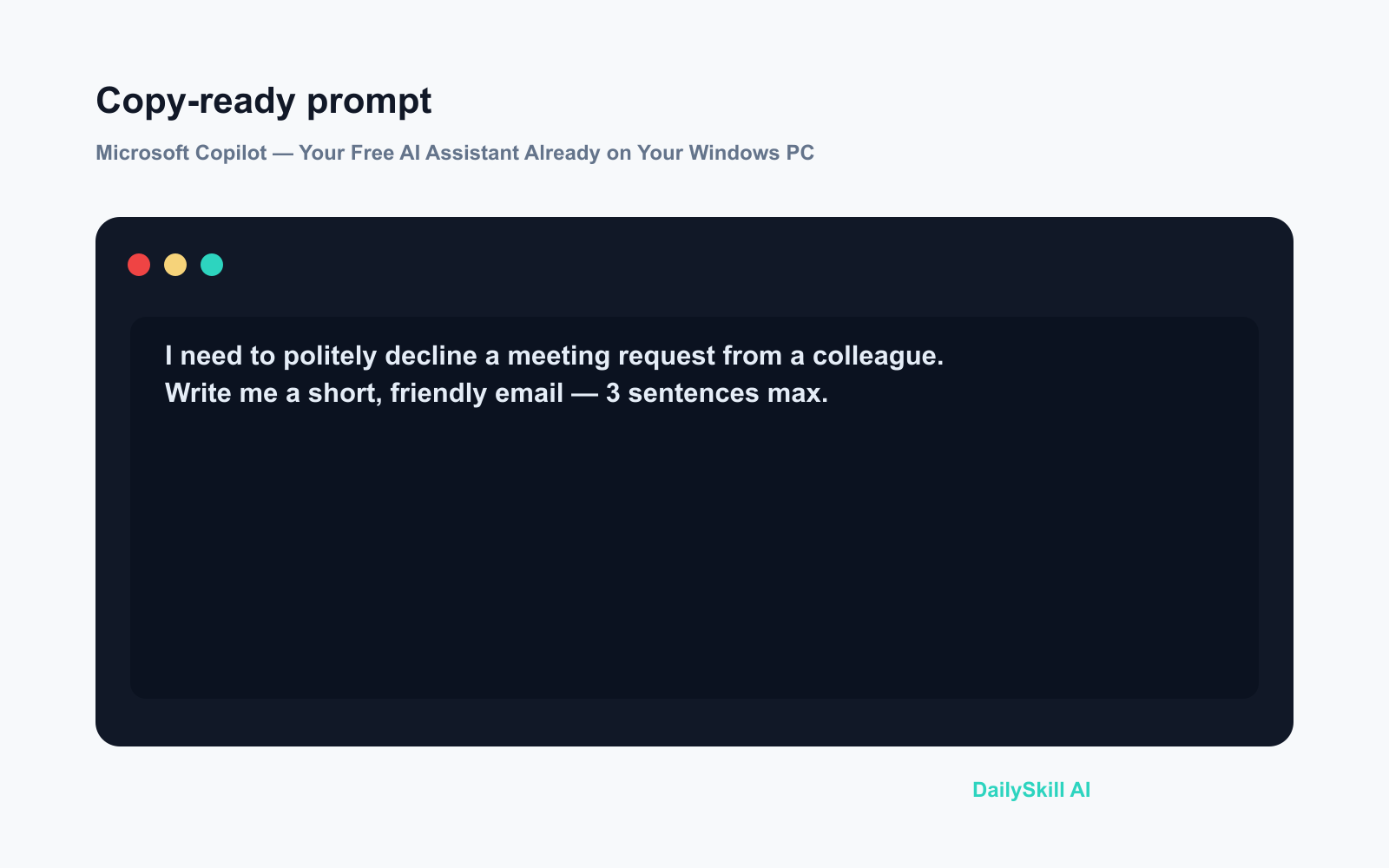
- Paste this prompt to see what it can do:
I need to politely decline a meeting request from a colleague.
Write me a short, friendly email — 3 sentences max.
- Read the draft, change one word if you like, and copy it straight into your email. Done.
- Bonus — try the image generator: Type
Draw a simple logo of a mountain with a sunrise for a hiking cluband it returns four image options in under a minute.
A real example
Your input:
You paste a confusing two-paragraph IT policy notice from HR and ask:
Summarize this in plain English. What do I actually need to do by Friday?
What Copilot returns:
“The notice says all staff must update their Windows password before Friday at 5 pm. To do it: press Ctrl + Alt + Delete, choose ‘Change a password,’ and follow the prompts. That’s it — no other action needed.”
It surfaces the one action item, strips the corporate filler, and adds the how-to steps you actually need.
Honest take
Best for:
– Windows users who want an AI assistant without installing anything new
– Quick drafts — emails, short summaries, to-do lists
– Free image generation when you need a simple graphic fast
Not for:
– Deep integration inside Word or Outlook — features like Copilot rewriting whole documents or summarising your inbox require a paid Microsoft 365 Copilot licence (currently around $30/user/month), and the free tier won’t get you there
– Sensitive information — like any cloud AI tool, your text is processed on Microsoft’s servers, so don’t paste client contracts, personal ID numbers, or private financial details
Free tier: Fully available with no time limit. A free Microsoft account raises your daily image generation cap and saves chat history, but even without one you can start immediately.
FAQ
Is Microsoft Copilot really free?
Yes. The version built into Windows and Edge costs nothing. A paid “Microsoft 365 Copilot” plan exists for deeper Office integration, but you won’t hit a paywall for everyday chat, answers, and image generation.
Do I need to download anything?
No. If you’re on Windows 10 or 11 and your system is reasonably up to date, Copilot is already there — look for the icon in your taskbar. In Edge, it’s the small chat icon in the top-right corner.
Is it safe to use for work emails?
It’s fine for general drafts. Avoid pasting in sensitive data — client contracts, personal ID numbers, private financial details — since text is processed on Microsoft’s cloud servers, the same as any online service.
Today’s pick wrap-up
If you’re on Windows and you’ve never clicked that Copilot icon, you’re leaving a free, capable assistant untouched on your own machine — open it today and send that one email draft you’ve been putting off.
Tried Copilot before? Drop your favourite use for it in the comments — we’d love to build a community tip list.
Tomorrow on Daily Skill: We’re looking at Google Translate’s AI upgrades — it does a lot more than swap words between languages now, and one feature is genuinely useful for travellers.
You might also like:
- Day 13 — Get a Full 1-Week Workout Plan from AI in Under a Minute (AI 1-Minute Challenge)
- Why Do Different AI Tools Give Me Different Answers to the Same Question?
⭐ Want every prompt in one place?
All 136 tested prompts from our daily skills are free on
GitHub — DailySkill Prompt Library.
Star it to get new prompts as we publish.
More on Choosing & Using AI Tools:
- Adobe Firefly: The AI Image Generator Built for Real Work
- Anthropic Introduces Claude Sonnet 5: Its Most Agentic Sonnet
- Best Free AI Tools in 2026: The Honest Guide for Normal People
Master Everyday AI in 1 Minute a Day
Get our free 2026 Double-Blind AI Benchmark Scorecard & 20 Ready-to-Use Prompts, plus one honest, 60-second AI skill in your inbox every morning. Zero hype, plain English, cancel anytime.