That pile of crumpled receipts is costing you money — here’s how to clear it in a minute
You know that guilty feeling when your wallet is stuffed with receipts you’ll “deal with later”? Today you’ll photograph them, hand them to Gemini, and get a tidy expense table back — no spreadsheet skills required.
Sound familiar?
You’ve got receipts from the grocery run, the work lunch, the gas station, and the coffee you grabbed twice this week. Logging them one by one feels like homework. So they pile up, you lose track, and budgeting becomes a mystery.
There’s a faster way.
The 60-second fix
Gemini can see photos. That means you can drop in images of your receipts — crinkled, slightly blurry, at an angle — and it reads the text right off them. Then it organizes everything into a table you can copy straight into Google Sheets or Excel.
Step 1 — Snap your receipts
Take a quick photo of each receipt with your phone. Don’t stress about perfect lighting. A clear-enough shot works fine.
Step 2 — Open Gemini and attach your photos
Go to gemini.google.com on your phone or desktop. Click the image (📎) icon and upload your receipt photos — you can add several at once.
Step 3 — Paste this prompt and hit send
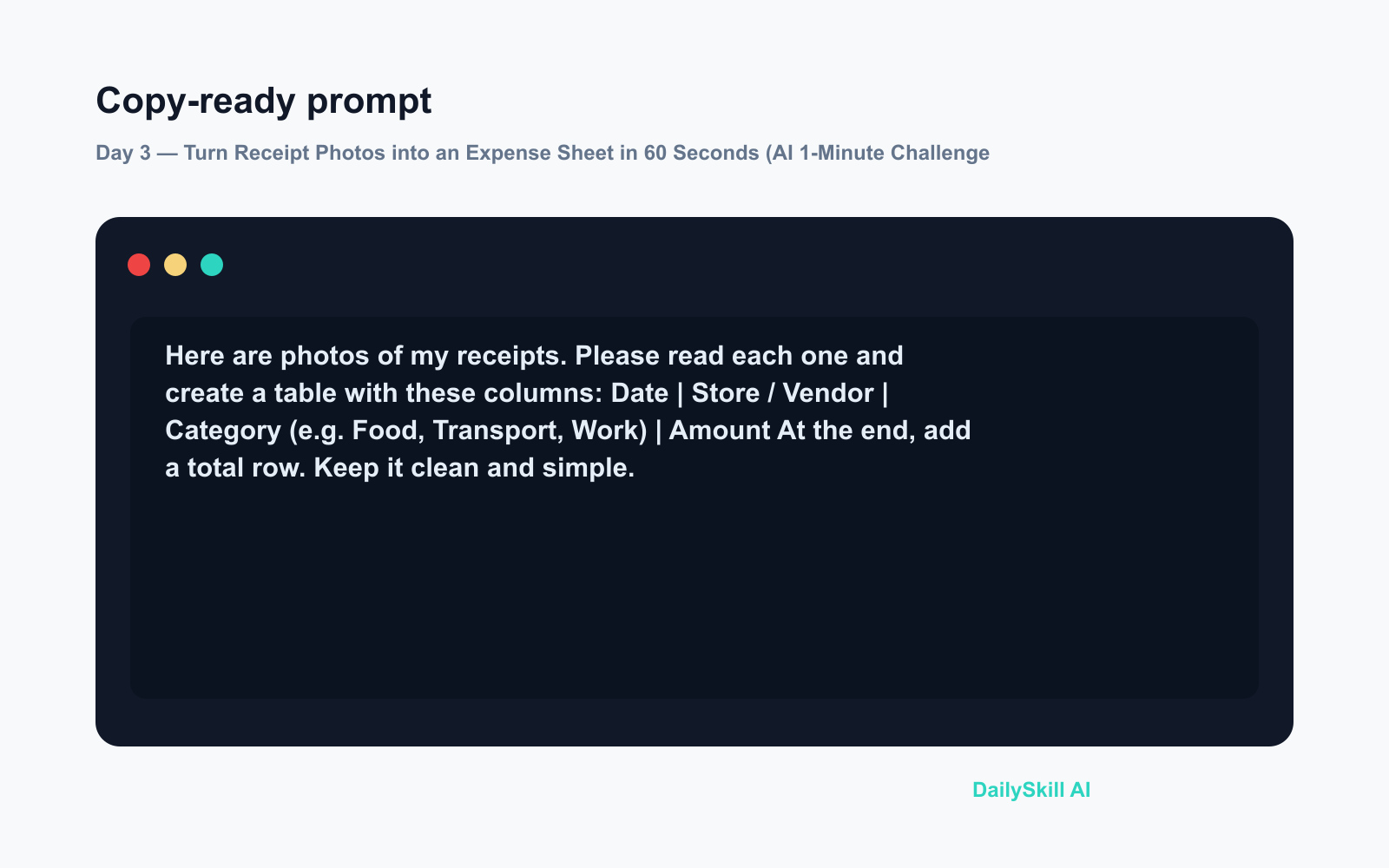
Here are photos of my receipts. Please read each one and create a table with these columns:
Date | Store / Vendor | Category (e.g. Food, Transport, Work) | Amount

At the end, add a total row. Keep it clean and simple.
That’s it. Gemini reads each receipt and hands you back a formatted table in seconds.
Real example
You upload: Five receipt photos — a supermarket, a coffee shop, an Uber ride, a pharmacy, and a work lunch.
Gemini returns:
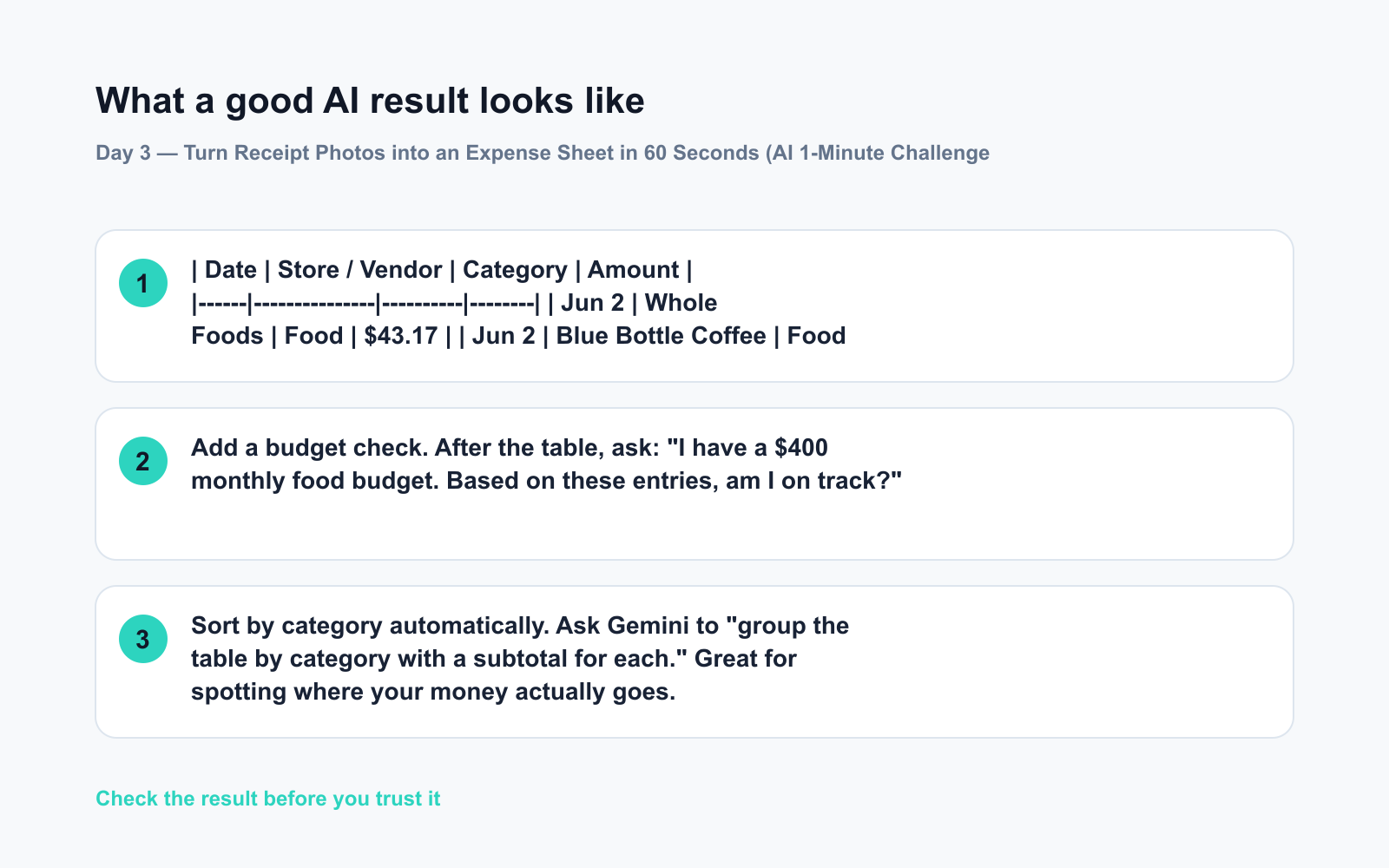
Date Store / Vendor Category Amount Jun 2 Whole Foods Food $43.17 Jun 2 Blue Bottle Coffee Food $6.50 Jun 3 Uber Transport $12.40 Jun 3 CVS Pharmacy Health $18.99 Jun 4 Sweetgreen Work Meal $16.75 Total $97.81
Copy that table, paste it into Google Sheets, and your AI expense tracker is live. Done before your coffee gets cold.
Level up
- Add a budget check. After the table, ask: “I have a $400 monthly food budget. Based on these entries, am I on track?”
- Sort by category automatically. Ask Gemini to “group the table by category with a subtotal for each.” Great for spotting where your money actually goes.
- Go paperless for good. Make it a weekly Sunday habit — five minutes, all receipts cleared, spending visible. That’s AI budgeting without a fancy app.
FAQ
Can Gemini read blurry or crumpled receipts?
Usually yes — it handles real-world photos well. If a receipt is very dark or folded over key numbers, just smooth it out and retake the shot. You’ll know immediately if it missed something because the amount will look off.
Do I need a paid Gemini plan to upload photos?
No. Uploading images and reading receipts works on Gemini’s free tier. Just make sure you’re signed into a Google account.
Can I paste the table directly into Excel or Google Sheets?
Yes. Copy the table from Gemini, open your spreadsheet, and paste. Google Sheets in particular preserves the columns cleanly. You can then add formulas, color-code categories, or build a chart on top.
Today’s check-in
Try it with just two or three receipts from this week — see how fast Gemini reads them and builds your table. Drop your biggest surprise in the comments: what category ended up costing more than you expected?
Tomorrow on Day 4: Got a long PDF you don’t have time to read? We’ll show you how to pull out the 3 key points from any document in under 60 seconds.
You might also like:
- Why Does AI Sometimes Give Confidently Wrong Answers?
- Claude — The AI Assistant That Actually Reads the Whole Document
⭐ Want every prompt in one place?
All 136 tested prompts from our daily skills are free on
GitHub — DailySkill Prompt Library.
Star it to get new prompts as we publish.
More on AI for Work & Productivity:
- AI for Small Business Owners: 8 Practical Ways to Save Time in 2026
- Can AI Actually Help You Make Money? (Realistic Ways That Work in 2026)
- Can AI Help Me With Excel Formulas and Spreadsheets? (Yes, Here’s How)