Ever open a report, select all, copy, switch to your AI chat, paste, and then finally ask your question? That’s three extra steps before you even get an answer.
Here’s the fix: today’s assistants can connect directly to the tools you already use — Google Drive, Docs, Notion, your calendar — so they read the file themselves. No copy, no paste, no missing the one paragraph you forgot to select.
Sound familiar?
You’ve got a spreadsheet, a doc, or a set of notes. You want a quick summary or a few takeaways. So you copy the whole thing into the chat box, hope you didn’t cut anything off, and wait.
Multiply that by every file you check this week — that’s a lot of copy-paste for something AI can now just look at directly.
The 60-second fix
1. Find “Connect apps” or “Tools” in your AI assistant’s settings
Most major assistants (Claude, ChatGPT, Gemini) now have a settings or sidebar section for connecting outside tools. Look for words like “Connect,” “Integrations,” or “Tools.”
2. Click to connect the one tool you actually use
Pick something like Google Drive, Google Calendar, or Notion. Click connect, then log in the normal way — same click-through you’d use for any app. No codes, no keys to copy.
3. Ask about the file directly — no pasting needed
Once connected, just reference the file by name in your prompt.
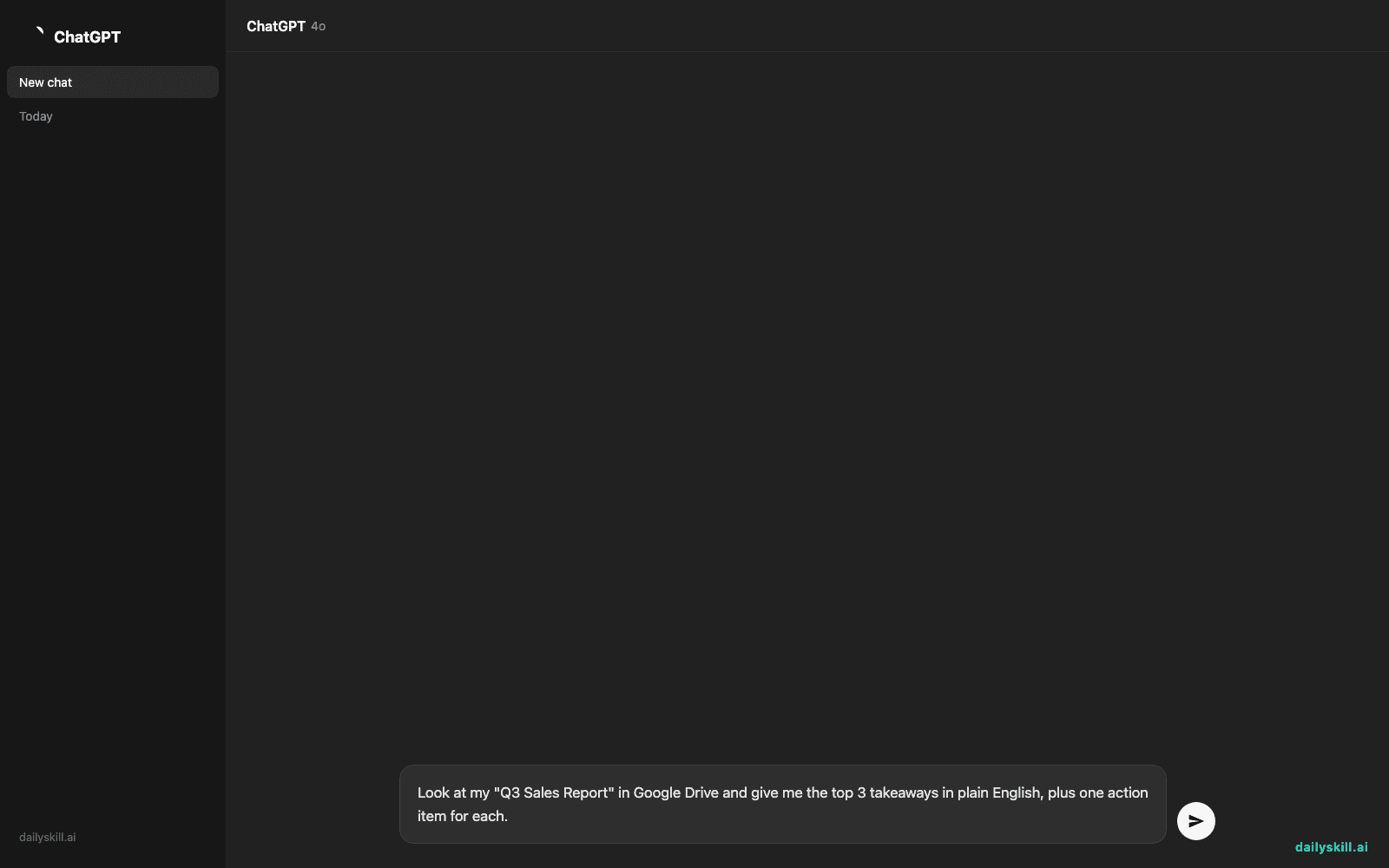
Look at my "Q3 Sales Report" in Google Drive and give me the top 3 takeaways in plain English, plus one action item for each.
Real example
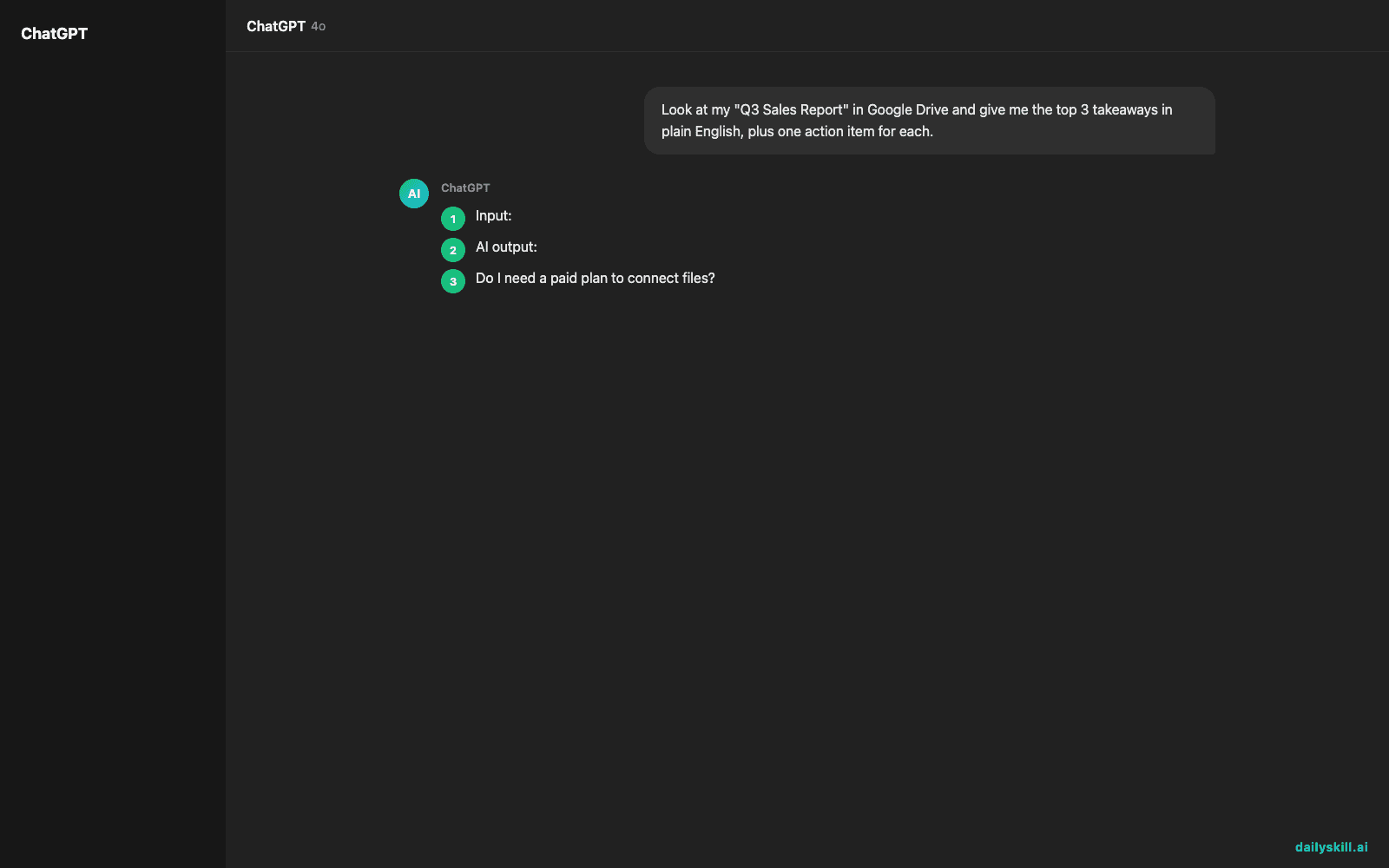
Input: A Google Sheet titled “Q3 Sales Report” with columns for Region, Revenue, and Growth %.
AI output:
- West region grew 18% — driven mostly by the new subscription plan launched in August.
- East region revenue dropped 4%, mainly due to lower renewal rates in September.
- Overall revenue is up 9% quarter-over-quarter, on track to hit the yearly goal.
Action items: follow up with the East region team on renewal outreach, and put more marketing behind West region’s subscription plan.
No copying. No pasting. You asked, it looked, it answered.
Level up
- Connect your calendar too: try “What’s my busiest day this week, and is there anything I could move?”
- Connect your notes app: ask it to turn last week’s meeting notes into a one-paragraph recap for your team.
- Stay minimal: only connect tools you actually use for this. You can disconnect anytime from the same settings menu.
FAQ
Do I need a paid plan to connect files?
Not usually — most assistants now offer basic connections on their free tier. Check the “Connect” or “Tools” menu in your app to see what’s available to you right now.
Is this safe for work documents?
It can be, but check your company’s policy first. When connecting, only grant access to the specific tool or folder you need — skip “connect everything” options.
What if I don’t see a “Connect” option anywhere?
Update your app to the latest version, or check the settings/tools menu again — this feature rolled out at different times across different assistants.
Today’s check-in
Drop a comment: which tool would you connect first — Drive, Calendar, or Notion? Tomorrow: the one-line prompt that turns any long email thread into a 3-bullet decision summary.
You might also like:
Master Everyday AI in 1 Minute a Day
Get our free 2026 Double-Blind AI Benchmark Scorecard & 20 Ready-to-Use Prompts, plus one honest, 60-second AI skill in your inbox every morning. Zero hype, plain English, cancel anytime.