
Ever ask AI to summarize a 3-line email… and wait 15 seconds like it’s solving world hunger?
Here’s the fix: pick a faster, lighter model for small tasks and save the “smart” model for stuff that actually matters. Takes 10 seconds to choose, and you’ll feel the speed difference immediately.
Sound familiar?
You open ChatGPT, Claude, or Gemini and just type into whatever’s already selected. Every time. A quick meeting recap and a complex contract review get the exact same model.
Result: simple stuff feels slow, and you never even notice the option sitting right there to speed things up — or to get sharper answers on the hard stuff.
The 60-second fix
Step 1: Know your two lanes
Most AI apps now offer two general flavors of model, even if the exact names change often:
- Lightweight/fast — built for quick, simple tasks. Near-instant replies.
- Powerful/deep-thinking — built for complex reasoning, long documents, tricky analysis. Slower, but sharper.
Step 2: Pick the lane BEFORE you start typing
Open the model selector (usually a small dropdown near the chat box or top of the screen). Choose your lane first, then start the conversation — switching mid-chat can lose context.
Step 3: Use this prompt to test the difference
Copy this into the fast/lightweight model first, then paste the same thing into the powerful model. Compare.
Summarize this in 3 bullet points, plain language, no jargon:

[paste your text here]
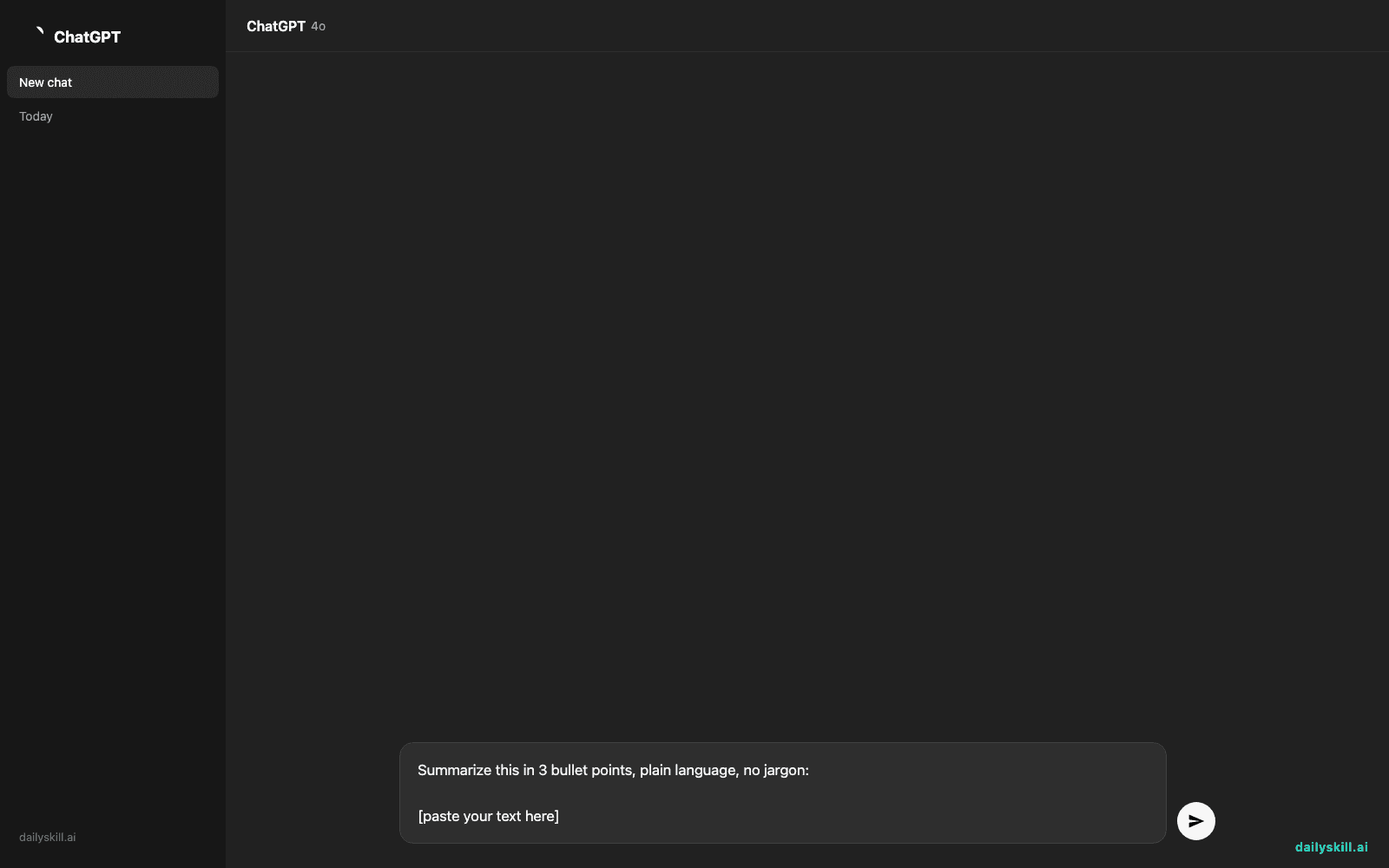
Notice how the fast model answers almost instantly — and for something this simple, that’s all you need.
Real example
Input (pasted into a fast/light model):
“Hi team, quick update — the Q3 budget review is pushed to next Thursday because finance needs two more days to reconcile the marketing spend. No action needed from you yet, but please block your calendar just in case we need a 15-min sync Friday morning.”
Output (in about 3 seconds):
- Q3 budget review moved to next Thursday
- Reason: finance needs more time to reconcile marketing spend
- Action: block Friday morning, just in case a quick sync is needed
That’s it — no need to fire up a “deep thinking” model for a 4-line email recap.
Now try a real contract clause or a messy spreadsheet dump in the powerful model instead — you’ll notice it catches nuances the fast model glosses over, like conflicting dates or hidden fees.
Level up
- Batch your light tasks: do all your quick summaries, translations, and email drafts in one sitting using the fast model — it feels almost like texting.
- Save the powerful model for “if I get this wrong, it costs me” tasks: legal docs, financial analysis, big presentations.
- Start a fresh chat each time you switch tasks — this keeps the model’s focus clean and its answers sharper.
FAQ
Q: Do I have to pay extra to use the “powerful” model?
A: Often the fast model is free or included in every plan, while the most powerful option may need a paid tier — check your app’s pricing page, since this changes often.
Q: What if I don’t see a model picker in my app?
A: Look near the chat input box or in settings — it’s usually labeled “model” or shows a small dropdown with a couple of names.
Q: Can I switch models mid-conversation?
A: You can, but it may lose some context from earlier in the chat. It’s cleaner to pick your model when you start a new conversation.
Today’s check-in
Try this today: pick one quick task and one important task, run each through a different model lane, and drop your before/after time in the comments.
Tomorrow: a 1-minute trick to turn any messy meeting notes into a clean action list — automatically.
You might also like:
Master Everyday AI in 1 Minute a Day
Get our free 2026 Double-Blind AI Benchmark Scorecard & 20 Ready-to-Use Prompts, plus one honest, 60-second AI skill in your inbox every morning. Zero hype, plain English, cancel anytime.