Ever ask AI a real question — not “what’s the capital of France” but something that actually matters — and get back an answer that feels like a shrug?
Here’s the fix: most AI tools have a slower, deeper “reasoning mode” sitting right next to the fast one. Turn it on for the right questions, and the same AI suddenly sounds like it actually thought about your problem.
Sound familiar?
You paste a messy report into AI and type “summarize this.” You get three flat paragraphs that just repeat the report in fewer words. No insight, no structure, nothing you could actually use in a meeting.
The AI isn’t broken. It just gave you a fast, shallow answer because you asked a fast, shallow question.
The 60-second fix
Step 1: Sort the task first
Quick tasks — translating a sentence, fixing grammar, looking up a fact — don’t need deep thinking. Save that mode for anything involving a decision, a comparison, or “what should I do here.”
Step 2: Turn on the deeper mode
Look for a toggle or button near the chat box labeled something like “Think,” “Reasoning,” “Extended thinking,” or “Deep Think” (naming varies by app and changes over time — if you don’t see one, just ask the AI directly to “think step by step before answering”). Switch it on before you send your question.
Step 3: Ask for structure, not a summary
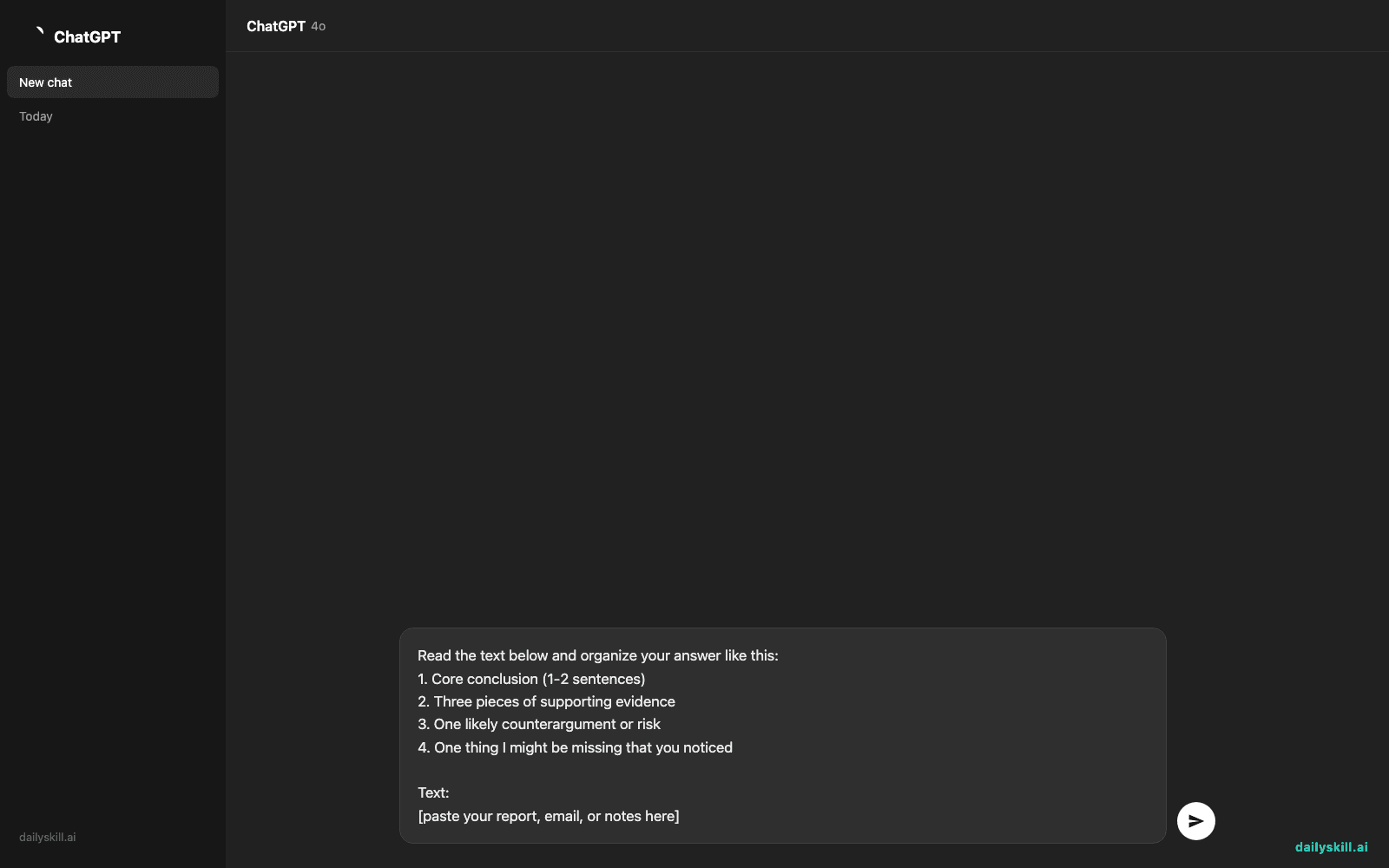
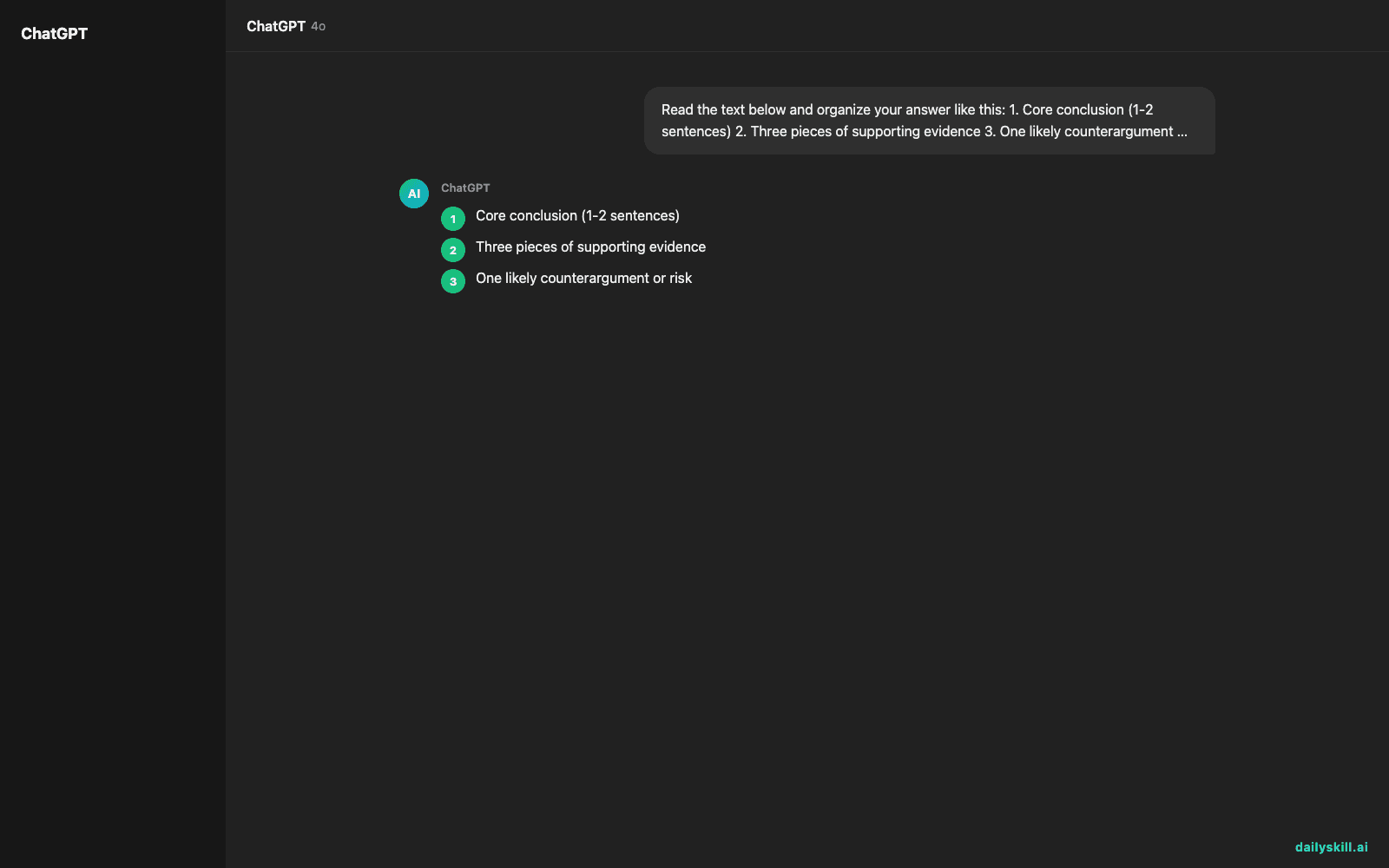
Instead of “summarize this,” tell the AI exactly what shape you want the answer in. Copy this prompt and drop your text or file right after it:
Read the text below and organize your answer like this:
1. Core conclusion (1-2 sentences)
2. Three pieces of supporting evidence
3. One likely counterargument or risk
4. One thing I might be missing that you noticed

Text:
[paste your report, email, or notes here]
Real example
Input: A messy 2-page client proposal about switching the team to a new project management tool.
Old way (“summarize this”):
“The proposal suggests switching to a new project tool to improve team efficiency. It covers cost, training time, and expected benefits. The team should consider the switch carefully.”
Flat. Vague. Nothing you can act on.
New way (deep think mode + structured prompt):
- Core conclusion: Switch to the new tool in Q2, not now — the case is strong but the timing is risky.
- Evidence: (a) Saves ~4 hours/week per person on status updates, (b) Competitor case study shows 20% faster delivery, (c) Current tool contract ends in March anyway.
- Counterargument: Team just finished onboarding to the current tool 3 months ago — a second switch this fast could tank morale.
- What you might be missing: No one has asked the two junior team members who’ll do most of the manual data migration.
That’s a real decision brief, not a summary.
Level up
- Add “Point out the weakest part of your own answer” at the end of any prompt — it makes the AI self-check its logic before you rely on it.
- For big decisions, ask it to argue both sides first: “Give me the strongest case for and against this, then tell me which side wins and why.”
- Save your favorite structured prompt (like the one above) in a notes app so you can reuse it in 5 seconds next time.
FAQ
Do I need a paid plan to use “deep think” mode?
Many AI apps now offer some version of a slower reasoning mode even on free plans, though limits and exact names vary. Check the toggle near your chat box — if it’s not there, just ask the AI to “think through this step by step” and it will slow down anyway.
Will deep think mode always give a better answer?
Not for simple stuff. For a quick translation or spell-check, the fast mode is fine and quicker. Save the slow mode for anything with real stakes or multiple angles.
What if the AI still gives a generic answer even in deep think mode?
Your prompt probably needs more structure. Tell it exactly what sections you want (like the 1-2-3-4 format above) — the mode helps it think longer, but you still have to tell it what to think about.
Today’s check-in
Try the copy-paste prompt above on one real email, report, or decision you’re facing today, then drop your before/after in the comments — we’ll feature the best one. Tomorrow: the one-line trick that stops AI from making up facts it doesn’t actually know.
You might also like: