AI video is the fastest-moving area of AI in 2025-2026, and Runway is one of the leading tools. It can turn a text description into a short video clip, animate a still photo, or apply visual effects to existing footage — no video editing skills required.
The output isn’t perfect, but it’s gotten dramatically better in the past year. Here’s a realistic look at what Runway can do and when it’s worth using.
What Runway Does
Text to Video (Gen-3 Alpha): Type a description of a scene and Runway generates a 5-10 second video clip. The quality is cinematic for a short clip — smooth camera movement, realistic lighting, coherent motion.
Image to Video: Upload a still image and Runway brings it to life — a portrait opens its eyes, a landscape has moving clouds, a product spins slowly.
Video to Video: Transform existing footage with a style prompt — “make this look like a watercolor painting” or “add cinematic grain and color grade.”
Motion Brush: Manually paint motion onto specific areas of an image — make only the hair move in a portrait, only the water ripple in a landscape photo.
Inpainting: Replace or remove objects in video, frame by frame.
What It’s Actually Like to Use
Runway is accessible to beginners — you don’t need to know video editing or understand AI. The interface is clean, with a text prompt box and a generate button.
The reality of current AI video:
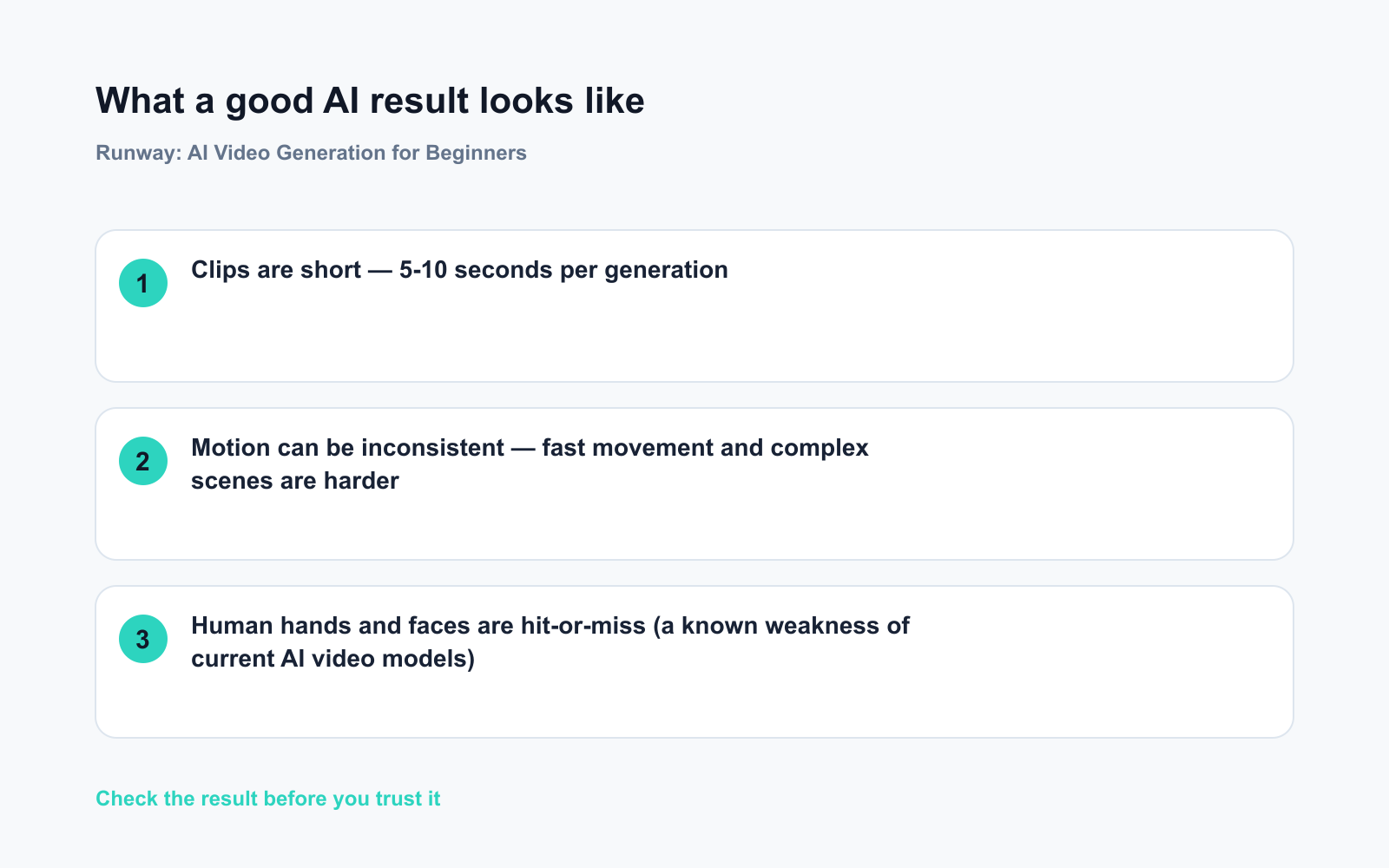
– Clips are short — 5-10 seconds per generation
– Motion can be inconsistent — fast movement and complex scenes are harder
– Human hands and faces are hit-or-miss (a known weakness of current AI video models)
– Iteration is key — most good AI video requires multiple generations, varying the prompt
Think of Runway as a tool for generating short atmospheric clips and b-roll, not feature films.
Getting Started (Free Account)
- Go to runwayml.com and create a free account
- Click “Generate” → “Text/Image to Video”
- Type your prompt or upload an image
- Click “Generate”
Free accounts get a monthly credit allowance — enough to experiment and get a feel for the tool.
Example text-to-video prompts:
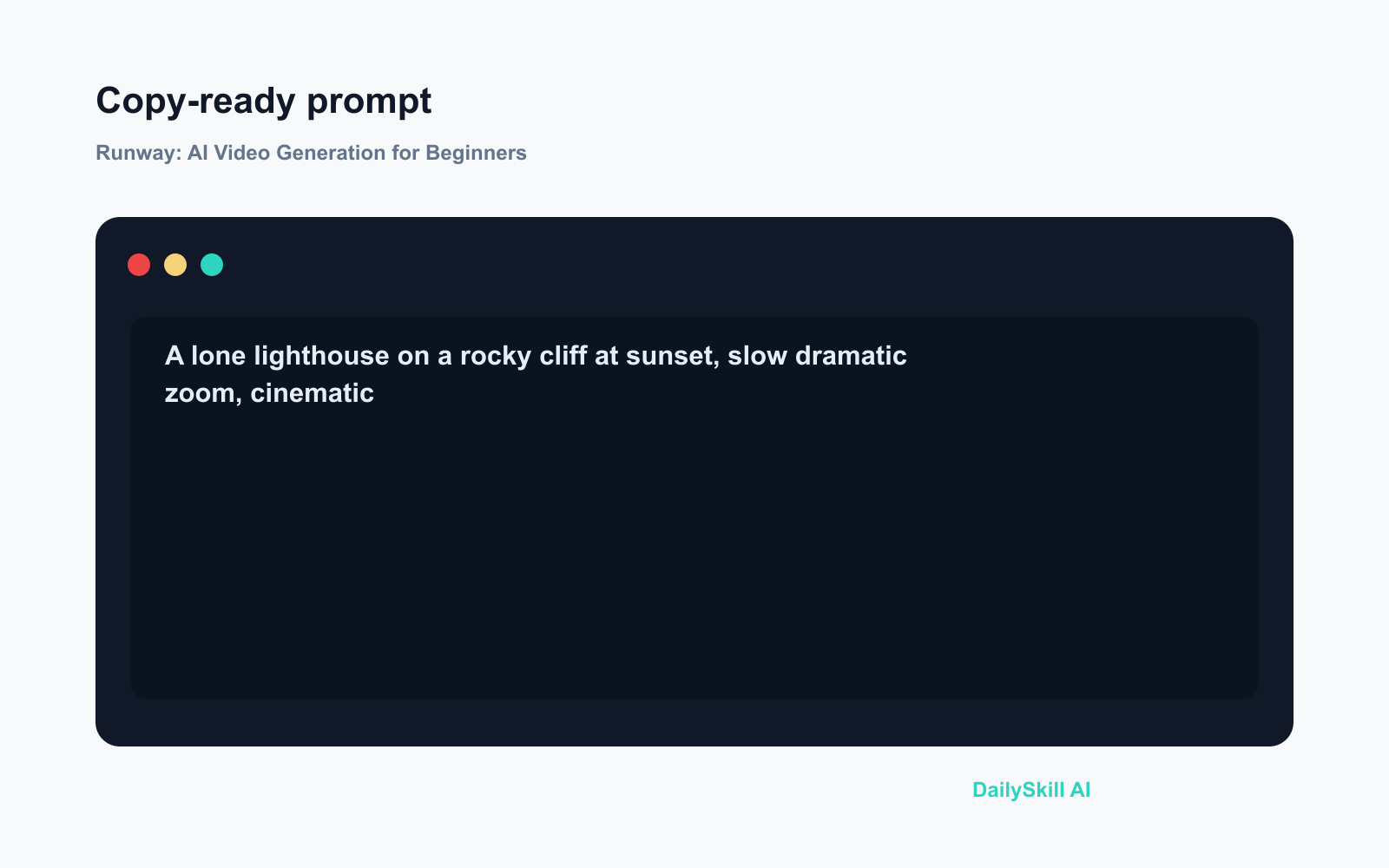
A lone lighthouse on a rocky cliff at sunset, slow dramatic zoom, cinematic
Aerial shot slowly rising over a misty forest at dawn, peaceful, 4K quality
Close-up of coffee being poured into a white mug in slow motion, steam rising, natural light
What makes prompts work:
– Describe camera movement: “slow zoom in,” “dolly shot,” “aerial pull back”
– Specify mood and lighting: “golden hour,” “moody overcast,” “neon-lit”
– Keep scenes simple — one main subject works better than complex compositions
When to Use Runway
Good use cases:
– Background video loops for presentations or events
– Atmospheric b-roll for YouTube videos or social content
– Animating product photos or still imagery
– Quick concept visualization — showing a client what a scene could feel like
– Creative experiments and personal projects
Where it struggles:
– Anything requiring consistent characters across multiple clips
– Long-form narrative video
– Precise text or logos within video
– Fast action sequences
Runway vs. Other AI Video Tools
| Tool | Strength | Free tier |
|---|---|---|
| Runway | Quality, control, professional features | Yes (limited) |
| Sora (OpenAI) | Very high quality | ChatGPT Plus/Pro |
| Kling AI | Long clips, good motion | Yes (limited) |
| Pika | Quick, easy for beginners | Yes |
| HeyGen | Talking avatars, not general video | Yes (limited) |
Runway is the most capable tool for general AI video on a free/low-cost plan. Sora (available via ChatGPT) produces comparable or better quality but requires a paid ChatGPT subscription.
Realistic Expectations
AI video in 2026 is where AI images were in 2022-2023 — impressive, but not quite photorealistic for anything complex. The outputs are often stunning for simple, atmospheric scenes. They look “off” when you push them into complex motion or detailed human faces.
The right frame: use it for what it’s good at (moody, atmospheric, abstract, product animation) and don’t expect feature-film realism from a free tool.
FAQ
Is it free?
There’s a free tier with limited monthly credits. For regular use, paid plans start at $15/month. The free tier is enough to learn and experiment.
Can I use Runway-generated videos commercially?
Yes, under Runway’s terms of service. Check the current terms for any updates, particularly around the commercial plan tier. Free plan outputs may have restrictions — paid plans include commercial rights.
How long are the video clips?
Currently 5-10 seconds per generation. Longer videos require multiple generations stitched together in a video editor.
Do I need to know how to edit video?
No — generating clips requires no editing knowledge. If you want to combine multiple clips into a longer video, you’d use a separate editor (CapCut free, iMovie, or DaVinci Resolve).
Related: HeyGen — create AI avatar videos without a camera · CapCut — free AI video editor for social
wp_post_id: 850
published_url: https://dailyskill.ai/runway-ai-turn-text-or-photos-into-video/
You might also like:
- Day 25 — Your 25-Trick Everyday AI Cheat Sheet (AI 1-Minute Challenge)
- Can AI Help Me With Excel Formulas and Spreadsheets?
⭐ Want every prompt in one place?
All 136 tested prompts from our daily skills are free on
GitHub — DailySkill Prompt Library.
Star it to get new prompts as we publish.