You open ChatGPT to finish a work email, and the model you always use isn’t in the list anymore.
Your stomach drops a little — did you lose your good results forever?
Here’s the answer first: no, you didn’t lose anything. In 60 seconds you can pick a new model that’s usually better than the one that vanished, using one simple prompt.
Sound familiar?
You had a model you liked. It gave good summaries, decent email drafts, no drama.
Then one day it’s just not in the dropdown menu anymore, replaced by names you don’t recognize.
You panic-click through options, pick one at random, and hope for the best.
That guessing game is exactly what we’re fixing today.
The 60-second fix
Step 1: Open the model menu and just look
Click the model selector (usually top-left or top-center of the chat screen).
You don’t need to understand every name — just notice which one is labeled “latest,” “balanced,” or has no “legacy”/”old” tag next to it.
Step 2: Pick the newest “balanced” option
Skip the “fastest/lite” and “most powerful/pro” extremes for now.
For everyday tasks — emails, summaries, translations — the middle “balanced” model gives you the best mix of speed and quality.
Step 3: Run this test prompt to confirm it works for you
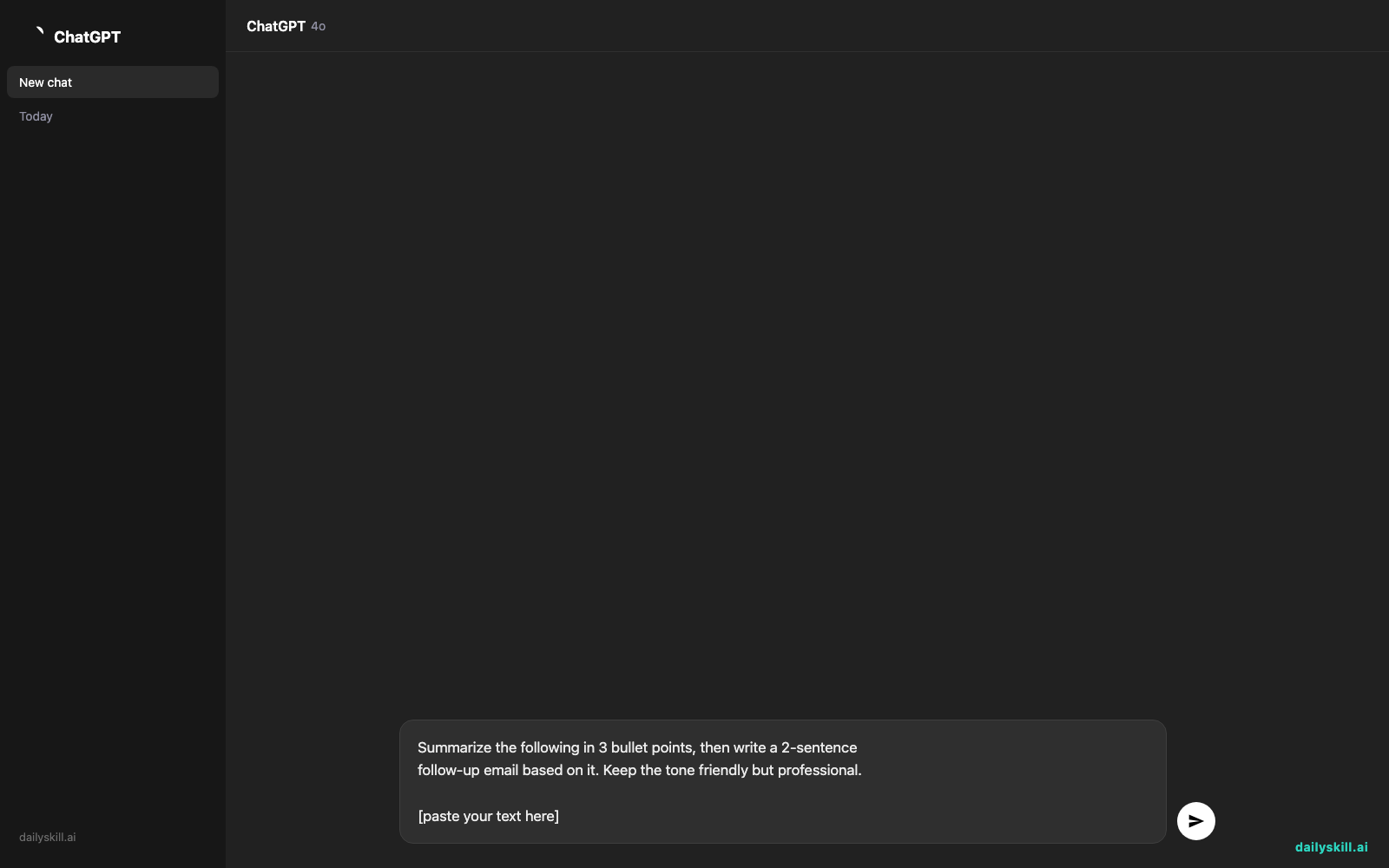
Paste this into the new model to see how it handles a real task:
Summarize the following in 3 bullet points, then write a 2-sentence
follow-up email based on it. Keep the tone friendly but professional.

[paste your text here]
If the output feels clear and usable, you’re set. If not, try one model up or down and repeat.
Real example
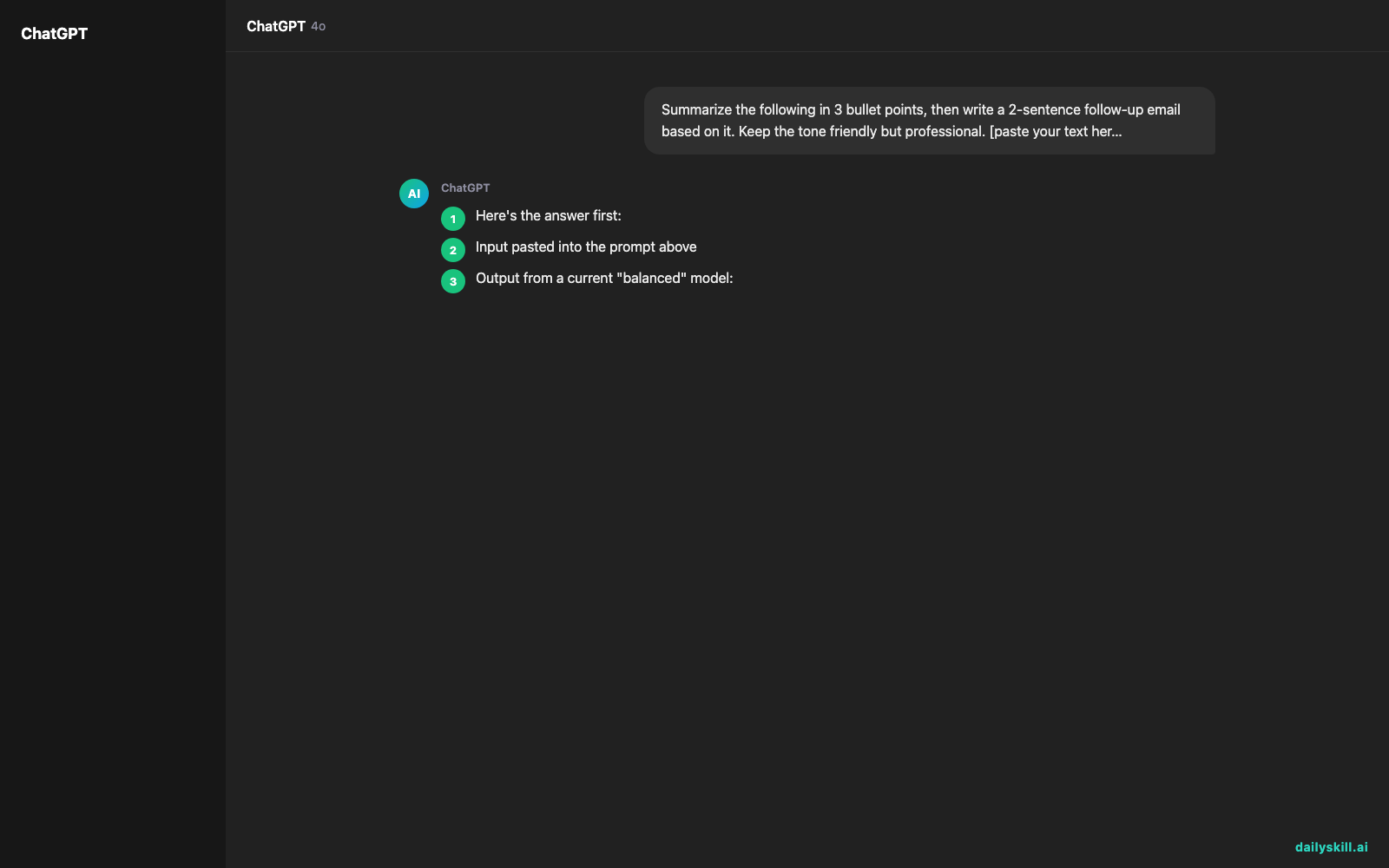
Input pasted into the prompt above (a meeting note):
“Q3 sales dropped 8% in the east region, mainly due to a delayed product launch. Marketing suggests running a discount campaign in October to recover. Ops team needs final approval by Friday.”
Output from a current “balanced” model:
- East region sales fell 8% in Q3, largely due to a delayed product launch.
- Marketing recommends an October discount campaign to help recover lost sales.
- Ops team is waiting on final approval by Friday to move forward.
Follow-up email: “Hi team, following up on the Q3 dip in east region sales — mainly tied to the launch delay. Marketing’s October discount plan looks promising, so let’s finalize approval by Friday so Ops can proceed.”
That’s a usable draft in one pass — no rewriting from scratch.
Level up
- Comparing two models? Paste the exact same prompt into both, side by side, and see which email draft you’d actually send without editing.
- Working with long documents? Newer “balanced” models often handle much longer files at once — try pasting a full report instead of chunks.
- Automating repeat tasks? If your tool mentions “agent” or “automatic task” features, that usually means it can complete multi-step jobs (like research + draft + format) with less back-and-forth from you.
FAQ
Why did my AI model just disappear with no warning?
AI companies regularly retire older models once newer ones perform better, similar to how apps get discontinued. Your account and chat history stay intact — only the model name changes.
Will a newer model give worse results than the one I’m used to?
Usually not. Newer “balanced” models are typically upgrades in both speed and accuracy. If a result feels off, just try the test prompt above on a different option in the list.
Do I need to change any settings to keep using AI normally?
No settings needed — just reselect a model from the dropdown. Your prompts, files, and past chats work the same way.
Today’s check-in
Try the test prompt above with your current model and drop your one-line result in the community chat — good, meh, or great?
Tomorrow: the 1-minute trick to turn any messy voice memo into a clean to-do list.
You might also like:
More on Choosing & Using AI Tools:
- Adobe Firefly: The AI Image Generator Built for Real Work
- Anthropic Introduces Claude Sonnet 5: Its Most Agentic Sonnet
- Best Free AI Tools in 2026: The Honest Guide for Normal People