You’ve been there
You hit send, then immediately spot “definately” sitting right there in the second line. Or your follow-up email sounds impatient when you meant it to sound friendly. Grammarly catches those moments before they land in someone’s inbox — working silently inside your browser as you type. It’s for anyone who writes emails, messages, or documents at work or school.
What it is
Grammarly sits in the background while you write. It underlines mistakes and suggests fixes in real time — like spell-check, except it also catches awkward phrasing, wrong tone, and unclear sentences that spell-check completely misses. It works inside Gmail, Google Docs, LinkedIn, and most websites where you type.
It’s not a robot rewriting everything for you. Think of it as a sharp-eyed colleague reading over your shoulder, tapping you on the arm when something sounds off.
Try it in 5 minutes
- Go to grammarly.com and create a free account — just an email and password.
- Click “Add to Chrome” (or your browser of choice) to install the free extension.
- Open Gmail or any site with a text box and start typing.
- Watch Grammarly underline suggestions in real time — click any underline to see the fix.
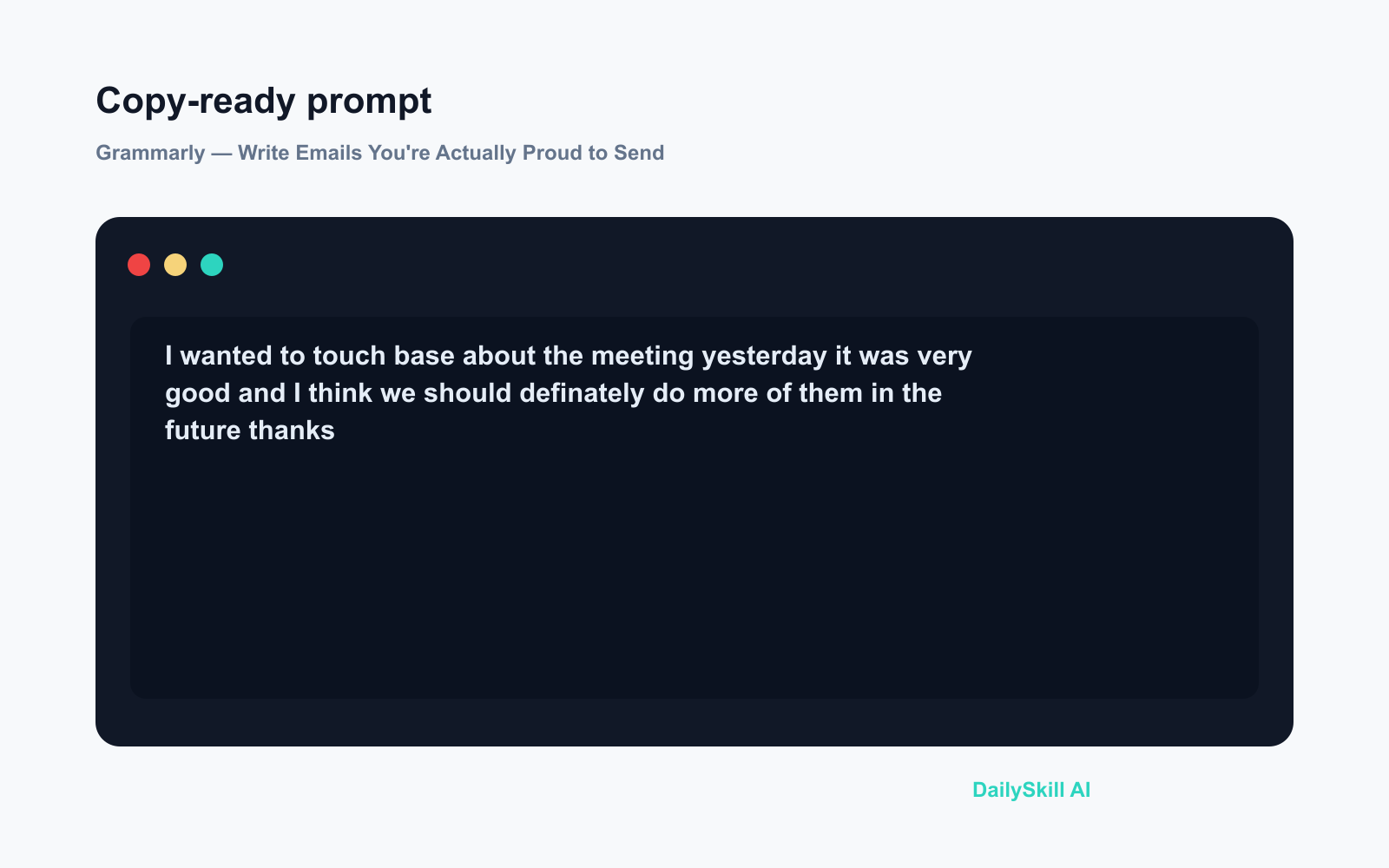
- To test it immediately, paste this into any text box:
I wanted to touch base about the meeting yesterday it was very good
and I think we should definately do more of them in the future thanks
- Accept or ignore each suggestion with one click.
A real example
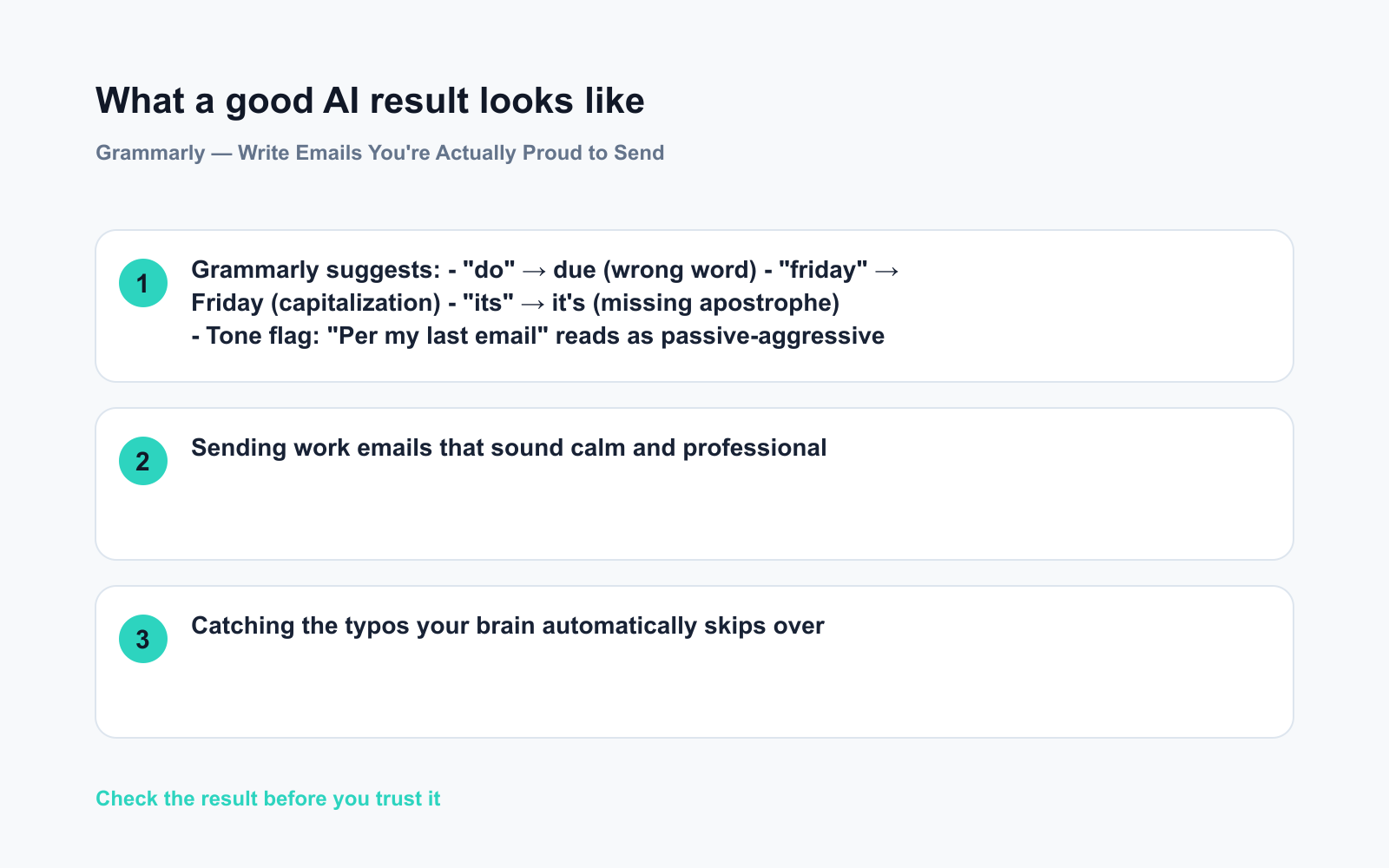
You type: “Per my last email, the report is do by friday and its very important that you send it.”
Grammarly suggests:
– “do” → due (wrong word)
– “friday” → Friday (capitalization)
– “its” → it’s (missing apostrophe)
– Tone flag: “Per my last email” reads as passive-aggressive — suggests softer phrasing
– Clarity suggestion: cut “very important” and say “please send it by Friday” instead
You get a cleaner, more professional message in about 10 seconds.
Honest take
Best for:
– Sending work emails that sound calm and professional
– Catching the typos your brain automatically skips over
– Anyone writing in English as a second language who wants a quiet safety net
Not for:
– Writing with a strong personal voice — Grammarly regularly nudges distinctive phrasing toward bland, “safe” corporate English, and accepting every suggestion can make your writing sound like everyone else’s
– Non-English languages — it’s built for English first, and support for other languages is inconsistent
Free tier: The free plan covers grammar, spelling, and punctuation — genuinely useful on its own. The paid plan (Grammarly Pro) adds tone rewrites, full sentence restructuring, and a plagiarism checker. You don’t need to upgrade to get real value from day one.
FAQ
Is Grammarly actually free?
Yes. The free plan has no time limit and no credit card required. Most everyday users find the free tier more than enough — the paid plan is mainly worth it if you write long documents or need the plagiarism checker.
Is it safe to use for work emails?
Grammarly processes your text on its servers to generate suggestions. They publish a privacy policy and offer a Business tier with stricter data controls. For sensitive company documents, check your employer’s software policy first — and if you’re unsure, use the standalone editor at grammarly.com rather than the browser extension.
Do I need to install anything?
No. You can paste text directly into the editor at grammarly.com without installing a thing. The browser extension is simply more convenient if you want suggestions everywhere you type.
Today’s pick
Grammarly is the closest thing to a proofreader on call 24/7 — and the free plan does the job for most people without spending a cent. If you send more than five emails a day, it’s worth two minutes of your time to set it up.
Tried Grammarly? Drop your experience in the comments — does it catch things you always miss, or does it sometimes flatten your writing in ways that drive you a little crazy? We read every reply.
Tomorrow we’re looking at Microsoft Copilot — the AI assistant built directly into Word, Excel, and Outlook. If you already live inside Microsoft 365, you’ll want to see this one.
You might also like:
- Day 12 — AI Interview Prep: Get 10 Real Questions + Model Answers in Minutes (AI 1-Minute Challenge)
- Can AI Just Write My Whole Essay or Report for Me?
⭐ Want every prompt in one place?
All 136 tested prompts from our daily skills are free on
GitHub — DailySkill Prompt Library.
Star it to get new prompts as we publish.